Company Address Book
A searchable company directory with access controls, built automatically from employees' digital business cards and shareable across group companies.
In a growing company, questions like "Who should I contact in Accounting?" or "What was the number of the sales manager at the Chicago office?" waste time every day. The EcoQrCard company address book is a company directory built automatically from employees' digital business cards: always up to date and permission-controlled.
What problem does it solve?
Phone lists kept in Excel or on the intranet go out of date until someone updates them; people who have left stay on the list, and new hires wait to be added. The file shows everyone the same information, and there is no way to control who can see whom. In corporate groups, every company keeps its own separate list.
- Employees find colleagues in the address book, call or email them with one tap, and share their business cards with customers.
- The company administrator never adds anyone to the directory by hand; they only decide who can see whom. In holdings, the group administrator sets up sharing between companies.
How does it work?
- Business cards are created: As soon as an employee's active digital business card is created, the person appears in the directory. When you import users in bulk via Excel, their business cards can be created automatically too.
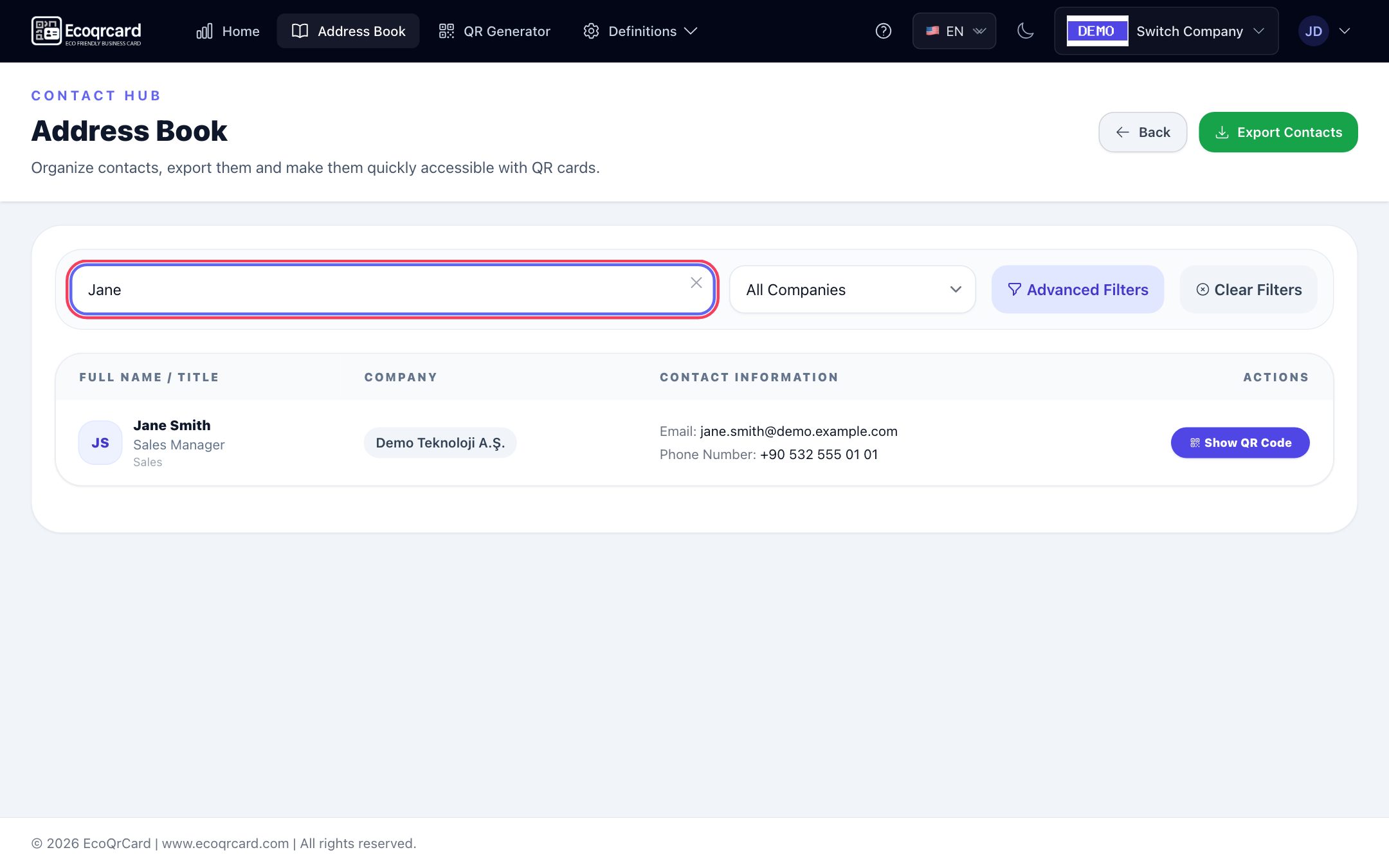
- Details come from the business card: The list shows name, job title, department, email and phone. When the business card is updated, the directory is updated too.
- Visibility is configured (optional): By default, everyone sees all of their colleagues in the company; if you wish, you narrow this down with visibility groups.
- Employees use it: They search, filter, click an email address or phone number to get in touch directly, and open and share business cards.
- People who leave drop out automatically: When a user or their card is set to inactive, the person disappears from the directory.
The directory lists employees with the user role whose account and business card are both active; company administrator accounts are not shown.
Advanced search and filters
| Tool | What it does |
|---|---|
| Contact search | Instant search by first or last name |
| Company selection | Show the contacts of a single company if you can see more than one |
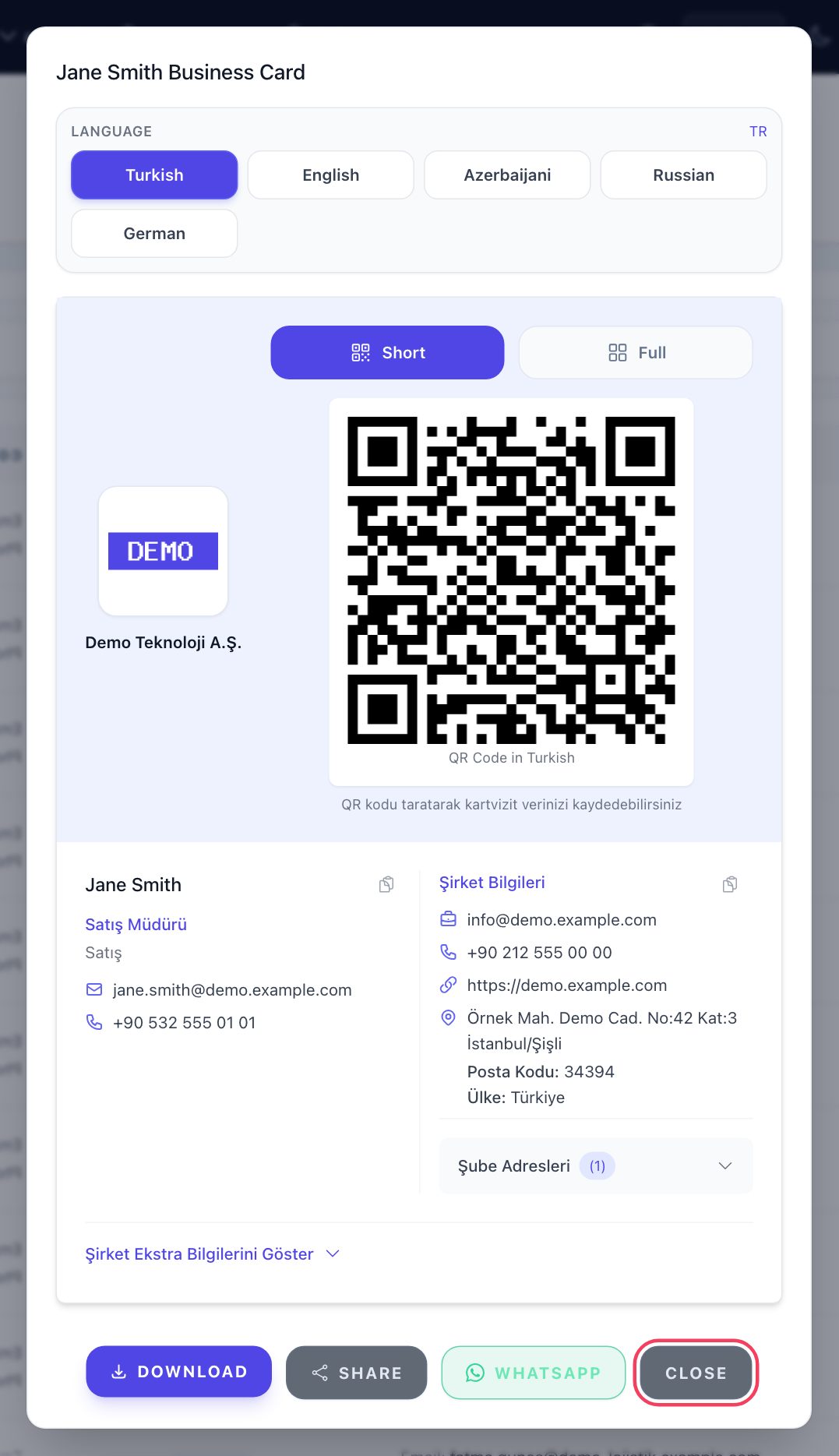
| Department filter | For example, only the Sales or HR team |
| Job title filter | For example, all regional managers |
| City/district filter | People whose company is located in a specific city (useful for group companies) |
| Creation date | People whose business card was created today, in the last 7 days, this month or this year; handy for spotting new joiners |
Selected filters appear on screen as tags, and you can remove them one by one or all at once. On phones, the list is shown as easy-to-read contact cards.
Business cards, QR codes and saving contacts
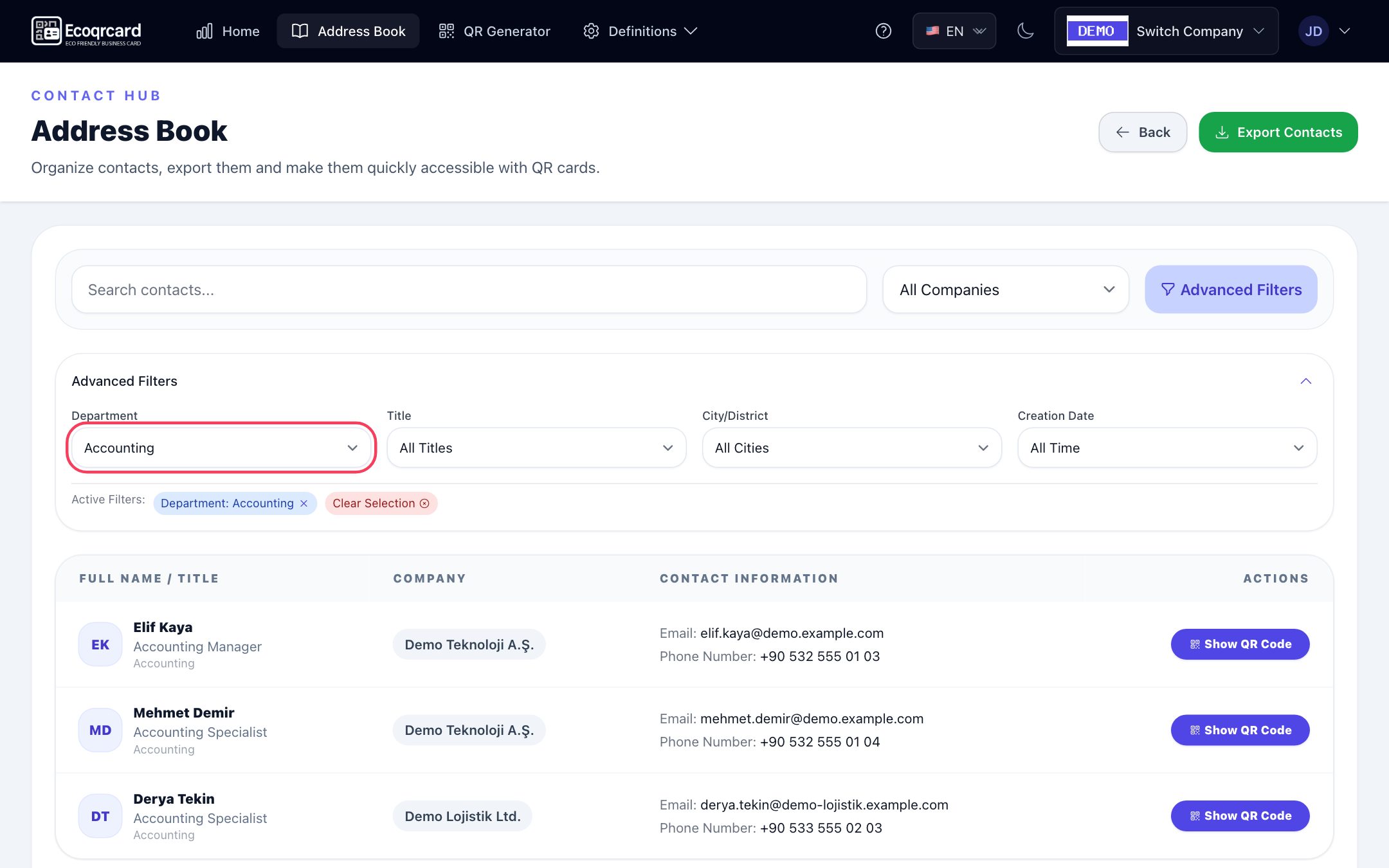
You open the business card of anyone in the directory with Show QR Code. The window that opens shows the person's details, their company's details and the QR code. From there you can:
- View the business card in any of the five languages and switch between the short and full versions,
- Download the QR code as a PNG and the contact card as a VCF to save it to your phone's contacts,
- Forward the business card link to a customer or business partner via WhatsApp.
When you need to refer a customer to the right colleague, you send that person's business card straight to the customer.
Add your frequent contacts to your Home page
Users can add the people they work with every day to the quick access area on their own Home page with Add to Home. That way, the business cards of their most frequent contacts are one tap away, without opening the address book.
Visibility groups: who sees whom?
Not every company wants its directory open to everyone. Visibility groups let you narrow it down to fit your needs:
| Group type | Who do members see? |
|---|---|
| Private | Only members of the same group |
| Restricted | Their own group plus the other groups you allow |
| Public | Everyone in the company |
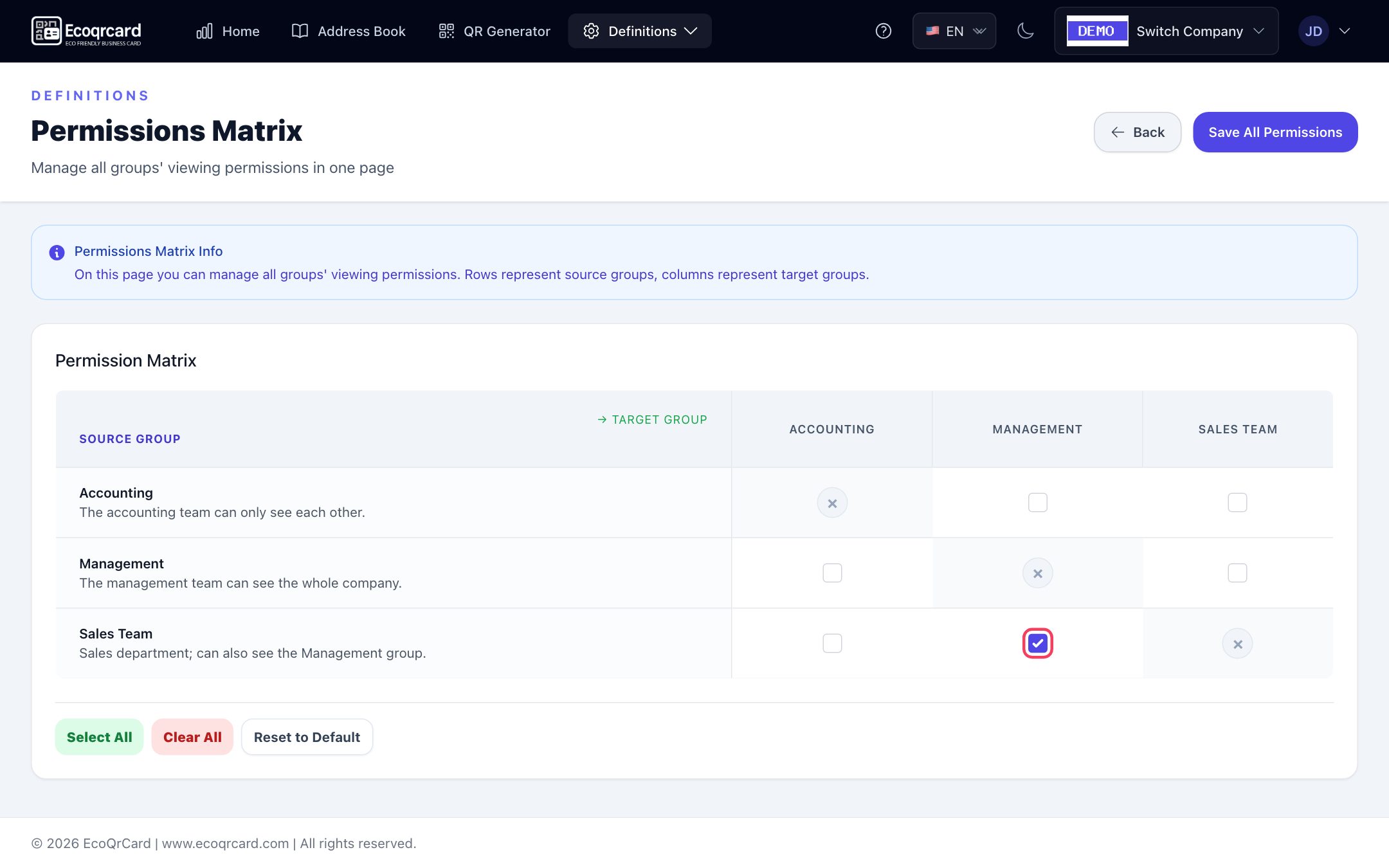
Users who are not in any group see everyone. For example, the field sales team might see only their own team and customer service, while the management team sees everyone. Permissions are one-way and are managed together through a permission matrix.
A shared directory for holdings and group companies
In groups with several companies, the address book can cross company boundaries. The group administrator chooses, for each company's address book, which group companies' employees appear in it. The choice is one-way: company A seeing company B does not mean B sees A. Users who can see contacts from more than one company see each person's company in the list and can narrow the search down to a single company.
Export to Excel
Export the directory to an Excel file with one click. The file includes first name, last name, job title, department, email, phone, company, city, country and creation date. Only the people you are allowed to see and who match your filters are exported; permission rules apply to exports as well.
Everyday use cases
- A customer on the phone: Reception or sales uses the department filter to find the right specialist and forwards their business card via WhatsApp.
- New employees: In their first week, they get to know the new joiners with the "This month" filter and their own team with the department filter.
- Field teams: While with a customer, they check the directory on their phone and call the right person at head office.
- Collaboration within a holding: The accounting contact at a sister company is reached through company selection.
- Privacy: A specific team's details are visible only to the relevant groups.
Compared with an Excel list
| Excel phone list | EcoQrCard address book |
|---|---|
| Goes out of date until someone updates it | The directory updates when the business card changes |
| The file shows everyone the same information | A personalized view with visibility groups |
| People who have left stay on the list | Inactive users drop out of the directory automatically |
| Group companies keep separate files | A shared directory with permission-based sharing |
| Hard to read on a phone | Mobile-friendly contact cards, call with one tap |
Because the directory, the business card and the email signature all draw on the same business card details, information is updated in one place.
Get your company directory in order
The company address book works in the same platform as the digital business card and the email signature, with no extra setup required. For a setup that fits your organization, request a quote or explore all the modules on the features page.
Frequently Asked Questions About the Company Address Book
Do I need to add people to the address book one by one?
No. Every active employee with an active digital business card appears in the directory automatically. When the business card details change, the directory is updated too.
Can I prevent some employees from seeing the whole company?
Yes. With visibility groups, you can make a group see only its own members or the other groups you allow. Users who are not in any group see everyone in the company.
Can employees of our group companies appear in the same directory?
Yes. The group administrator chooses which group companies' employees appear in each company's address book. Permissions are one-way.
Can I export the address book to Excel?
Yes. The filtered list downloads as an Excel file with one click. The file only includes the people you are allowed to see.
Do company administrators appear in the address book?
No. The directory lists only employees with the user role who are active and have an active business card; company administrator accounts are not shown.