Digital Business Cards for Companies
Give every employee a multilingual QR code business card that updates instantly; manage all cards from one platform and track scans.
A digital business card is an online profile that lets you share your contact details through a QR code or a link. EcoQrCard is built to manage these cards at company scale, not one by one: it gives every employee a QR code business card, adds company details to all cards at once and updates a card without reprinting whenever something changes.
What problem does it solve?
Printed business cards end up in the bin with every job title change, office move or logo refresh. Each employee's cards are printed at a different time, often in a different design, and the cards of people who have left the company keep circulating. Nobody really knows how many of those cards ever did their job.
EcoQrCard brings all business cards together in one platform:
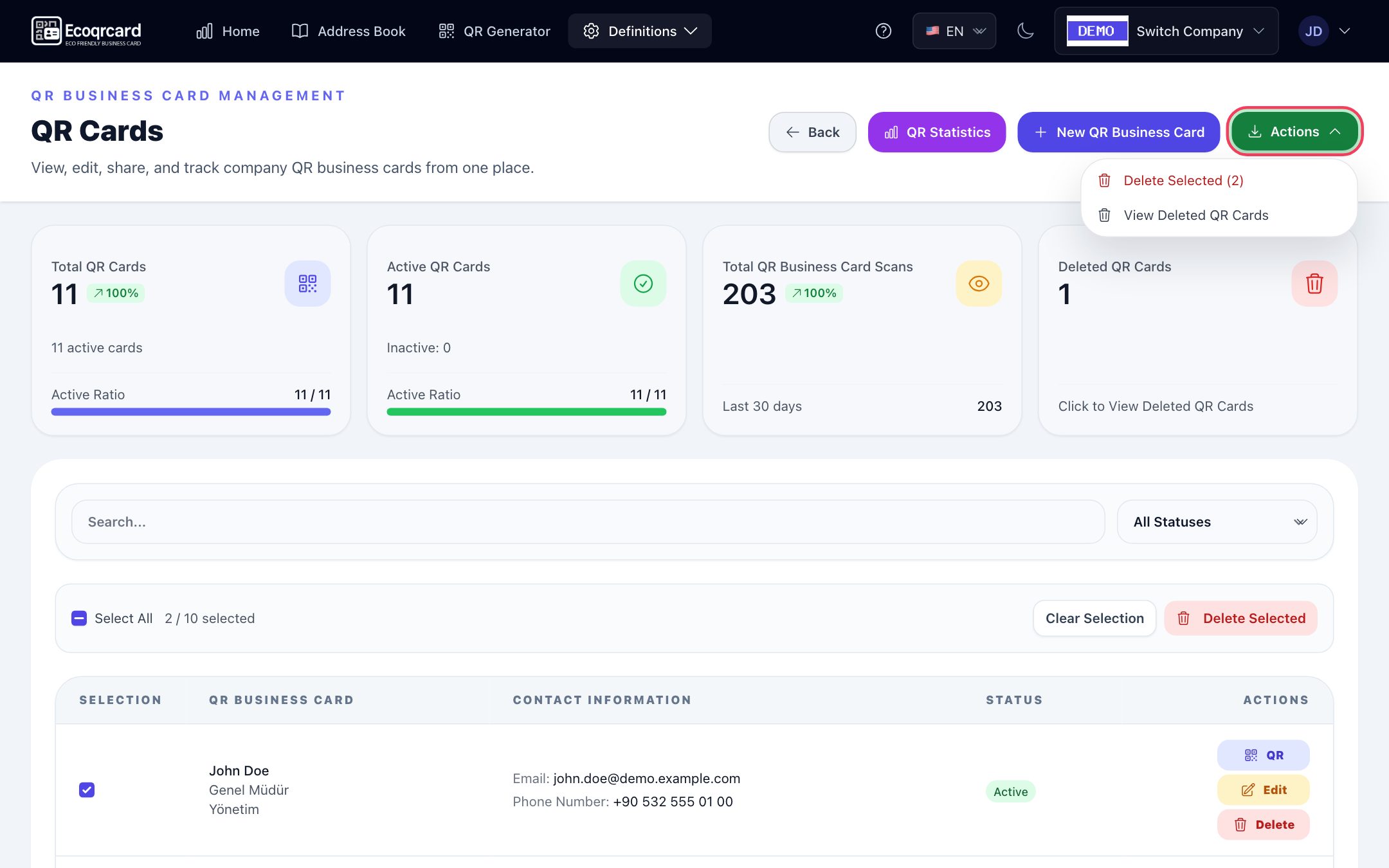
- The company administrator (usually HR, marketing or IT) creates the cards, sets the company details and the card design, and monitors scans.
- Employees see their own card on their Home page, show the QR code or share the link. They do not edit the details on their card themselves; corrections are made by the administrator, so every card stays on the same standard.
Company-wide business cards in 5 steps
- Enter your company details once: Company name, logo, address, phone and website; social media accounts, catalog links, tax and industry details.
- Add your employees: One by one or in bulk with the Excel template. During a bulk import, a QR business card can also be created automatically for each user.
- Match the card page to your brand: Choose one of 10 ready-made designs, adjust the colors and decide which fields the Short QR shares.
- Let employees start sharing: The QR code is scanned from the screen, the link is sent via WhatsApp, and the QR image is added to name badges, presentations or the email signature.
- Keep it current and measure it: Make changes in the platform while the QR codes stay the same. Follow scans on the statistics screen.
What does the other person see, and what is saved to their contacts?
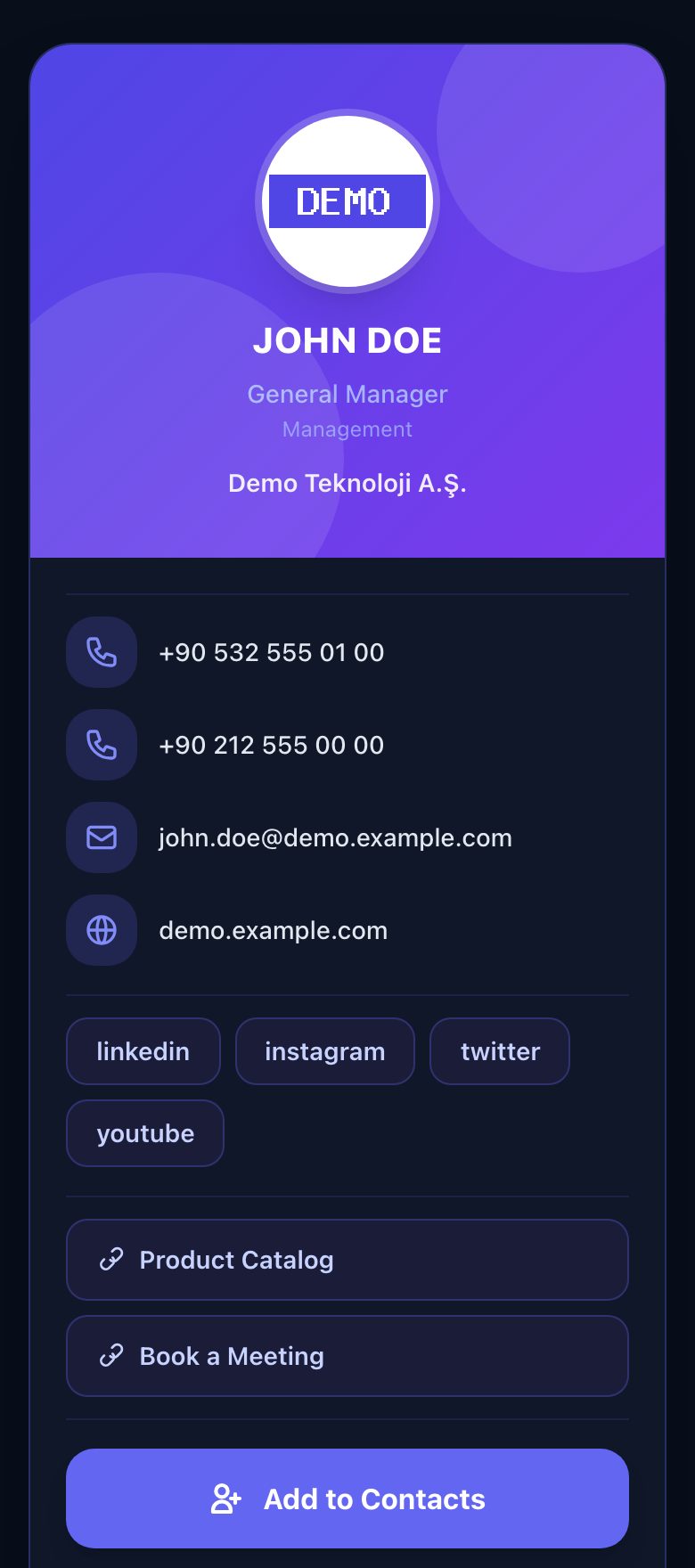
When the card is scanned with a phone camera, it opens in the browser with no app to download. When the visitor taps Add to Contacts, the details are saved to their phone's contacts as a contact card (vCard). The card page is kept clean and simple; the detailed company information goes into the contact card saved to the phone:
| Information | On the card page | In the saved contact card |
|---|---|---|
| Full name, job title, department | Yes | Yes |
| The employee's phone numbers and email addresses | Yes | Yes |
| Company name and logo | Yes | Company name |
| Company website and address | Yes | Yes |
| Company phone and email | — | Yes |
| Social media, documents and links | Yes | Yes |
| Branch addresses, tax, billing, industry details and notes | — | Yes |
Personal details come from the employee's business card; everything else comes from the company settings. If you have 200 employees, you type your new website address once, not 200 times. Job title and department are entered separately for each language, and an employee can have several phone numbers (mobile, work, home) and email addresses (work, personal).
Short QR and Full QR
Every business card has two QR codes:
- Full QR includes all of the company's additional details (social media, notes, tax, industry, billing and branch addresses, links).
- Short QR shares only the additional details you choose. It is well suited to email signatures, name badges and small print.
Which fields appear in the Short QR is set on a single company-wide settings screen and applied to all short codes as soon as you save.
Business cards in 5 languages with AI-assisted translation
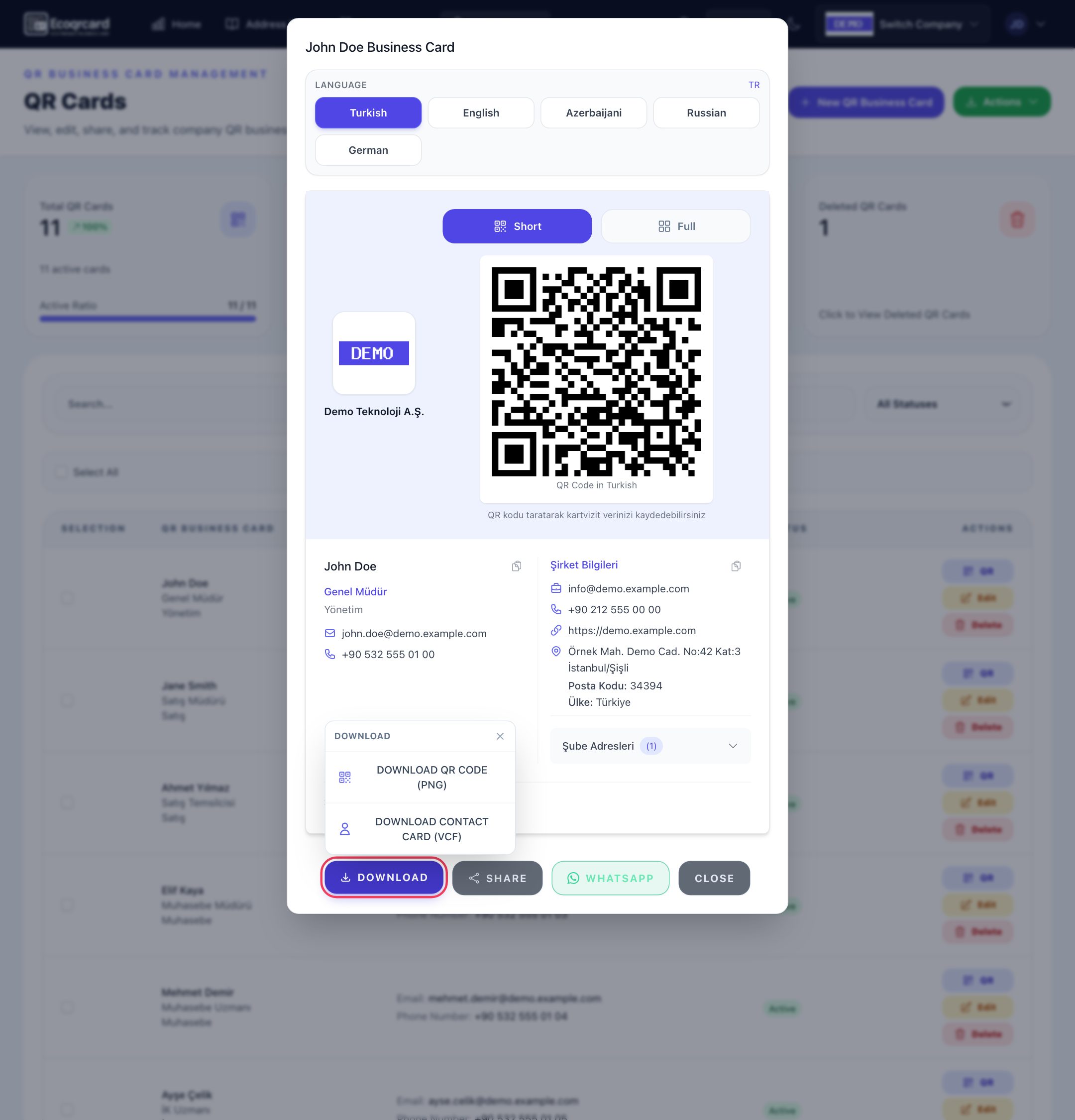
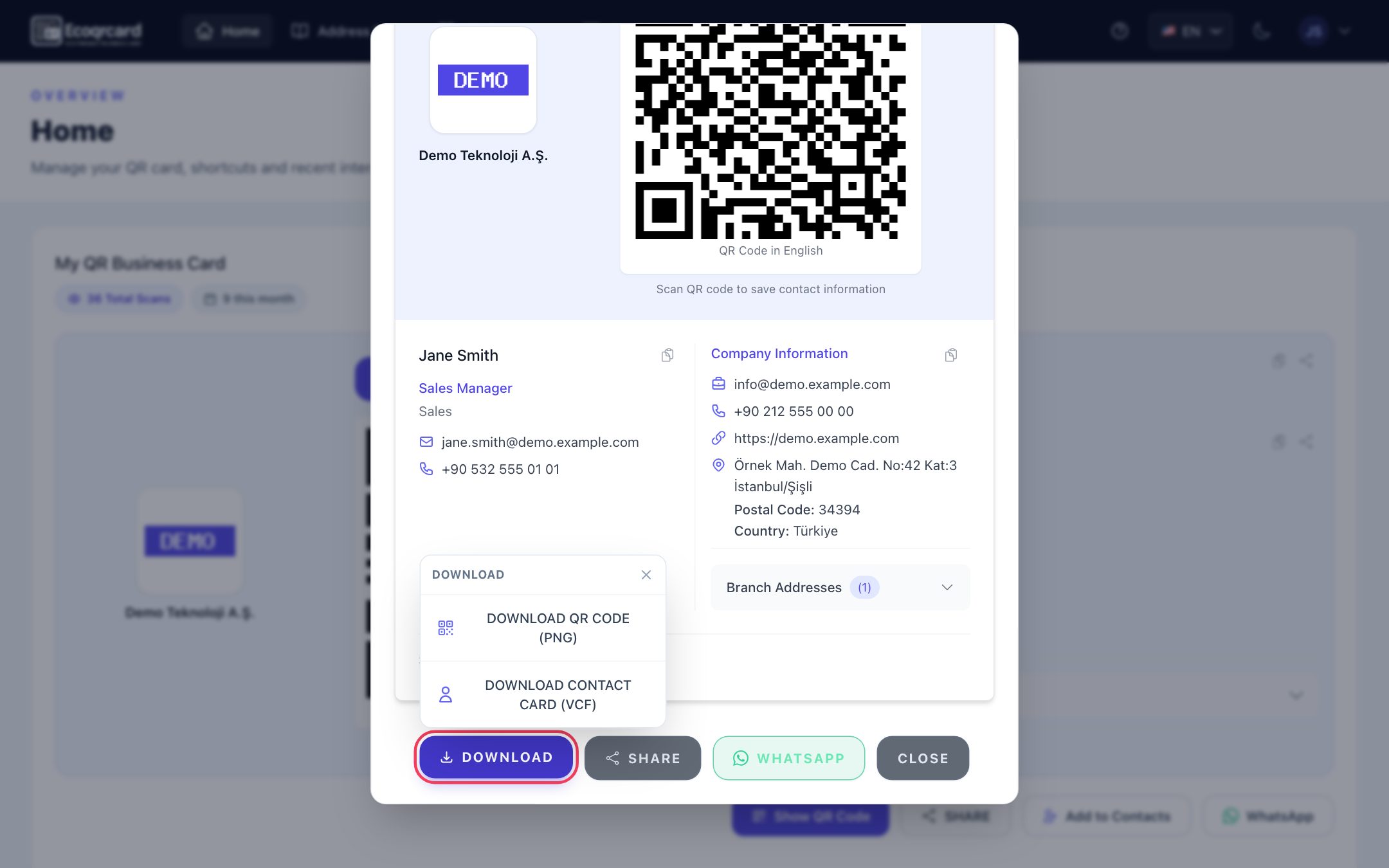
Business cards can be opened in Turkish, English, Azerbaijani, Russian and German. Fill in one language, click Fill with AI, and the empty languages are translated with AI assistance; you only need to review them. When sharing, you choose which language the card opens in: you can send a card in Azerbaijani to a partner in Baku and in German to a customer in Frankfurt.
A card page that matches your brand
For the page that opens when a card is scanned, you choose one of 10 ready-made designs and adjust the header, background, button, icon and social media colors to your corporate colors. You see your changes in a live phone-view preview. The design applies company-wide, so every employee's card carries the same brand identity.
Ways to share
Employees share their own card from the Home page in a few taps:
- Show the QR code on screen and let the other person scan it,
- Send the business card link via WhatsApp,
- Download the QR code as a PNG and add it to print materials or presentations,
- Download the contact card (VCF) and send it through any channel,
- Pass the QR image to another app through the phone's share menu.
Everyday use cases
- Customer visits: At the end of the meeting, the sales rep lets the customer scan the QR code; the customer saves the contact with one tap, and the card never gets lost.
- Trade shows and events: The booth team collects contacts with cards in the same design, and the scans show up in the statistics afterwards. For ideas, see our guide on digital business cards for events.
- Reception and front desk: A sign at the reception desk carries the QR code of the right contact person, so visitors reach them directly.
- Onboarding: New employees have their card on day one, without waiting for a print order.
- Job title change or rebrand: The new title, address or logo is updated in the platform, and printed QR codes keep working.
- Employees who leave: The card is set to inactive and the QR code no longer opens, so customers are not sent to an outdated number.
Central management and control
- Instant updates: When business card or company details change, the QR code stays the same and shows the current details when scanned. For a detailed comparison, read our guide on paper vs. digital business cards.
- Active / inactive: An inactive card, or the card of an inactive user, does not open when scanned. Reactivate it and the same QR code works again.
- Trash: Deleted cards are first moved to the trash and can be restored with the same QR code. Once a card is permanently deleted, its QR code never works again.
- Search and filter: Search by first name, last name, job title and status.
Scan statistics
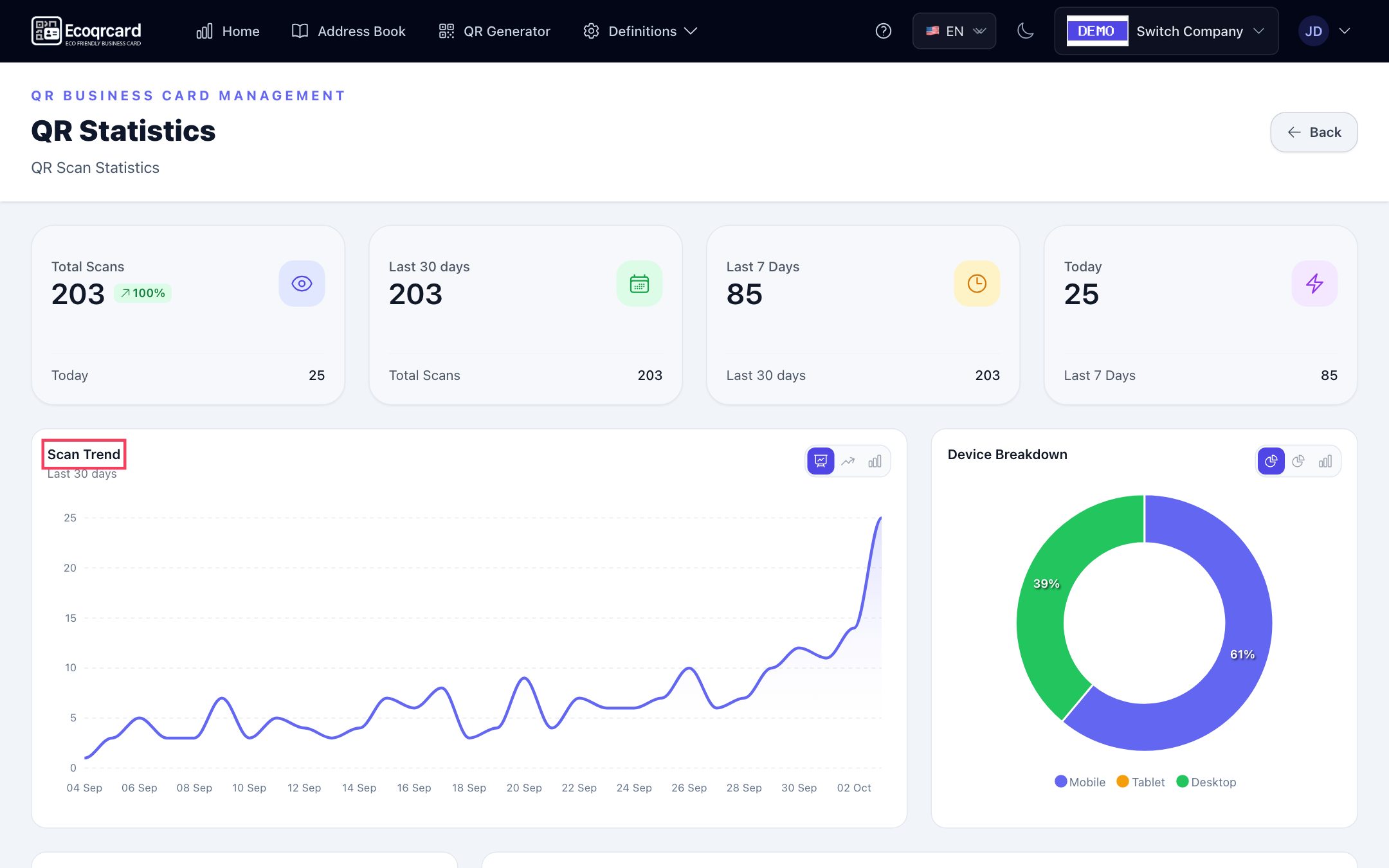
The statistics screen shows total scans and the counts for the last 30 days, last 7 days and today, plus the scan trend, device breakdown (mobile, tablet, desktop), distribution by day of the week, a heatmap by day and hour, the most-scanned cards and the latest scans. Each opening of the card page counts as one scan; tapping Add to Contacts on that page is not counted separately. Opening the card from the preview on the employee's own Email Signature page is not counted either, while a recipient scanning the QR in a signed email is. Employees also see the total and this month's scan count for their own card on their Home page.
For QR codes that are not tied to a person (menus, Wi-Fi, catalogs), see the QR code generator page, and for the company directory built automatically from business cards, see the company address book. If digital business cards are new to you, our guide what is a digital business card is a good place to start.
What people see when they scan the card
Whoever scans your QR business card sees the page below on their phone, with no app to install, and can save you to their contacts with one tap:
Get started
EcoQrCard is set up specifically for each company and priced by the number of users. Tell us your team size and requirements, and we will find the right plan together: request a quote.
Frequently Asked Questions About Digital Business Cards
Does the other person need to download an app to open a digital business card?
No. The business card opens in the browser when the QR code is scanned with the phone's standard camera. The visitor can then tap Add to Contacts to save the details straight to their phone's contacts.
Do I need to reprint the QR code when an employee's details change?
No. When the business card is updated in the platform, the QR code stays the same; codes on printed cards and name badges show the new details when scanned. Signatures that were already pasted into an email client, however, need to be copied again.
Which languages can a business card be shown in?
Turkish, English, Azerbaijani, Russian and German. Job title, department and notes are entered separately for each language, and empty languages can be filled with AI-assisted translation.
Do I have to create business cards one by one for a large team?
No. When you import users in bulk with the Excel template, a QR business card can be created automatically for each of them. Company details are also added to every card automatically.
What happens to the business card of an employee who leaves?
When you set the card or the user to inactive, the business card no longer opens when the QR code is scanned. Because the card is not deleted, it can be reactivated if needed.