QR Code Generator
Create static and dynamic QR codes with your company logo in more than 25 types; update content without reprinting and track scans.
The EcoQrCard QR Generator lets you create QR codes that are not tied to a person, in line with your brand, and manage them all from one place. It offers more than 25 QR code types for websites, Wi-Fi, PDF catalogs, restaurant menus, coupons, events and more. With dynamic QR codes you can change the content without reprinting and measure how many times each code is scanned.
What problem does it solve?
Free online QR tools generate a one-off code and leave it at that: nobody knows who created the code, when or why; when the link changes, the printed materials go in the bin; and there is no way to tell whether the code is working. In EcoQrCard, every QR code is saved to your company account. You name, filter and edit your codes, pause them temporarily and follow their statistics.
Who uses it? Both company administrators and employees can use the QR Generator. Marketing prepares campaign codes, operations prepares Wi-Fi or service codes and sales prepares catalog codes, all in the same place.
How does it work?
- Choose the type: Pick one of more than 25 types, such as website, Wi-Fi, PDF, menu or coupon.
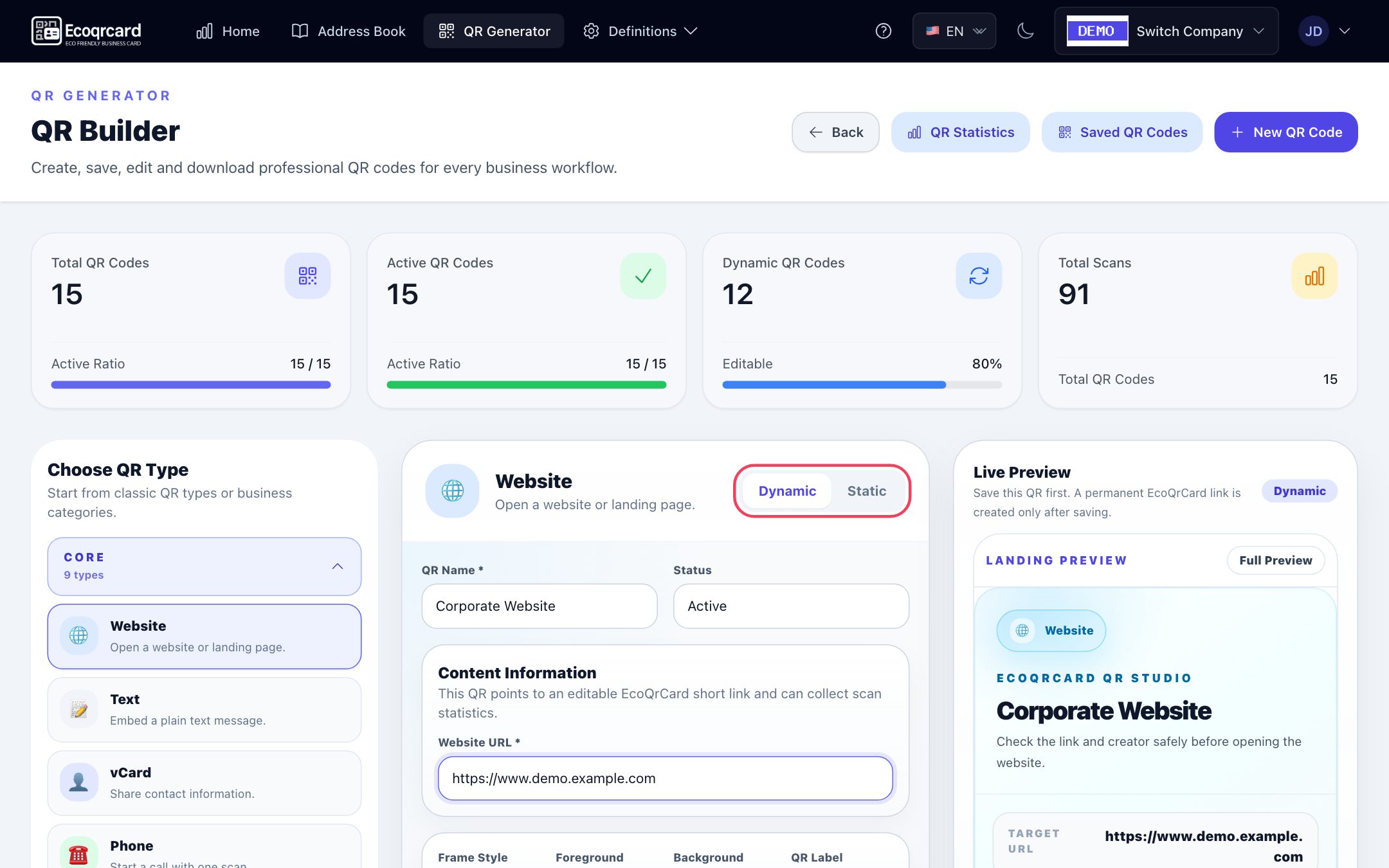
- Choose dynamic or static mode and give the code a name you will recognize in the list.
- Enter the content: The form shows only the fields that type needs, such as a URL for a website, the network name and password for Wi-Fi, or a file upload for a PDF.
- Set up the design: Colors, frame, label and, if you like, a center logo. You see the result instantly in the live preview.
- Save and share: Download the branded QR image as a PNG, copy the link or send it via WhatsApp and email. Follow scans of dynamic codes on the statistics screen.
25+ QR code types in five groups
| Group | QR code types |
|---|---|
| Basic | Website, text, vCard, phone, SMS, email, WhatsApp, Wi-Fi, location |
| Media and files | PDF, image, video |
| Marketing and growth | Social media, multi-link, app link, payment |
| EcoQrCard workflows | Feedback, survey, digital business card, catalog |
| Industry templates | Restaurant menu, appointment, service request, complaint / suggestion, event, coupon, document hub, emergency information |
Each type comes with a short description of what it is for. For PDF, image and video types you can upload files of up to 50 MB. For step-by-step examples, see our guides on creating a Wi-Fi QR code and QR codes for restaurant menus.
Static or dynamic?
| Dynamic QR | Static QR | |
|---|---|---|
| What is inside the QR code? | A short EcoQrCard link | The content itself (address, text, Wi-Fi details) |
| What happens when it is scanned? | A branded landing page opens, and the visitor reaches the content from there | The content opens directly |
| Can the content change after printing? | Yes, the QR code stays the same | No, you need a new QR code |
| Scan statistics | Yes | No |
| Pausing temporarily | Does not open while set to draft | Always works |
| Best for | Brochures, posters, packaging, table cards, catalogs | Wi-Fi passwords, fixed text, permanent information |
For print materials, dynamic QR codes are usually the right choice: the printed code keeps working even when the campaign link, menu file or catalog changes. PDF, image, video, multi-link and document hub types work in dynamic mode only. For details, see our guide on static vs. dynamic QR codes.
Branded QR code design with your logo
- Center logo: The logo you upload (your company logo, for example) is placed in the middle of the QR code.
- Colors: Choose foreground and background colors to match your corporate colors.
- Frame style: No frame, soft frame or labeled frame.
- QR label: A short call to action such as "SCAN ME" below the code.
- Landing cover image: The header image of the page that opens when a dynamic QR code is scanned.
All changes appear instantly in the live preview. You download the branded QR image, with its logo, colors, frame and label, using the PNG button below the preview on the create or edit screen. For readability, we recommend keeping a dark foreground on a light background.
Sharing and downloading
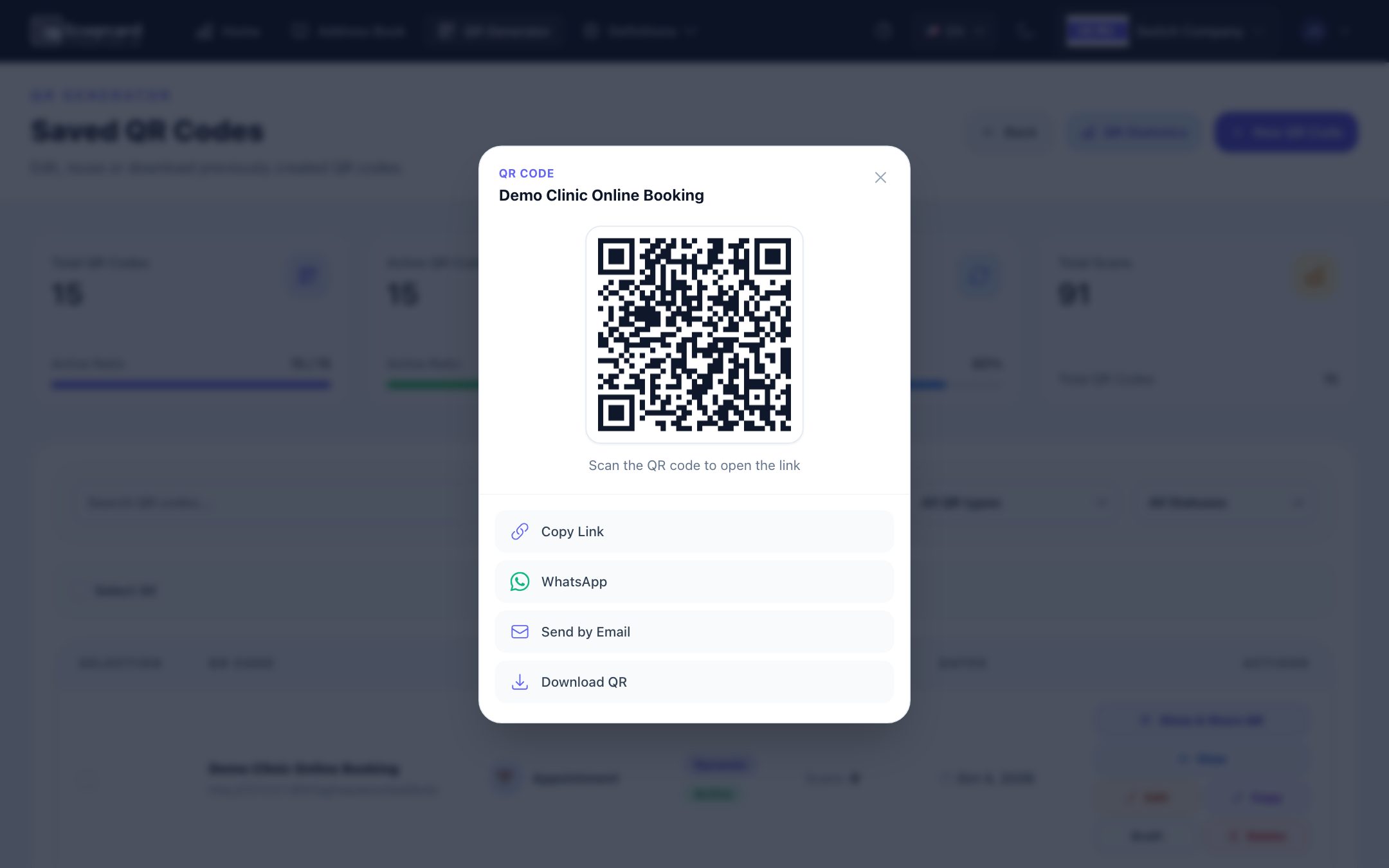
From the Show & Share QR window you can display a saved code in large size, copy its link, or send it via WhatsApp or email; on supported phones, the share menu opens as well. Download QR in this window gives you a plain QR image (no logo, black and white) for quick use; for print, download the branded image from the edit screen. Use View to check the page the code opens; these previews are not added to the scan count.
Teamwork and visibility
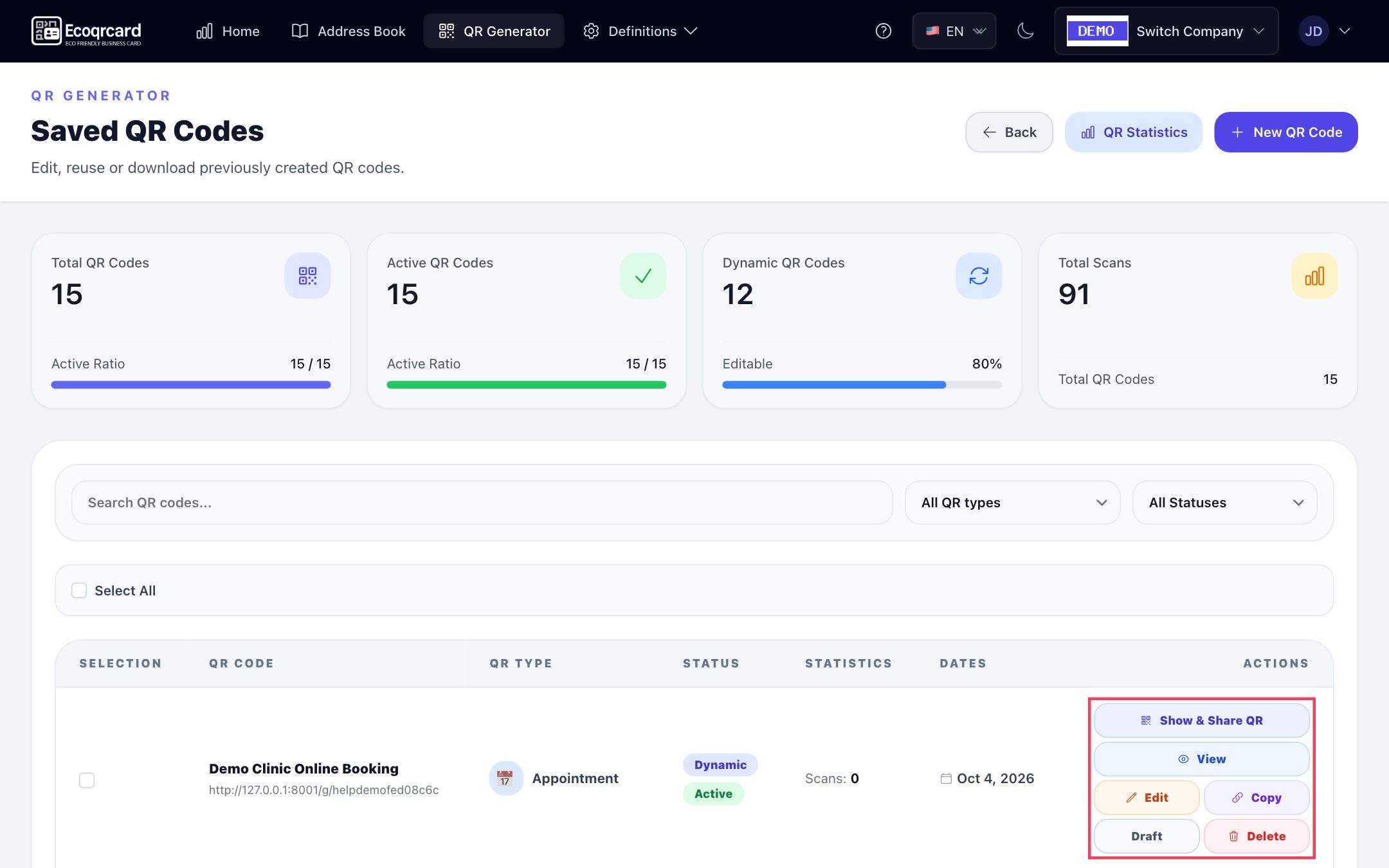
- The codes you create are visible to the company by default: your colleagues can see, download and share them, but cannot edit or delete them.
- With the Private (only me) option, a code is visible only to you (and the company administrator).
- The company administrator sees, edits and, when necessary, deletes all codes.
That way, a campaign code prepared by marketing can also be used by the sales team without being changed by mistake. Deleted QR codes cannot be restored; to pause a code temporarily, simply set it to Draft.
Working with business cards and surveys
- The company administrator can add a PDF catalog or price list uploaded as a dynamic code to all digital business cards as a link. When you update the file, the link on the cards stays the same.
- The online survey system provides a QR code for every survey. By adding the survey link to the QR Generator's survey type, you can also create a QR code with your logo and colors whose scans are counted.
Scan statistics
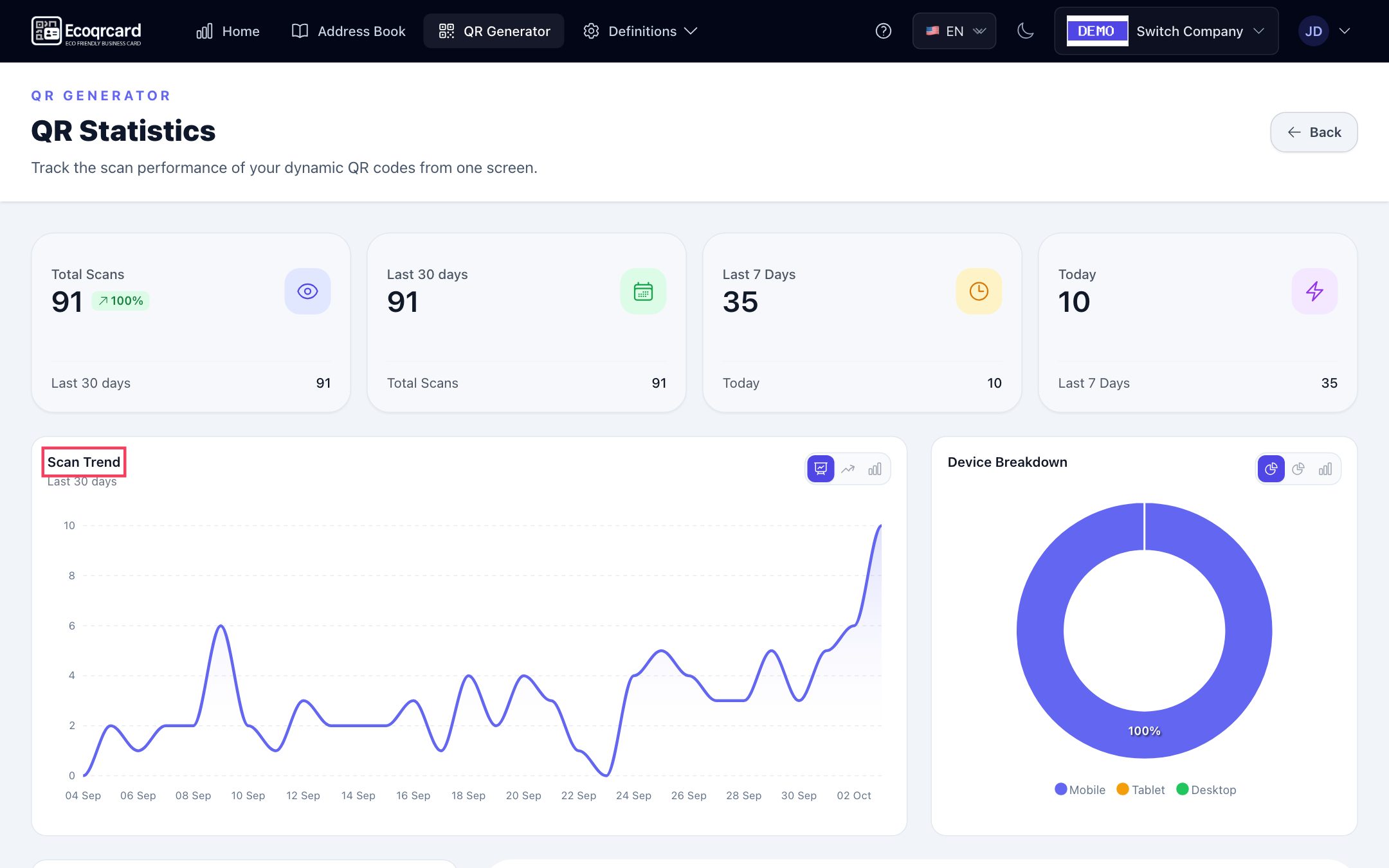
You follow the performance of dynamic codes on a single screen: total scans and scans in the last 30 days, last 7 days and today; charts for the scan trend, device type (mobile, tablet, desktop) and distribution by day of the week; the most-scanned codes and the latest scans. You can compare which brochure, which store poster or which trade show booth attracted the most interest. Static codes do not pass through the server, so they do not appear in the statistics; employees only see statistics for the codes they can see.
Use cases
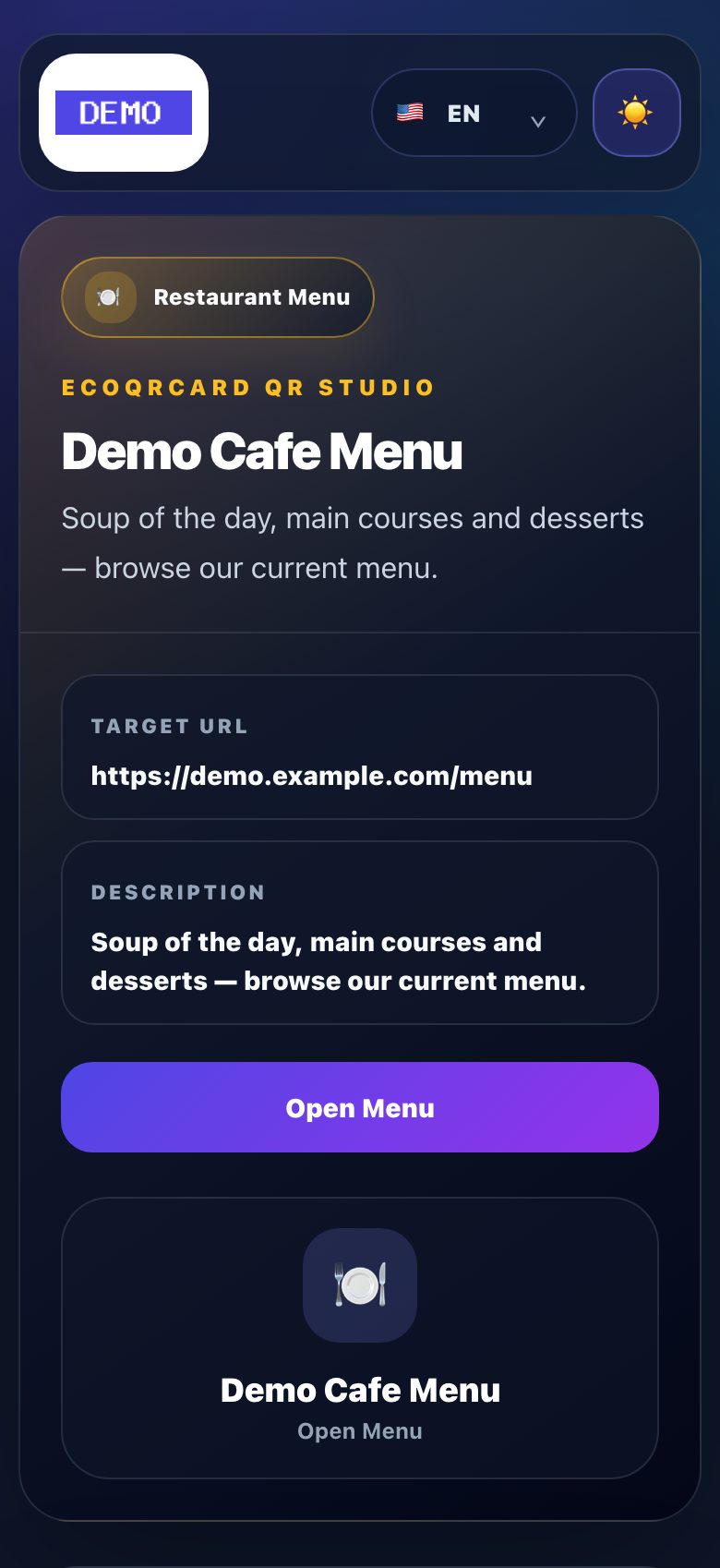
- Restaurants and cafés: A dynamic menu QR code on the table card; when prices change, just update the file.
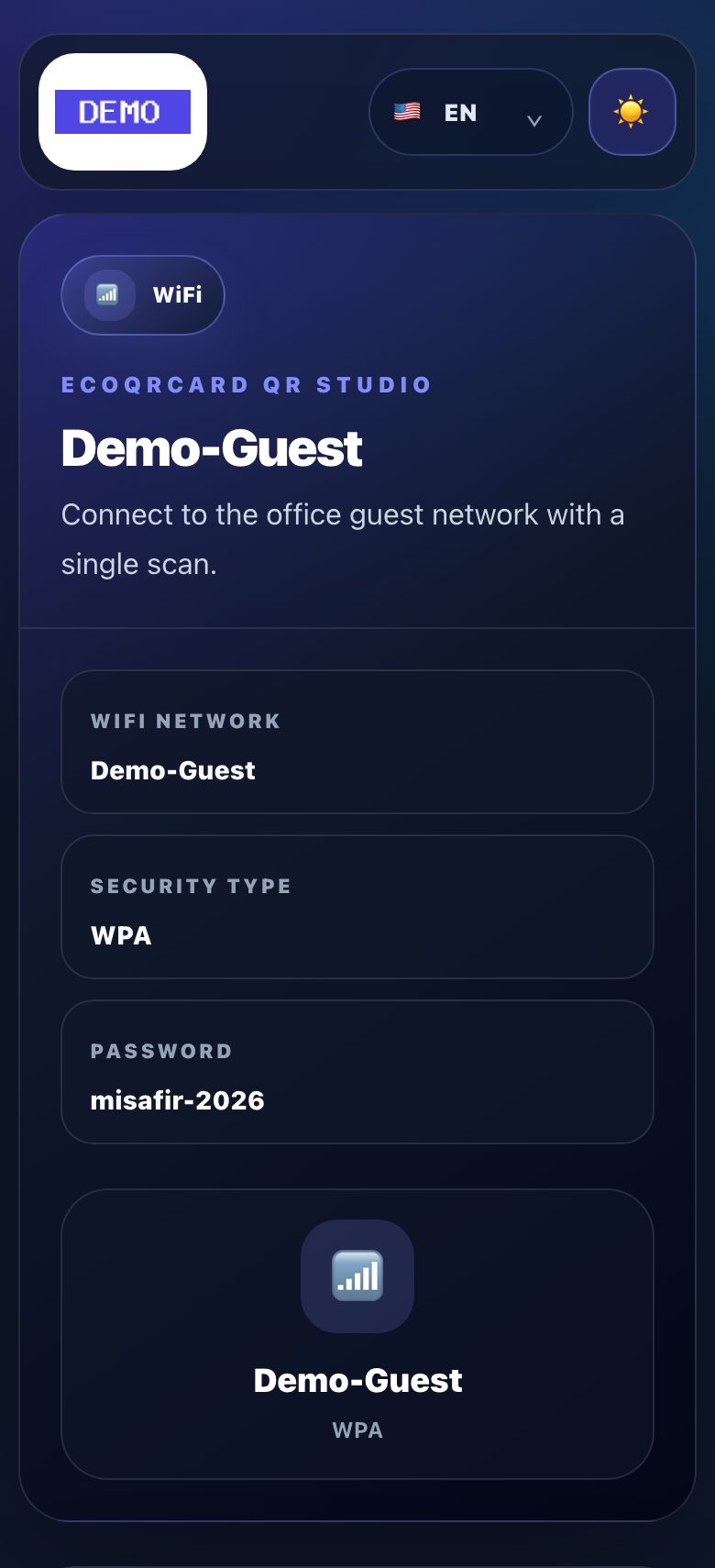
- Hotels and offices: A guest Wi-Fi QR code in the lobby, so nobody has to read out the password.
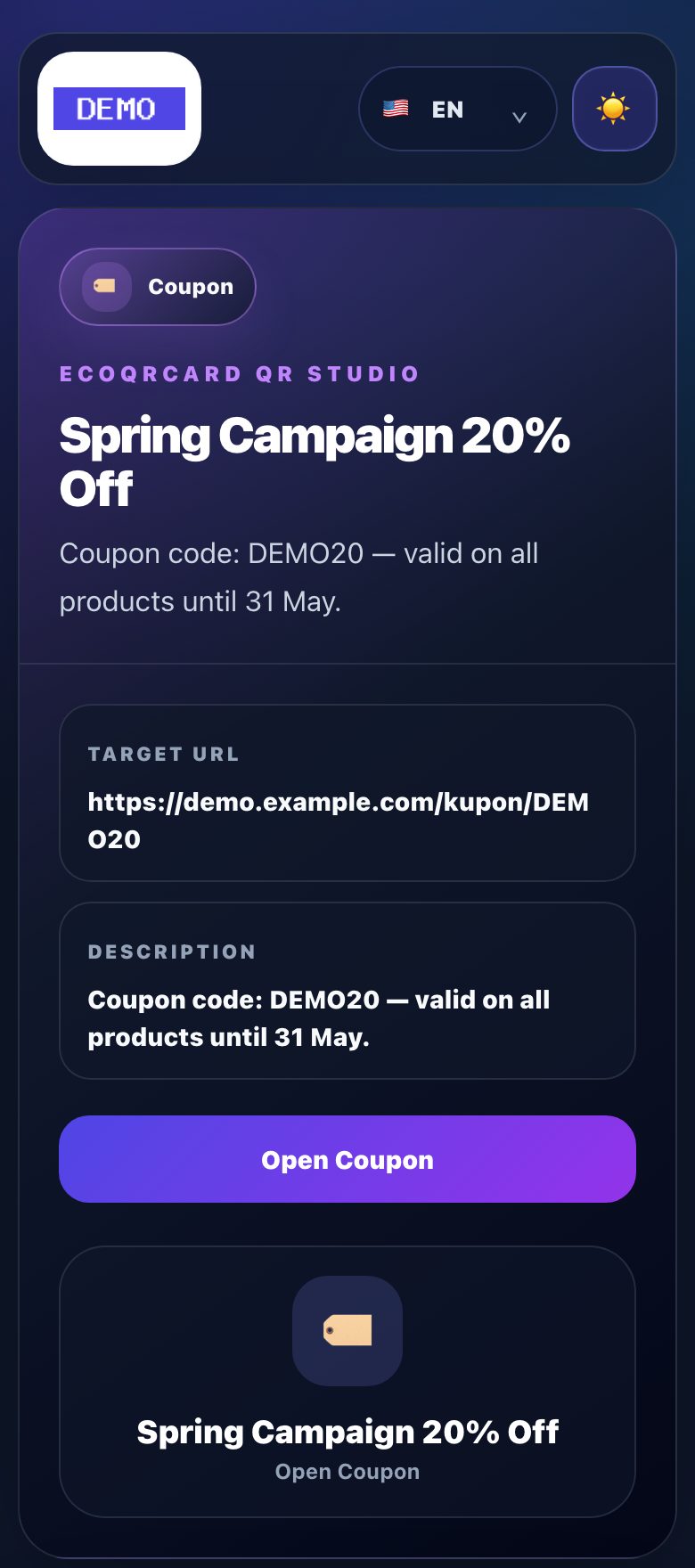
- Retail: A catalog QR code on product labels and a coupon QR code in the shop window.
- Trade shows and events: An event page on the invitation, a catalog at the booth and a feedback QR code at the exit.
- Technical service and facilities: A service request or emergency information QR code on the equipment itself.
What people see when they scan
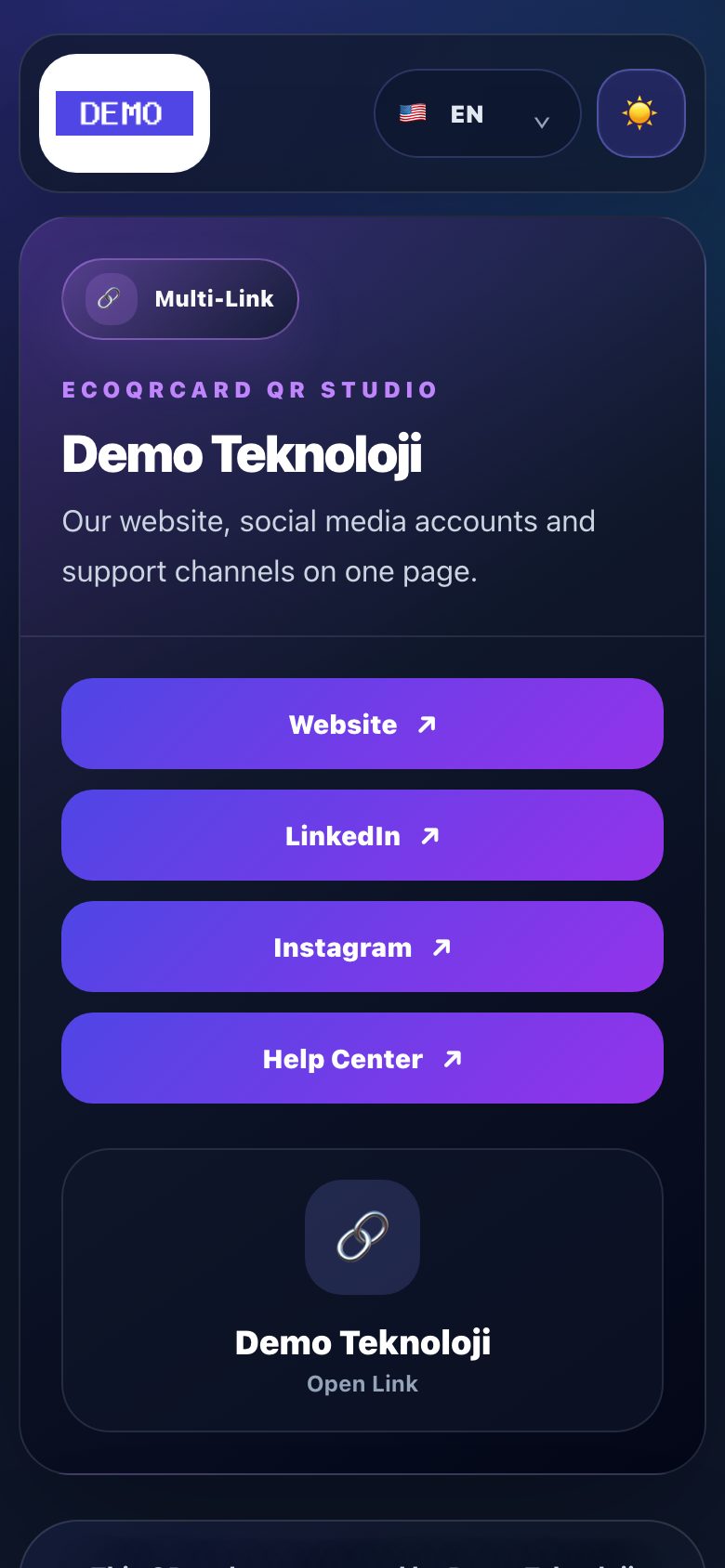
A dynamic QR code takes the person who scans it to a page built for that QR type, showing your company name and logo; from there the content is one tap away. The examples below were made with our demo company:
Bring all your QR codes into one platform
The QR Generator is included in every EcoQrCard plan. To find the right plan for your company, request a quote.
Frequently Asked Questions About the QR Code Generator
Can I change the content of a dynamic QR code later?
Yes. A dynamic QR code contains a short link, so you can change the destination address or the uploaded file at any time. The printed QR code stays the same and opens the new content.
Can I add my company logo to my QR code?
Yes. You can upload your logo and place it in the center of the QR code, and adjust the foreground and background colors, frame style and label to match your corporate identity.
Which types of QR code can I create?
More than 25 types are supported, including website, Wi-Fi, PDF, vCard, WhatsApp, location, social media, multi-link, payment, restaurant menu, coupon, event, appointment and service request.
Can I see how many times a static QR code was scanned?
No. A static QR code opens its content directly, so scans cannot be counted. If you want scan statistics, create a dynamic QR code.
Can my employees create QR codes too?
Yes. Employees can create and manage their own codes, and see and share codes that are visible to the company. Only the company administrator can edit or delete someone else's code.