QR Codes
How to Create a Wi-Fi QR Code: A Guide for Guest Networks
How to create a QR code that lets guests join your Wi-Fi network without typing a password, and how to keep your network secure while doing it.
"What's the Wi-Fi password?" gets asked dozens of times a day at office receptions, cafés and hotel lobbies. Reading out a long, complex password is a waste of time and not a great idea from a security point of view either. A Wi-Fi QR code lets guests point their camera at the code and join the network with a single tap. In this guide we explain how a Wi-Fi QR code works, how to create one and how to keep your guest network secure.
How does a Wi-Fi QR code work?
A Wi-Fi QR code contains a standard text string that phones recognize. It carries the following information:
- Network name (SSID): The name of the wireless network to join.
- Security type: WPA/WPA2, WEP or no password.
- Password: The network passphrase.
- Hidden network flag: Indicates whether the network name is not broadcast.
When a phone reads the code, it recognizes these details and offers something like "Join network". Once the user confirms, the phone enters the password itself and connects. Most current iPhone and Android devices do this directly from the camera app; older devices may need a separate QR reader.
An important detail: this kind of code is static, meaning the password is written into the code. For the phone to connect automatically, the information has to be in the code. We explain the difference between static and dynamic codes in detail in our guide to static vs. dynamic QR codes.
Creating a Wi-Fi QR code step by step
- Pick the right network: For guests, use a separate guest network rather than your main corporate network (see the security section below).
- Check the network details: Enter the SSID exactly, including upper and lower case and spaces. Checking it in the router or access point interface is the safest option.
- Set the security type: Most networks today use WPA2 or higher. WEP is an old, insecure method; avoid it if you can.
- Create the QR code: In a QR code generator, choose the Wi-Fi type and enter the network name, security type and password.
- Test it: Scan the code with at least one iPhone and one Android phone and confirm that you actually connect.
- Design and print it: Next to the code, add the network name and a short line such as "Scan to connect to Wi-Fi".
- Put it in the right place: Where guests sit or wait, at eye level and in a well-lit spot.
Where should it go?
| Venue | Recommended placement | Note |
|---|---|---|
| Office | Reception, waiting area, meeting rooms | A small stand on the meeting room table works well |
| Café and restaurant | Table card, next to the menu, at the till | Label it clearly and separately so it is not confused with the menu QR code |
| Hotel | In-room information card, lobby, welcome pack | If you use a different network per room, give each room its own code |
| Event and trade show | Registration desk, back of the name badge, stage screen | Print the code large in crowded spaces |
Security tips
A Wi-Fi QR code adds convenience, but it should not be an excuse to neglect network security.
- Use a guest network: The network guests join should be separated so that it cannot reach company servers, printers or employee devices. Most modern access points offer a "guest network" or "client isolation" option.
- Never put your main network password in a QR code: Anyone who scans the code can see the password. Some phones also make it easy to share a saved network password with others, so treat the guest password as information "anyone could know".
- Use a strong password: Since nobody will type the password by hand thanks to the QR code, there is no downside to choosing a long, complex one.
- Change the password regularly: Periodic changes are a good habit, especially in venues with lots of visitors. Plan to renew the QR code whenever the password changes.
- Avoid WEP and open networks: Traffic on open networks is not encrypted. Do not set up an open network unless you have to.
- Watch out for stickers placed over your code: In public areas, someone with bad intentions could stick a different code over the original. Check your codes regularly and, if possible, use laminated or framed stands.
- Limit bandwidth: Putting a speed limit on the guest network protects your main business traffic.
Guest network checklist
Before printing the QR code, make sure your network is ready:
- Is the guest network separated from the company network (separate SSID, client isolation)?
- Is the guest network blocked from printers, file servers and camera systems?
- Is the password at least 12 characters long, with letters, numbers and symbols?
- Is the security type WPA2 or higher?
- Is there a speed or usage limit for guest traffic?
- Is it clear who will change the password, and how often?
- Has the code been tested with an iPhone and an Android phone?
Sample text for a table card or sign
The short text you place next to the QR code has a direct effect on how many people scan it. Keep it simple and clear:
- Heading: "Free Guest Wi-Fi"
- Subline: "Point your camera at the code and connect with one tap."
- Fallback: "Network name: Guest-Wifi" (staff can give out the password if the QR code does not work)
- For international visitors, add a version in the relevant language as well.
Whether to print the password in plain text next to the code is a matter of choice. In public venues such as cafés, convenience may win; in offices, keeping the password only inside the QR code is a more controlled approach.
Common problems
The phone reads the code but does not connect. The most common cause is a spelling difference in the SSID or the password. Check upper and lower case, spaces and special characters. Also make sure the right security type was selected.
The code does not scan at all. The code may be too small, low in contrast or printed on a glossy surface. Try a larger, matte print.
We changed the password and the code stopped working. In static Wi-Fi codes the password is inside the code, so when the password changes you need to create a new code and replace the old prints.
It will not connect to a hidden network. If the network name is not broadcast, the "hidden network" option needs to be ticked in the QR code.
Some guests cannot connect. Very old devices may not support newer security types or Wi-Fi connection via the camera. In that case, have a fallback so staff can share the network name and password.
Wi-Fi QR codes with EcoQrCard
In the EcoQrCard QR Generator, Wi-Fi is one of the basic QR types. When you create a new code, you choose the WiFi type and fill in the WiFi Network Name, Security Type (WPA/WPA2, WEP or no password) and WiFi Password fields. If the network name is not broadcast, you can tick the Hidden network box.
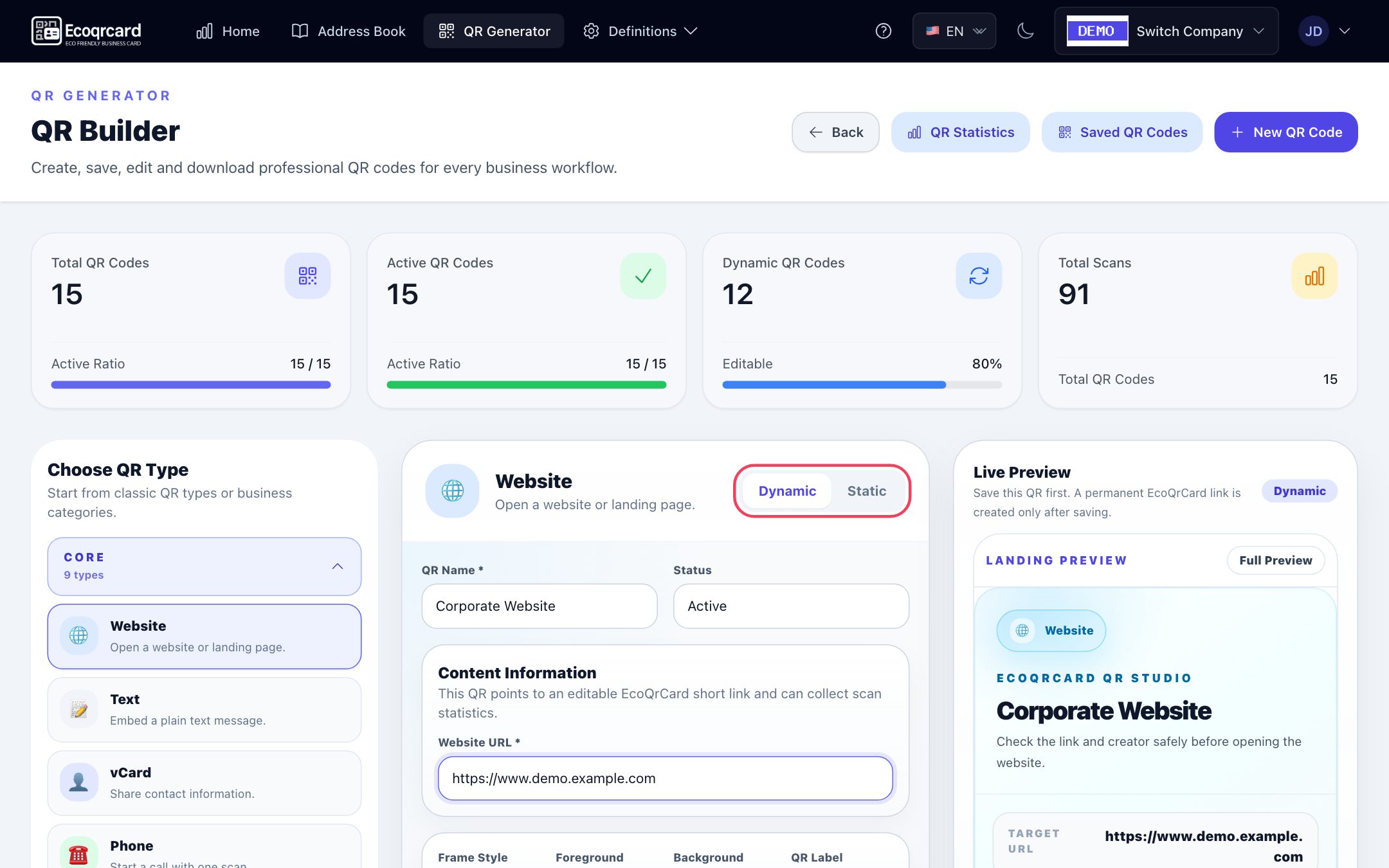
You have two options here:
- Static Wi-Fi QR: The network details are written directly into the code; when a guest's phone reads it, the phone offers to join the network directly. This is usually the most practical option for guest networks.
- Dynamic Wi-Fi QR: The code opens a landing page with your company logo that shows the network name, security type and password. The phone does not connect automatically; the guest selects the network and enters the password themselves. The advantage is that when the password changes, you can keep the same code and update the content, and you can track scans. Keep in mind that anyone with the landing page link can see the password, so this option is also for guest networks only.
You can match your codes to your brand with a center logo, colors and a labeled frame. You download the print image with logo and frame using the PNG button below the Live Preview on the create/edit form (for dynamic codes, save first). Download QR in the Show & Share QR window gives you a plain QR image without a logo; the same window is used to copy the link or send it via WhatsApp and email. Codes you do not mark as Private (only me) can also be seen and downloaded by other users in your company, so the reception or branch team does not have to recreate the same code.
If you would also like to prepare menu, feedback or survey codes for your visitors alongside Wi-Fi, take a look at our guide on QR codes for restaurant menus. For using the Wi-Fi code together with business card and survey codes at trade shows and events, our guide to digital business cards for events shows the way.
If you would like to manage all your company's QR codes from one dashboard, request a quote and we will plan the right setup for your offices, branches and guest areas together.
Frequently Asked Questions
Do Wi-Fi QR codes work on all phones?
Most current iPhone and Android phones read Wi-Fi QR codes with the camera app and offer to join the network. Very old devices may need a separate QR reader app.
Is a Wi-Fi QR code secure?
The code carries the network password, and anyone who scans it can access the password. That is why the QR code should only be used for a guest network separated from company systems, with a strong password that is changed regularly.
If I change the Wi-Fi password, do I have to change the QR code too?
For a static Wi-Fi code, yes, because the password is inside the code. With a dynamic Wi-Fi code in EcoQrCard, you can update the content and keep using the same code; in that case, the guest sees the network details on the landing page and enters the password on their phone themselves.
Can I see who connected using the Wi-Fi QR code?
The QR code only transfers the connection details; your router or network management system shows who joined the network. With dynamic codes, you can see how many times the code was scanned.
Can I create a QR code for a hidden Wi-Fi network?
Yes. You simply indicate that the network is hidden when you create the code. In EcoQrCard, there is a Hidden network box for this.