QR Codes
How to Create a QR Code for Your Restaurant Menu
How a QR code menu works, the difference between PDF and web menus, table card design and how to keep your menu current without reprinting.
QR code menus are now an everyday sight in restaurants and cafés. Guests scan the code on the table and open the menu on their own phone. Set up well, a QR menu gives the business flexibility and the guest speed; set up badly, it sends guests back to the waiter after a slow-loading PDF they cannot read on a phone. In this guide we explain step by step how to prepare a good QR code menu.
How does a QR code menu work?
The QR code on the table carries a web address where the menu is published. When a guest scans the code, the menu opens in their phone's browser. The menu can be presented in three ways:
| Format | How it works | Pros | Cons |
|---|---|---|---|
| PDF menu | The PDF version of the printed menu opens | Easy to prepare, reuses the existing design | Needs zooming on a phone, large files load slowly |
| Web menu | A mobile-friendly page opens | Comfortable to read on a phone, easy to update | Requires a website or a menu service |
| Image menu | Images of the menu pages open | Quick to prepare | Text is not searchable, poor accessibility |
Small businesses usually start with a PDF. If your menu is long or changes often, a mobile-friendly web menu gives a better experience in the long run.
Why should you use a dynamic QR code?
The menu is one of the documents that changes most often in a business: prices are updated, seasonal dishes are added, an item sells out. If the QR code printed on your tables is static, you have to reprint every table card as soon as the menu's address changes.
With a dynamic QR code, a short redirect link is written into the code. When the menu's address or file changes, you only update the destination; the code on the table stays the same. On top of that, by seeing how many times the code is scanned, you can track which days are busiest and at which location the menu is opened most. For a detailed comparison of the two types, see our guide to static vs. dynamic QR codes.
Preparing a QR code menu step by step
- Prepare the menu content: Categories, dish names, short descriptions, prices and, where needed, allergen information.
- Choose the format: PDF, web menu or both. If you use a PDF, design it to be read on a phone, in a single column with a large font size.
- Reduce the file size: High-resolution photos bloat a PDF. Keep the file size reasonable so it opens quickly on mobile data.
- Create a dynamic QR code: Create a code that points to the menu's address or file, and add your business logo.
- Design the table card: A clear call to action next to the code, such as "Scan for the menu", plus the table number and Wi-Fi details if needed.
- Test it: Try it with different phones, in the venue's real lighting and on mobile data (not connected to Wi-Fi).
- Place the codes and track them: Put the codes on the tables and check the scan counts after a few weeks.
Content tips for a menu that reads well on a phone
The success of a QR code menu depends more on the quality of the menu that opens than on the code itself.
- Start with categories: Starters, mains, desserts, drinks. Guests want to go straight to the section they are interested in rather than scrolling through a long list.
- Short descriptions: A one-line description under the dish name is enough. Long paragraphs do not get read on a phone.
- Make prices visible: Prices should be on the same line as the dish name or directly below it.
- Allergen and ingredient information: Indicate gluten, dairy, nuts and so on with icons or short notes.
- Use photos selectively: Adding a photo to every dish slows the menu down. A few featured dishes are enough.
- Readable font size: In a PDF menu, the text should be readable on a phone without zooming.
Multilingual menus
For businesses in tourist areas, offering the menu in more than one language is an important service. There are two approaches: showing a second language under each dish in a single menu, or preparing a separate menu for each language. If you use separate menus, it helps guests if you put a separate code for each language on the table card, labeled with a flag, or point a single code to a page that offers a choice of language.
Tips for table card design
- Size: Print it large enough for someone sitting at the table to scan without bringing their phone too close.
- Contrast: Dark code, light background. Even more important if the venue is dimly lit.
- Matte surface: Glossy lamination can reflect light and make scanning harder.
- One purpose, one code: If you use separate codes for the menu, Wi-Fi and feedback, label each one clearly. For the Wi-Fi code, see our guide on creating a Wi-Fi QR code.
- Durability: Choose wipeable, liquid-resistant stands; a worn code will not scan.
- Security: Check regularly that nobody has stuck another label over your codes.
Should you get rid of printed menus completely?
Not every guest will want to use their phone; keeping a printed alternative for guests whose phone has run out of battery, older guests or those who are wary of technology is part of good service. In addition, many countries and regions have rules on how food and drink prices must be displayed to customers, for example at the entrance or on the table. We recommend treating the QR code menu as a complement to a printed price list rather than a replacement, and checking the rules that currently apply where you operate. This guide is not legal advice.
What can scan data tell you?
Scan statistics for dynamic codes give you a concrete idea of how much your menu is used. Depending on the detail your tool provides, you can see which days are busiest, which devices guests mostly scan from and which location's or area's code is used most. At a table where scans are lower than expected, review the code's position, size or the text next to it.
Common mistakes
- A PDF designed for desktop: A menu that needs constant pinch-zooming on a phone wears guests out.
- Printing a static code: When the menu's address changes, every table card goes in the bin.
- Pointing to the homepage: Guests who scan the code expect the menu, not your website's homepage.
- Outdated prices: The biggest advantage of a QR code menu is easy updating; not using it costs you trust.
- Not testing: A menu that loads slowly on mobile data will not be noticed in an office with good Wi-Fi.
QR code menu checklist
- Can the menu be read comfortably on a phone with one hand?
- Are the prices and dishes up to date?
- Is the code dynamic, and will the same code still work if the menu's address changes?
- Is the code large enough and high-contrast enough to scan comfortably at the table?
- Is there text next to the code explaining what it is for?
- Is a printed alternative available?
- Is there a way for guests to give feedback?
Restaurant menu QR codes with EcoQrCard
Among its industry-specific types, the EcoQrCard QR Generator offers the Restaurant Menu type. If your menu is published on a web page, simply choose this type and enter the menu address; in dynamic mode, guests see a landing page with your business name and logo and go to the menu with Open Menu. If your menu is a PDF, you can upload the file directly with the PDF type (files up to 50 MB; the PDF type works in dynamic mode only, and guests view the file with Open File on the landing page). Even so, keep the file small so it opens quickly on a phone.
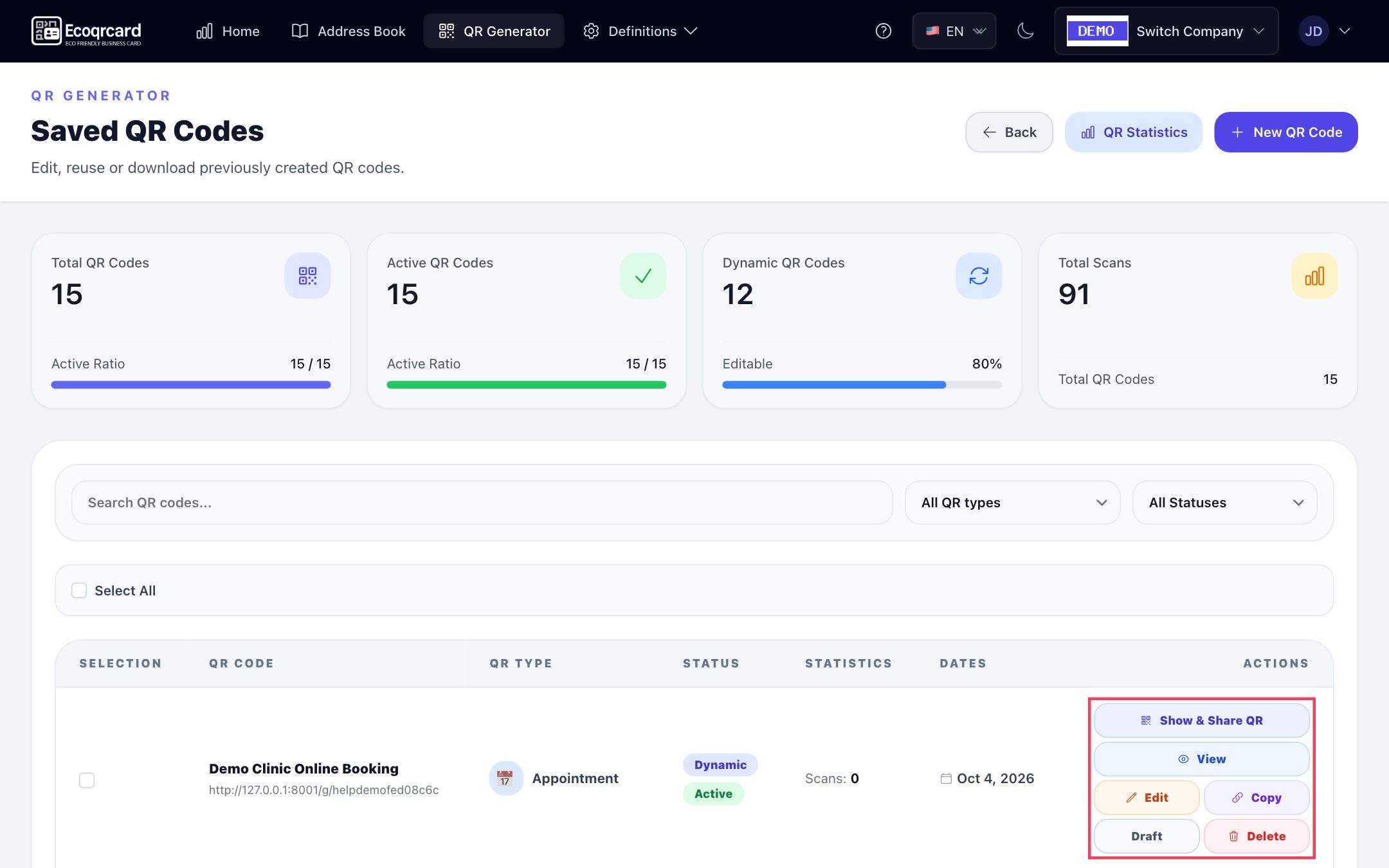
In practice the flow looks like this: with QR Generator → New QR Code, you choose the type, select Dynamic mode and enter the menu address or PDF file, add your logo and click Save QR. You download the print image with logo and frame using the PNG button below the Live Preview on the form and place it in your table card design (Download QR in the Show & Share QR window gives you a plain QR image without a logo).
- Dynamic code: When the menu changes, you edit the code and update the address or PDF file; the code on the table stays the same.
- Logo and design: Center logo, brand colors, a frame and a label such as "SCAN ME".
- Draft / active: You can pause a seasonal menu temporarily without deleting it.
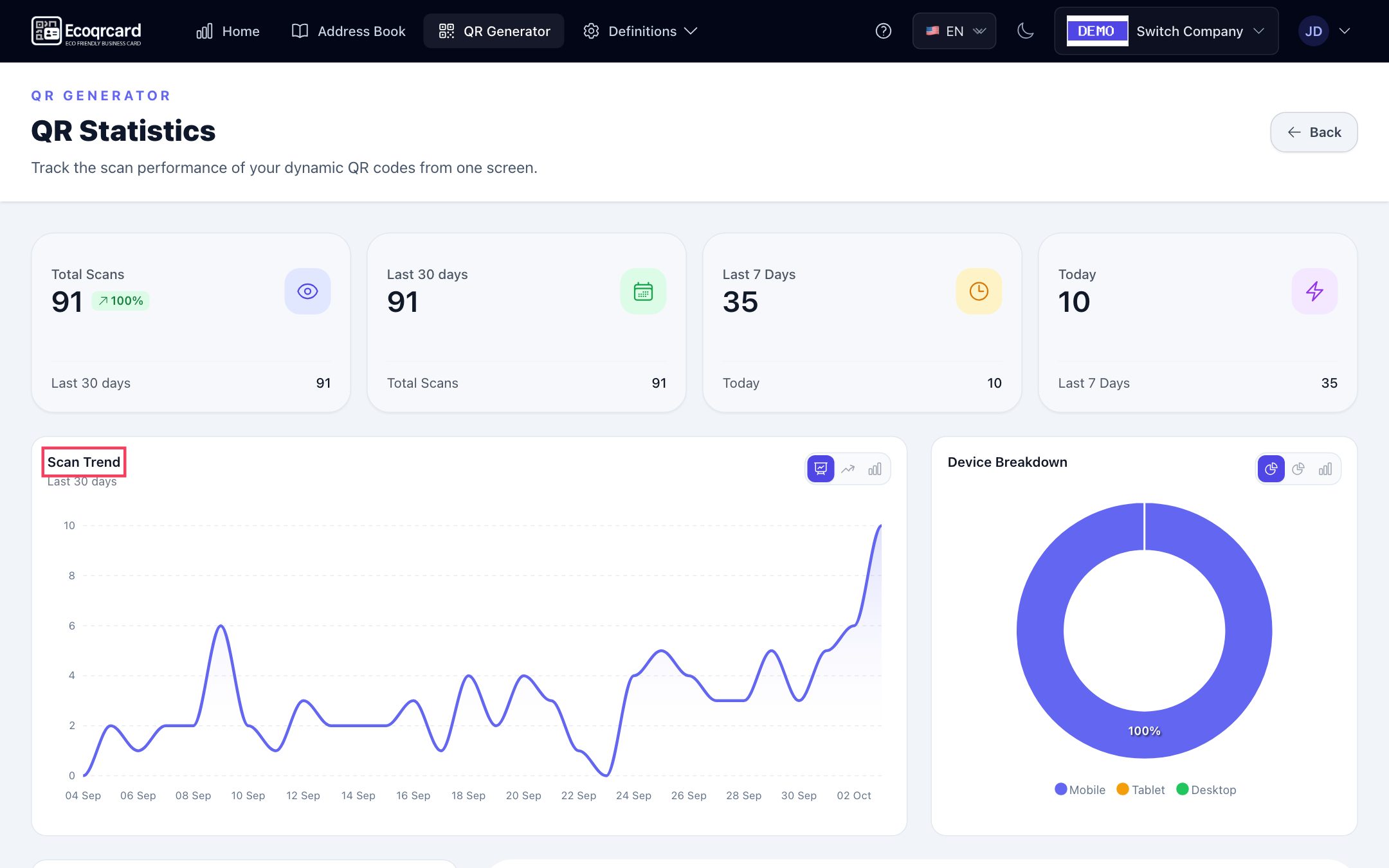
- Statistics: Total scans and scans in the last 30 days, last 7 days and today, the scan trend, device breakdown and distribution by day of the week.
- Location and area comparison: Create a separate code for each location or area and compare which one is scanned more.
From the same dashboard you can also create Feedback, Survey, Coupon and WiFi codes. If you would like to add a survey code to the table to measure guest satisfaction, the EcoQrCard survey system and our guide on how to create a customer satisfaction survey make it easy.
If you would like to manage your business's menu, Wi-Fi and feedback codes in one place, fill in the quote request form and we will work out the right setup for your number of locations and your needs together.
Frequently Asked Questions
Do I need a website for a QR code menu?
No. You can prepare your menu as a PDF and upload it to a dynamic QR code. For long menus that change often, however, a mobile-friendly web menu usually gives a better experience.
Do I need to reprint the table cards when I change prices?
Not if you use a dynamic QR code. You update the menu file or address, and the code on the table stays the same. With a static code, a reprint is needed if the address changes.
Can I see how many times the QR code menu was opened?
Yes, with dynamic QR codes. Every scan is counted; in EcoQrCard you can see total scans and scans in the last 30 days, last 7 days and today, the scan trend for the last 30 days and the distribution by day of the week. Static codes cannot be counted.
Do I need a separate QR code for each table?
No; you can use the same code on every table. But if you want to compare areas (terrace, indoor dining room) or locations, creating a separate dynamic code for each lets you see their scan data separately.
Can I get rid of printed menus completely?
Because of the guest experience and the price display rules that may apply to your business, we recommend keeping a printed alternative. For your current obligations, check the relevant regulations and, if needed, consult a legal adviser.