Online Survey Software
Build online surveys from templates or from scratch; distribute them by link, QR code and email invitation, then analyze results with charts and turn them into reports.
Asking customers what they think, instead of guessing, is the shortest path to good decisions. The EcoQrCard survey system brings every step of creating, distributing and reporting on online surveys together in one platform, whether you are measuring customer satisfaction, gathering employee feedback, evaluating training or collecting post-event opinions.
What problem does it solve?
In most companies, feedback is collected in a scattered way: one department uses a separate form tool, results get lost in email threads, and nobody is sure who can access which survey. In EcoQrCard, surveys live under your company account, in the same system as your business cards, QR codes and your company's email infrastructure.
Who uses it? Company administrators can carry out every survey task. Other employees can create surveys, edit them or only view results, depending on the permissions the administrator grants. Participants do not need an account; the survey opens from a link or a QR code.
How does it work?
- Get started: Choose a ready-made template or create a blank survey.
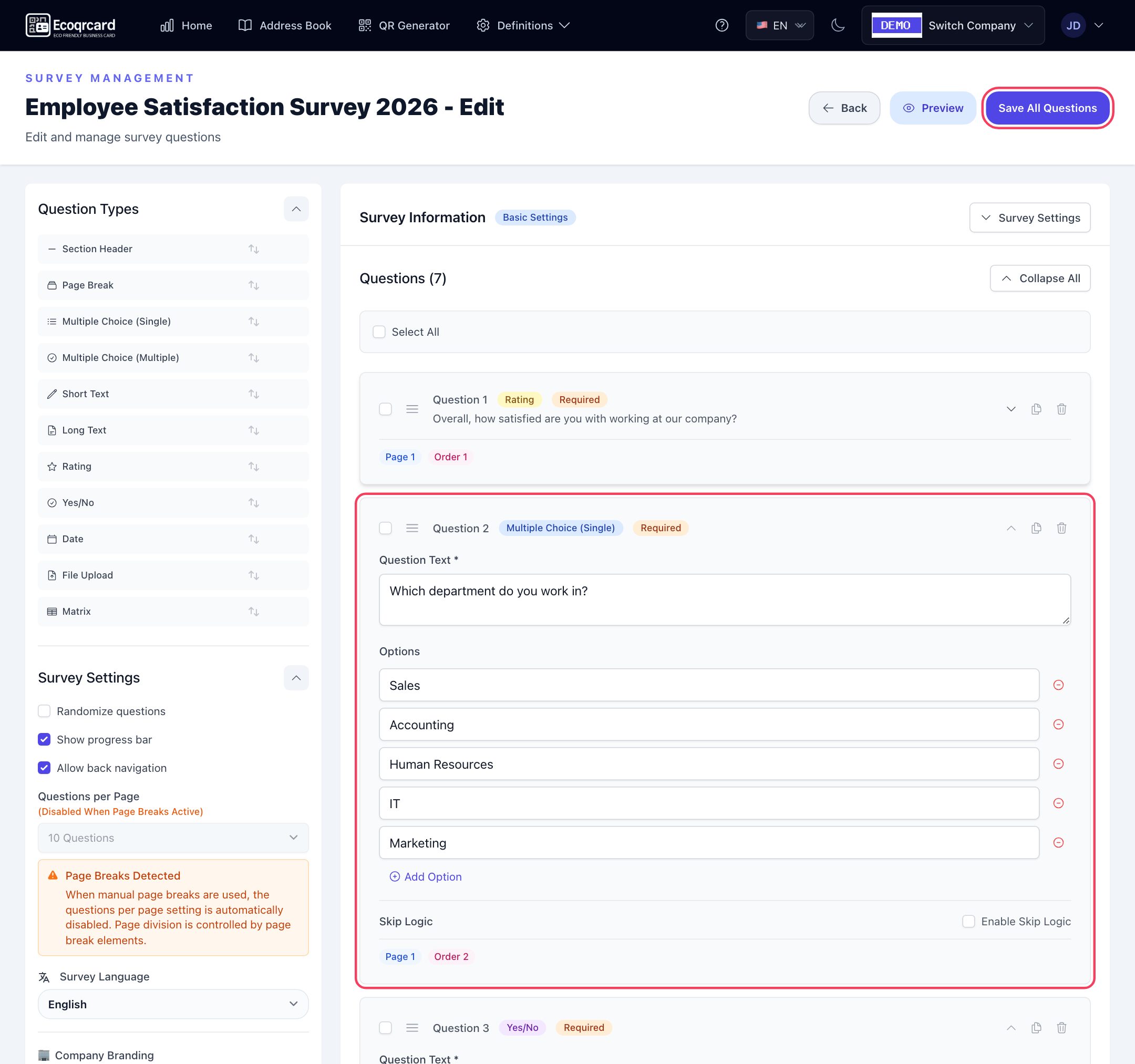
- Edit the questions: Add and reorder questions in the drag-and-drop builder, and set up skip logic if needed.
- Set the rules: Decide whether the survey is anonymous or identified, set the expiry date and the maximum number of responses, then publish the survey.
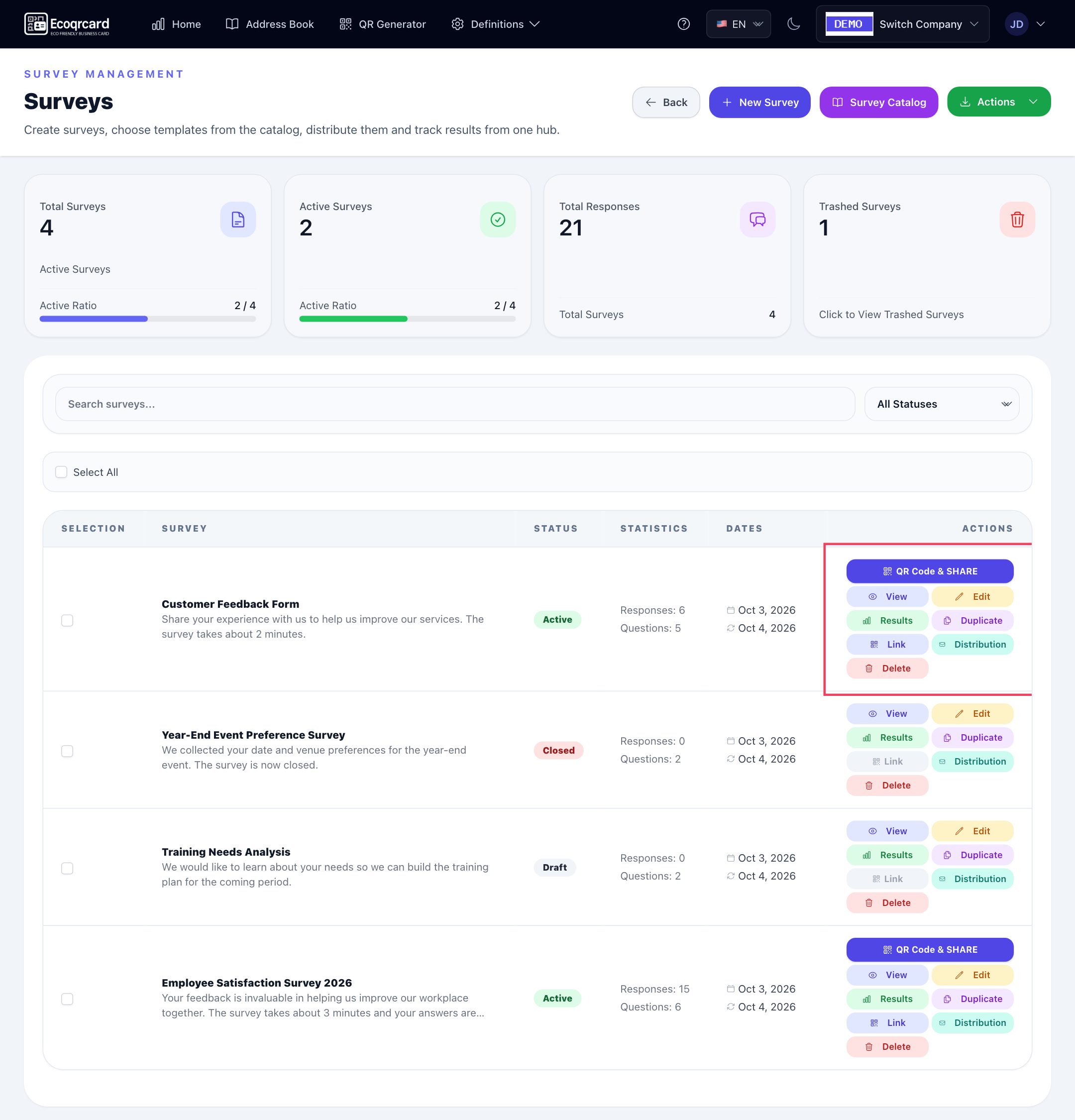
- Distribute it: Share the link, put the QR code on printed material or send email invitations.
- Read the results: Review the charts, look at individual responses and share the printable report with management.
A quick start with ready-made templates
The survey catalog contains more than 650 ready-made survey templates in more than 20 categories and 5 languages. Use the category filter and search to find a suitable template, preview it and turn it into your own survey with one click. A survey created from a template opens as a draft, and you can change the questions however you like.
Drag-and-drop question builder
Pick a question type from the list on the left to add it, or drag it and drop it between existing questions. Drag questions to reorder them, and duplicate, delete or make them required.
| Question type | What it is for |
|---|---|
| Multiple choice (single) | Questions where one option is selected |
| Multiple choice (multiple) | Questions where several options can be ticked |
| Short text | One-line answers |
| Long text | Detailed comments and suggestions; a character limit can be set |
| Rating | Scores as stars, numbers or like/dislike |
| Yes / No | Quick two-option questions |
| Date | Visit, delivery or event date |
| File upload | Image, PDF, Word or Excel file |
| Matrix | An evaluation grid of rows and columns |
On top of these, section headers split the survey into topics and page breaks divide long surveys into pages. Settings for shuffling questions, a progress bar, allowing participants to go back, and showing the company logo and name are on the same screen.
Conditional logic for a tailored flow
With skip logic, depending on the answer given, you can send participants to another page or question, end the survey at that point or disqualify someone outside your target audience. For example, you can take a customer who is unhappy with your service straight to the question "What could we have done better?".
Conditions can be used on multiple-choice, yes/no and rating questions; for ratings, "greater than / less than" comparisons are supported as well. The Skip Logic Map shows all the rules as a table or a flow diagram.
Anonymous or identified surveys
- Anonymous survey: No identifying details are requested and no personal information appears in the results. Well suited to topics that call for candor, such as employee engagement.
- Identified survey: Before starting, participants enter their email address (and, optionally, their name). If you have added at least one person to the distribution list, only the addresses on the list can take part.
You can also set an expiry date and a maximum number of responses; once a limit is reached, the survey stops accepting new responses automatically.
Distribution by link, QR code and email
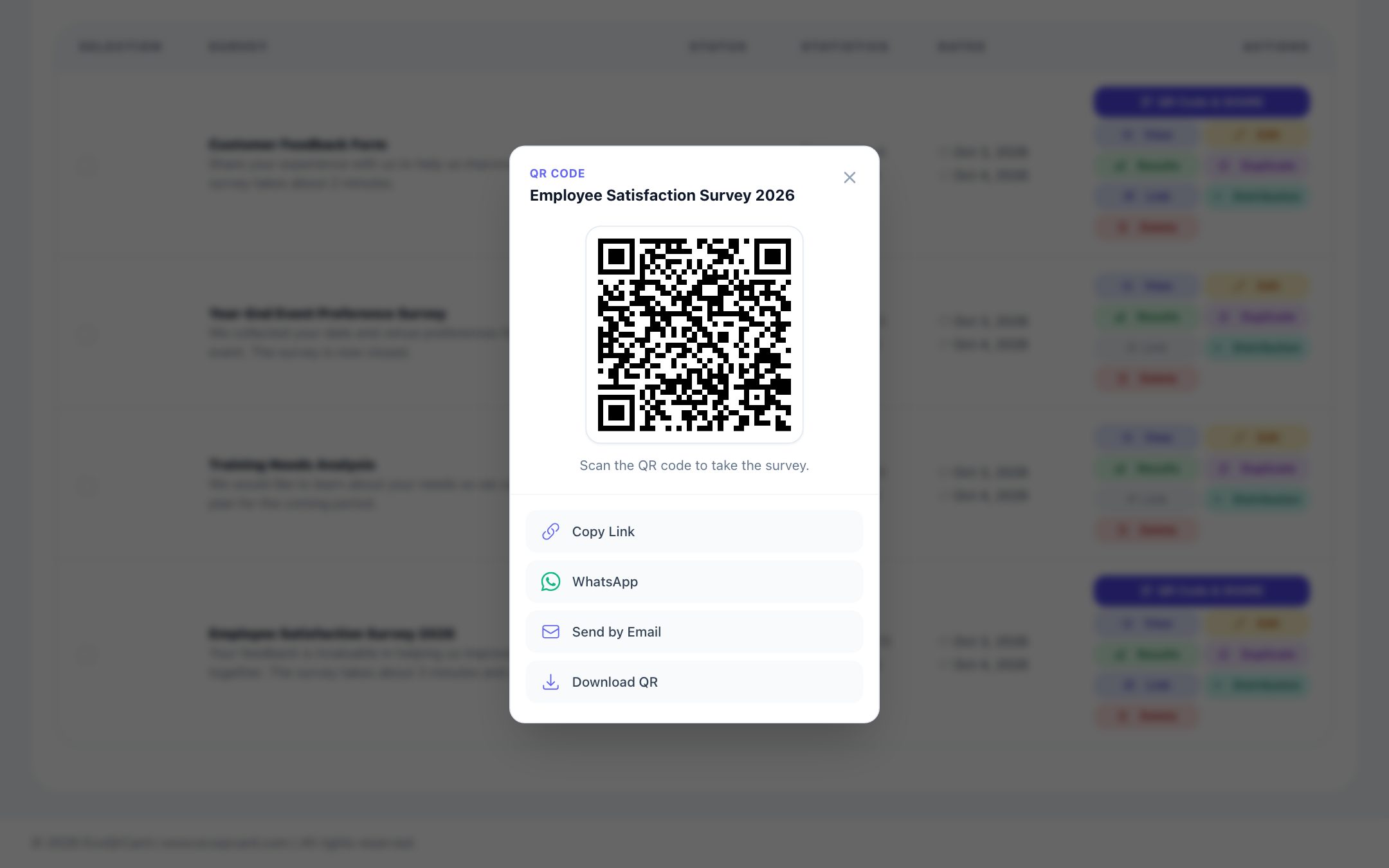
- Link: Copy the survey link and share it on your website, in messages or on social media; send it via WhatsApp with one click.
- QR code: Download the survey's QR code as a PNG and place it on table cards, invoices, product packaging or at the event exit.
- Email invitation: Add participants one by one or in bulk with an Excel list; send the invitations through your company's own email account (SMTP), in the survey's language.
On the distribution screen you see how many people are on the list and how many have been invited; for identified surveys, you also track who has started and who has completed the survey.
Real-time analytics and reporting
The results page updates as responses come in. Summary tiles show total responses, the completion rate, the average completion time and a response timeline by day.
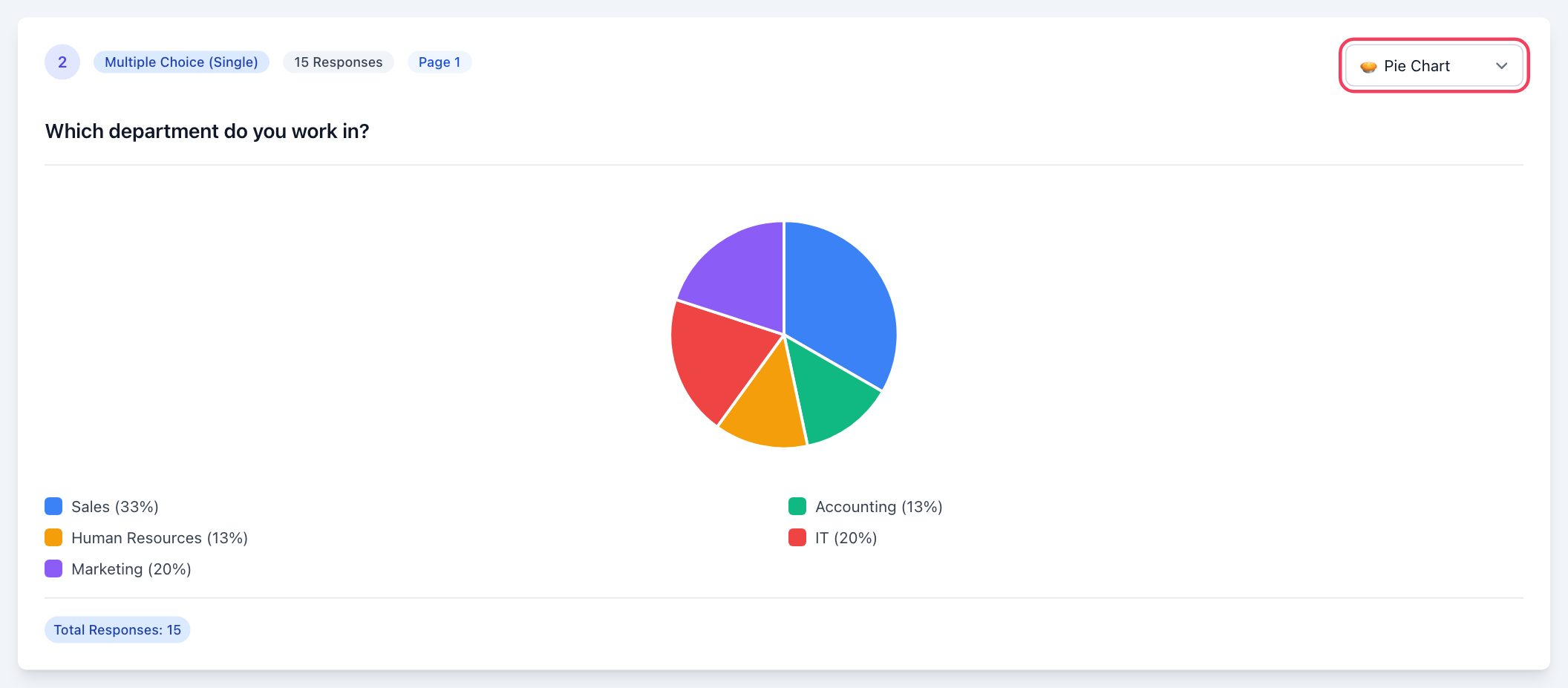
A chart is generated automatically for each question, and you choose the chart type: bar, pie, donut or funnel for multiple-choice questions; histogram, gauge or radar for ratings; a word cloud, frequency chart and approximate sentiment analysis for text answers; a heatmap for matrix questions, and more. Your choice is saved in your account and used in the report as well.
- Individual responses: Open each participant's answers, start and finish times and uploaded files one by one.
- Printable report: Print the report that brings the charts for all questions together on a single page, or save it as a PDF from your browser and share it.
A permission matrix for your team
With the survey permissions matrix, you grant permissions to each user individually: view surveys, create, edit, delete, view results and generate reports. For example, your HR specialist can create surveys and see results but cannot delete them, while a manager may only see the results and the report. Permissions apply to all of the company's surveys.
Where is it used?
- Customer satisfaction: After a sale, a service call or a store visit, via a QR code on the receipt or table card, at the very moment of the experience.
- Human resources: Anonymous employee engagement surveys, onboarding and training evaluations.
- Events: Attendee satisfaction and speaker evaluations via a QR code at the exit.
- Market research: New product ideas and price perception.
- Forms and applications: Application and request forms with file uploads.
For a step-by-step example, see our guide on how to create a customer satisfaction survey. If you want a survey QR code with your logo and colors, you can add the survey link to the survey type in the QR code generator.
Turn feedback into decisions
The survey system is included in every EcoQrCard plan. For a setup that fits your team, request a quote.
Frequently Asked Questions About the Survey System
Are there ready-made survey templates?
Yes. There are more than 650 ready-made survey templates in more than 20 categories and 5 languages. You can turn a template into your own survey with one click and edit its questions however you like.
How do I get the survey to my customers?
You can share the survey link, download the QR code and put it on printed materials, or build a participant list and send invitations through your company's own email account.
Can I run an anonymous survey?
Yes. While the anonymous option is on, participants are not asked for identifying details and no personal information appears in the results. If you want to collect identifying details, switch this option off before publishing the survey.
Can I share the results as a report?
Yes. The report page brings the charts for all questions together on a single page; you can print it or save it as a PDF from your browser's print dialog.
Can I limit which employees manage surveys?
Yes. With the survey permissions matrix, you can grant each user view, create, edit, delete, view results and generate report permissions separately.