
Email Signatures
How to Add an Email Signature in Gmail
Creating a signature in Gmail on the web, using multiple signatures, setting defaults for new emails and replies, mobile app limits and fixes for common problems.
Gmail is one of the most widely used email services, both for personal accounts and for the Google Workspace accounts companies use. Adding a signature takes a few minutes, but using several signatures, showing a different signature in replies or making a signature with a logo display properly takes a little more attention to detail. In this guide we cover setting up a signature in the web version of Gmail, the limits of the mobile app and fixes for common problems.
Where do you set up a signature in Gmail?
Gmail signatures are managed in Gmail in the browser. The short path is:
Settings (gear icon) → See all settings → General → Signature
Menu names can differ slightly with Gmail updates and depending on your interface language. The mobile app has a separate, more limited "mobile signature" field, which we cover below.
Adding a signature in Gmail step by step
- Open Gmail in a browser on your computer.
- Click the gear icon (Settings) at the top right and choose See all settings.
- On the General tab, scroll down to the Signature section.
- Click Create new, give the signature a name (e.g. "Corporate") and click Create.
- Type or paste your signature into the editing box on the right.
- Under Signature defaults, select your signature in the For new emails use and On reply/forward use lists.
- Click the Save Changes button at the very bottom of the page.
The last step is often skipped. If you leave the settings without scrolling to the bottom and saving, the signature will not be saved.
Using more than one signature
You can create several signatures in Gmail. This is handy, for example, for people who correspond in different languages or work in different roles.
- By language: Two separate signatures, for example one in English and one in German.
- By length: A full signature for new emails and a short one for replies.
- By account: If you use several addresses in Gmail with "Send mail as", you can choose signature defaults separately for each sending address.
While writing a message, you can switch between saved signatures by clicking the Insert signature (pen) icon in the bottom toolbar.
| Situation | Recommended signature default |
|---|---|
| New email | Full signature: name, job title, contact details, logo, QR code, legal disclaimer |
| Reply / forward | Short signature or the same signature |
| Correspondence in another language | Signature in that language, selected manually while writing |
If you do not want the signature in replies to end up below the quoted earlier message, you can tick the option in the Signature section to insert the signature before the quoted text in replies. This option also removes the "--" line that precedes the signature.
Signatures with a logo and images
The Gmail signature editor supports basic formatting (bold, color, links) and images. Points to watch with images:
- Copy it with its formatting: When copying a ready-made HTML signature, copy it in a way that keeps its formatting. Tables and images are lost in a signature that has passed through a plain text field such as Notepad.
- Image source: Gmail usually loads signature images from an address accessible on the internet or from Google Drive. In some cases, images pasted directly may not be accepted; if so, use the insert image button in the signature editor.
- Size: Keep the logo and QR code at a reasonable size. Very large images make the signature look out of proportion, especially on a phone.
- Character limit: Gmail signatures have a length limit (about 10,000 characters). Very complex HTML signatures can exceed it.
Signatures in the Gmail mobile app
In the Gmail apps for iPhone and Android, the signature is set separately:
- Open the menu in the app and go to Settings.
- Select your account.
- Type your signature in the Mobile signature field (Signature settings on iPhone).
This field accepts plain text only; you cannot add a logo, QR code or colored formatting. Keep the mobile signature short: full name, job title, company and phone number are enough. Use your full signature with logo and QR code for the emails you send from your computer.
Test your signature
After saving, set aside a few minutes for testing:
- Click Compose in Gmail and check that the signature appears automatically in the new message.
- Send a test message to yourself and to an address on a different email service (e.g. an Outlook account).
- Reply to an incoming message; check that the correct reply signature is selected and sits in the right place.
- Open the message on your phone and make sure the logo and QR code look proportionate.
- Click the phone, email and website links in the signature.
- If the signature includes a QR code, scan it with your phone and confirm that the right page opens.
Consistent Gmail signatures across the company
In companies that use Google Workspace, each employee adds their signature in their own Gmail settings. That flexibility causes problems at company scale: someone uses the old logo, someone writes their job title differently, a new hire sends emails with no signature at all. To keep things consistent:
- Define one approved signature design for the whole company.
- Instead of having employees type their signature by hand, let them copy a ready-made signature generated with their own details.
- Add signature setup to new employees' first-day checklist.
- When the logo, address or legal disclaimer changes, remind employees to paste in the updated signature again.
For signature content and design rules, see our corporate email signature guide.
Common mistakes
- Changing the settings and leaving without clicking Save Changes at the very bottom of the page
- Breaking the formatting by passing the signature through a word processor or notes app
- Adding the entire signature as a single image; if the recipient's program blocks images, no information is visible in the signature at all
- Leaving the reply signature set to "No signature", so contact details get lost in the email thread
- Not setting a mobile signature at all, or putting a long text there
- Using a single signature when corresponding in different languages
Common problems and how to fix them
The signature is not saved
Make sure you clicked Save Changes at the very bottom of the page. Switching from the settings page to another tab does not save the changes.
The signature does not appear in replies
Check that the On reply/forward use default has not been left as "No signature". In the reply window, the signature may also be hidden under the quoted text; click the three-dot icon to check.
Images disappear or look broken
Make sure you copied the signature together with its formatting. If the problem persists, add the image again with the insert image button in the signature editor. Whether images are shown on the recipient's side also depends on the settings of the recipient's email program.
The font and colors look different
Gmail may replace some fonts with its own default. Common fonts such as Arial or Verdana look more consistent across different programs.
Emails sent from my phone have a different signature
This is expected. If a mobile signature is set in the mobile app, it is used for emails sent from the app; how the web signature behaves on mobile can vary by app version and device. Check with a test message sent from your phone.
My details changed, but my signature is still the old one
The signature in Gmail is a copy of what you pasted at the time. When your details change, copy the updated signature again and paste it in place of the old one.
A ready-made corporate Gmail signature with EcoQrCard
The EcoQrCard email signature feature prepares every employee's signature automatically from their business card details. The company administrator defines the template (Simple, Modern, Professional or Corporate), the colors, the logo and QR code size and the legal disclaimer text; the employee copies the signature and pastes it into Gmail.
- In EcoQrCard, open the Email Signature page from the top menu.
- Choose the signature language.
- Click the Copy to Clipboard button.
- In Gmail, create a new signature under Settings → See all settings → General → Signature and paste it.
- Choose the defaults and click Save Changes.
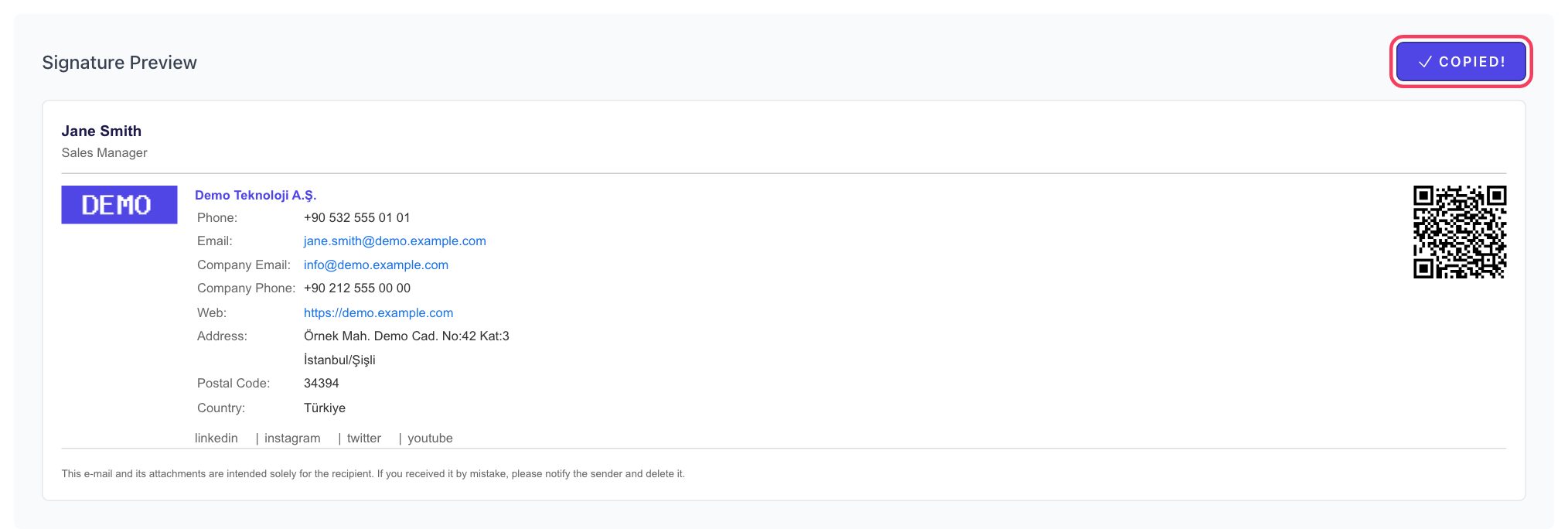
The Copy to Clipboard button copies the signature together with its table layout, colors, logo and QR code image. If the QR code does not appear in the signature after saving (Gmail may not accept some pasted images), download your QR code on the EcoQrCard Home page via Show QR Code → Download → DOWNLOAD QR CODE (PNG) and add it with the insert image button in Gmail's signature editor. Because the signature can be prepared in five languages, you can easily create two separate signatures, for example in English and German, and save both in Gmail. The QR code in the signature lets the recipient open the employee's digital business card; when the business card is updated, the page the QR code opens stays current too.
For colleagues who use Outlook, see our guide on adding an email signature in Outlook, and for signature content and design, our corporate email signature guide.
If you would like to make your whole team's signatures consistent from one dashboard, fill in the quote request form and we will plan the setup together.
Frequently Asked Questions
How many signatures can I create in Gmail?
You can create several signatures and make one the default for new emails and another for replies. While writing a message, you can switch to other signatures from the signature icon.
Can I use a signature with a logo in the Gmail mobile app?
No. The signature field in the mobile app accepts plain text only. You can use the signature with logo and QR code in emails you send from your computer with Gmail in the browser.
Is the signature setting different in a Google Workspace account?
The steps on the user's side are the same. In some organizations, administrators may restrict signature settings; if you cannot see the signature section, ask your company's IT team.
Why do the images in my signature sometimes not appear?
The image source or the way the signature was copied can cause problems. Copy the signature together with its formatting and, if necessary, add the image with the insert image button in the signature editor. Whether images are shown on the recipient's side also depends on the recipient's settings.
How do I stop the signature from getting lost at the very bottom of replies?
Tick the option in the signature section to insert the signature before the quoted text in replies, then save your changes. The signature will then appear directly below your reply.