Email Signatures
How to Add an Email Signature in Outlook
Steps for adding a signature in classic and new Outlook, Outlook on the web, Mac and the mobile app, setting a default signature and fixing the most common problems.
Adding a signature in Outlook looks simple, but because there are several versions of Outlook, the menus change from one to another: the classic Windows desktop app, new Outlook, Outlook in the browser (Outlook.com and Microsoft 365), the Mac app and the mobile app. In this guide you will find the steps for each one, how to set a default signature and fixes for the problems that often come up with signatures containing a logo and a QR code.
Before you start: which Outlook are you using?
| Version | How to recognize it | Signature menu |
|---|---|---|
| Classic Outlook (Windows) | Desktop app with a File tab at the top | File → Options → Mail → Signatures |
| New Outlook (Windows) | App that looks like the web version, with a gear icon at the top right | Settings → Accounts → Signatures |
| Outlook on the web (Outlook.com / Microsoft 365) | Outlook opened in the browser | Settings → Accounts → Signatures |
| Outlook (Mac) | macOS app | Outlook → Settings → Signatures |
| Outlook mobile (iOS / Android) | Phone app | Settings → Signature |
Menu names can differ slightly depending on your language settings and version updates. If your Outlook is set to another language, look for the equivalent menu items in the same position.
When you prepare your signature, you need to copy a colored HTML signature with a logo together with its formatting from its source. A signature copied as plain text loses its table layout, colors and images when pasted into Outlook.
Classic Outlook (Windows desktop)
- Open File → Options → Mail.
- Click the Signatures... button.
- On the E-mail Signature tab, click New, give the signature a name (e.g. "Corporate") and click OK.
- Click the Edit signature box and paste the signature (Ctrl+V).
- Under Choose default signature on the right, select the right account if you have more than one.
- Select your signature in the New messages and Replies/forwards lists.
- Click OK to close the windows.
You can also reach the same screen from a new message window via Message → Signature, and switch between saved signatures there.
New Outlook (Windows) and Outlook on the web
New Outlook and Outlook in the browser use the same settings screen.
- Click the gear icon (Settings) at the top right.
- Open Accounts → Signatures.
- Click + New signature and give the signature a name.
- Click the editing box and paste the signature.
- Under Select default signatures, choose your signature in the For New Messages and For Replies/Forwards lists.
- Click Save.
With Microsoft 365 accounts, signatures can be stored in the cloud and appear on different devices. Even so, we recommend opening a new message on each device to check that the signature comes through correctly.
Outlook (Mac)
- From the top menu, open Outlook → Settings (Preferences in older versions) → Signatures.
- Click the + button and give the signature a name.
- Delete the sample text in the editing area, paste the signature (Command+V) and save.
- Under Choose default signature, select your account and set your signature for New messages and Replies/forwards.
Outlook mobile (iPhone and Android)
- In the app, tap your profile icon and open Settings (gear icon).
- Go to the Signature section.
- Type a short signature and save it.
The signature field in the mobile app supports far more limited formatting than the desktop; images such as the logo and QR code are usually not kept. On a phone, a short text signature with your name, job title, company and phone number is enough.
Default signature: new messages and replies
Many organizations use the full signature for new messages and a shorter one for replies and forwards. That way, long email threads do not get bloated with logos and images in every reply.
| Situation | Recommended signature |
|---|---|
| New message | Full signature: name, job title, contact details, logo, QR code, legal disclaimer |
| Reply / forward | Short signature: name, job title, phone |
| Mobile | Plain text, 2-3 lines |
Common mistakes
- Breaking the formatting by passing the signature through a word processor or notes app
- Selecting a signature for new messages only and forgetting the replies setting
- Assigning the signature to the wrong account when you have more than one
- Adding the entire signature as a single image
- Leaving the message format set to plain text in classic Outlook
- Not checking the signature again after changing computers or moving to new Outlook
Test your signature
Saving the signature is not the end of the job. Run these checks:
- Send yourself a new message and check that the signature looks the way you expect.
- Send the same message to an address on a different email service (e.g. a Gmail account) to see how it looks in other programs.
- Open the message on your phone and make sure the logo and QR code look proportionate.
- Reply to an incoming message and check that the reply signature appears correctly.
- Click the phone, email and website links in the signature to confirm they work.
- If the signature includes a QR code, scan it with your phone and check that the right business card opens.
Common problems and how to fix them
Images (logo, QR code) do not appear
- Copying method: Use the "copy" button if there is one, rather than selecting the signature with the mouse and copying it. Images are lost in a signature that has passed through a field that only accepts plain text (e.g. Notepad).
- Blocking on the recipient's side: For security reasons, Outlook and many other email programs do not show images loaded from the internet by default. They appear when the recipient clicks the option to download pictures. This is not a fault in your signature.
- The signature editor does not accept them: Some versions may not take certain pasted images. In that case, save the image as a file and add it with the signature editor's insert picture button.
Formatting breaks
- If the message format is plain text: In classic Outlook, make sure File → Options → Mail → Compose messages in this format is set to HTML. In plain text messages, the signature's colors, table and images are removed.
- The font changes: Outlook may replace some fonts with its own default. Using common fonts such as Arial, Calibri or Segoe UI in the signature reduces this problem.
- Line spacing opens up: After pasting the signature, delete the empty lines by hand and save.
The signature does not appear in replies
Check that the signature is selected in the Replies/forwards list. This setting is independent of the new messages setting.
A different signature appears on different devices
Signatures can be defined separately in each version of Outlook. Check one by one that the signature is up to date in classic Outlook, on the Mac and in the mobile app.
My details changed, but my signature is still the old one
A signature pasted into an email program is a static copy. When your job title or phone number changes, you need to copy the updated signature again and paste it in place of the old one. If the QR code in the signature points to a dynamic business card, the card the QR code opens stays up to date in the meantime.
A ready-made Outlook signature with EcoQrCard
EcoQrCard email signatures automatically create a corporate signature for every employee from their business card details. The company administrator defines how the signature looks (template, colors, logo and QR code size, legal disclaimer); the employee only chooses the signature language (and the template, if allowed).
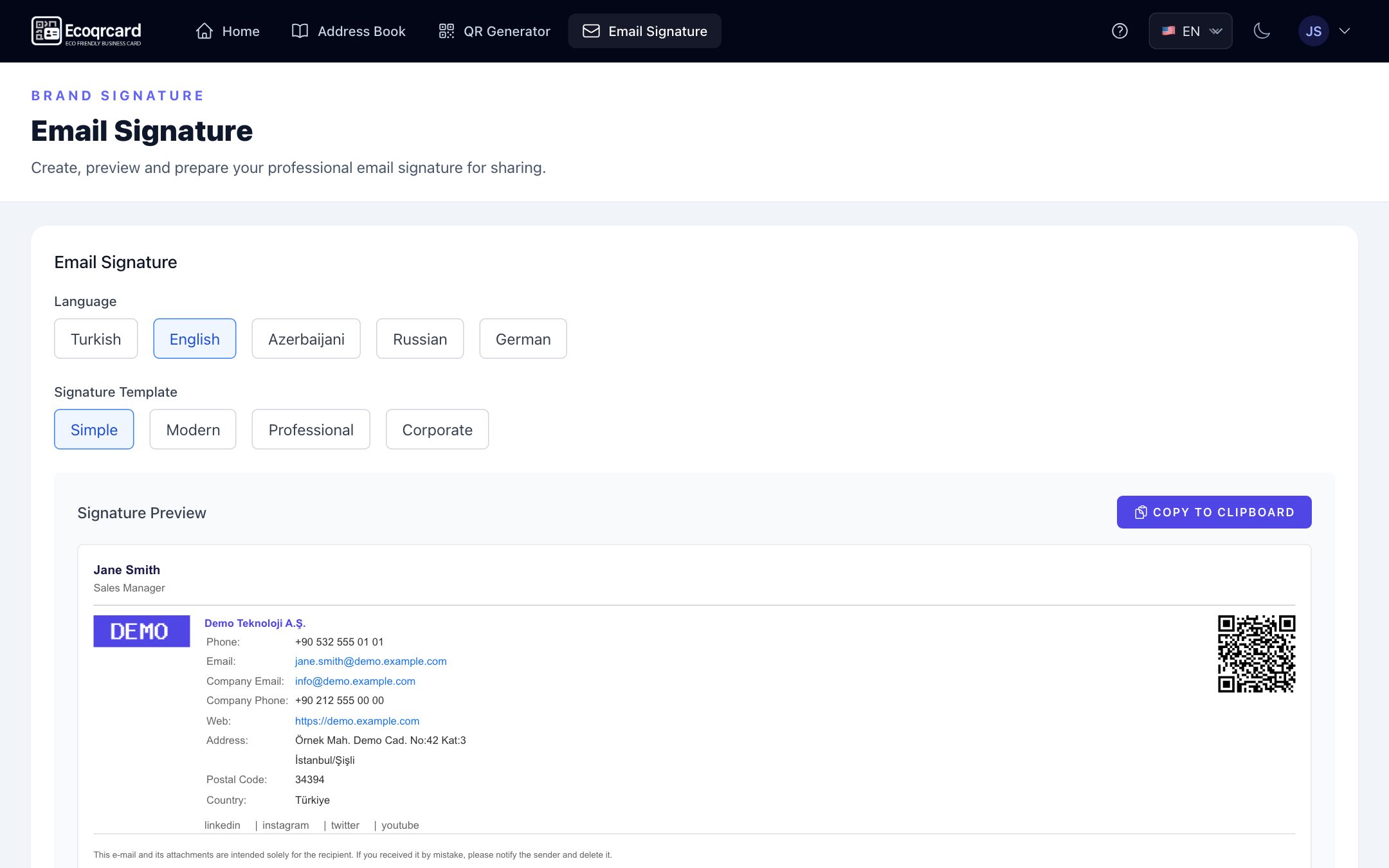
To add it to Outlook:
- In EcoQrCard, open the Email Signature page from the top menu.
- Choose the signature language (Turkish, English, Azerbaijani, Russian or German).
- Click the Copy to Clipboard button; the button briefly changes to Copied!.
- Open Outlook's signature screen using the steps above and paste the signature.
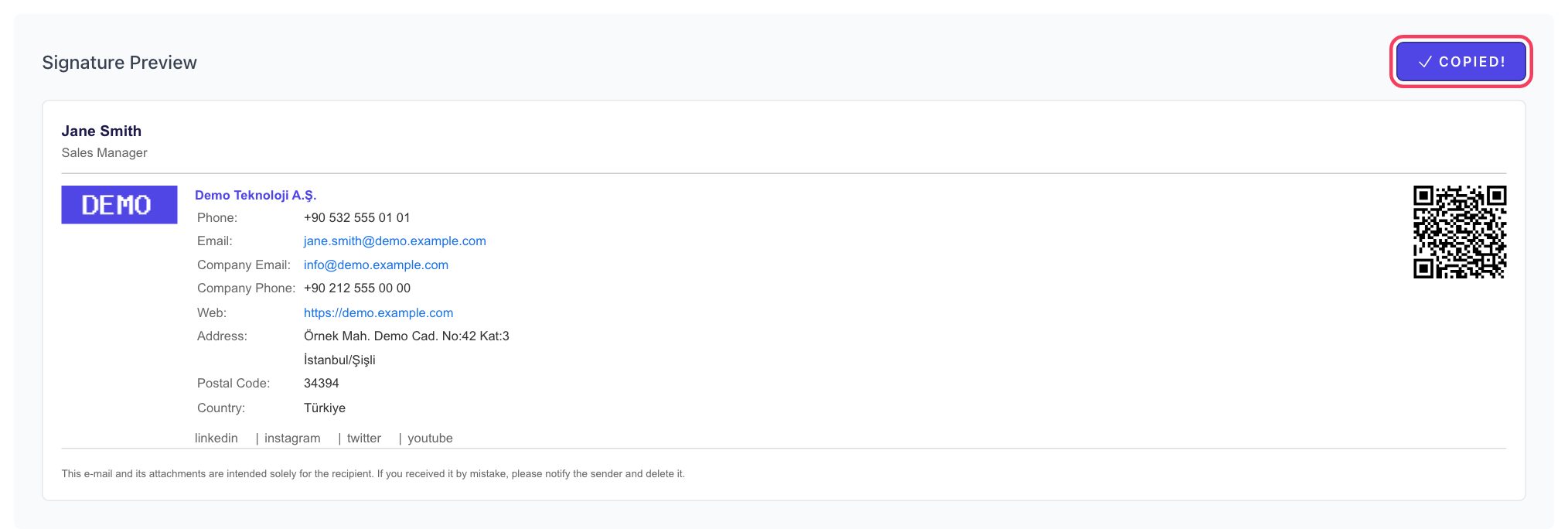
The Copy to Clipboard button copies the signature as HTML together with its table layout, colors, logo and QR code image; it is compatible with Outlook, Gmail and Apple Mail. If your version of Outlook does not accept the pasted QR image, you can download your QR code on the EcoQrCard Home page via Show QR Code → Download → DOWNLOAD QR CODE (PNG) and add it with the insert picture button in Outlook's signature editor. The QR code in the signature lets the recipient open the employee's digital business card and save it to their contacts with a single tap.
If you use Gmail, see our guide on adding an email signature in Gmail; to bring your signature's content and design in line with corporate standards, read our corporate email signature guide.
If you would like to manage consistent signatures with QR codes for all your employees from one dashboard, request a quote.
Frequently Asked Questions
Can I create more than one signature in Outlook?
Yes. In every version of Outlook you can define several signatures and choose different defaults for new messages and replies. You can also switch to another signature from the signature menu while writing a message.
Will a signature I create in Outlook on the web also appear in the desktop app?
With Microsoft 365 accounts, signatures can be stored in the cloud, so in many cases they will. However, this behavior can vary by version; the safest approach is to open a new message on each device and check.
Why does the logo in my signature not show up for the recipient?
Most email programs block images loaded from the internet by default for security reasons. The logo appears once the recipient agrees to download the images. If it does not appear on your own side either, make sure you copied the signature together with its formatting.
Can I use a signature with a logo in the Outlook mobile app?
The mobile app's signature field supports limited formatting, and images are usually not kept. We recommend a short text signature on your phone and the full signature with logo and QR code on your computer.
How do I update my signature when my details change?
Copy the updated signature again and paste it in place of the old one in Outlook. In EcoQrCard, your details come from your business card, so the current signature is always ready on the Email Signature page; the business card opened by the QR code in your signature stays up to date even without refreshing the signature.