
Email Signatures
How to Add an Email Signature in Apple Mail and on iPhone
How to add a signature in Apple Mail on a Mac and in the Mail app on iPhone and iPad, keep a branded signature's formatting intact and work around the limits on mobile devices.
Most Mac users manage their email with Apple's own Mail app, and on iPhone and iPad the Mail app is the default too. Adding a signature takes only a few steps on either, but a branded, formatted corporate signature needs attention to a few details to display properly. This guide explains how to add a signature in Apple Mail on a Mac and in the Mail app on iPhone and iPad, along with common problems and how to fix them.
Before you start: prepare your signature
Before adding a signature, you need the signature you're going to use ready. Corporate signatures usually include your full name, job title, company name, phone, website, logo and, optionally, a QR code and a legal disclaimer. For content and design tips, see our corporate email signature guide.
It's important to copy the signature in its formatted (HTML) form. If you're copying it from a web page or a signature tool, use the tool's own "copy" button; selecting and copying with the mouse often breaks the table structure and images.
Adding a signature in Apple Mail on a Mac
Menu and option names can vary with the macOS version and system language, so the wording on your screen may not match exactly. In macOS Ventura and later the menu is called Settings; in earlier versions it is Preferences.
- Open the Mail app.
- In the menu bar, click Mail → Settings (Preferences in earlier versions).
- Open the Signatures tab.
- In the left-hand column, select the email account you want to add the signature to. You can later drag a signature you created under All Signatures onto accounts.
- Click the + button below the middle list and give the signature a clear name (e.g. "Corporate signature").
- Untick Always match my default message font.
- In the preview area on the right, delete the sample text and paste your signature (Command+V).
- Use the Choose Signature menu below the list to set the default signature for this account.
- Close the window. Changes are saved automatically.
Why does the font-matching option matter?
When this option is ticked, Apple Mail converts the font and some formatting in the signature to your default message font. As a result, the colours, font sizes and layout of a corporate signature can break. If you use a formatted signature, untick this option and paste the signature again.
Placing the signature above quoted text
The Signatures tab has a Place signature above quoted text option. If you tick it, when you reply your signature appears immediately below the text you wrote rather than below the old quoted message. Most people prefer this layout in business correspondence.
Using more than one signature
You can create different signatures for the same account, for example a short reply signature and a full corporate signature. When writing a new message, you choose the one you want from the Signature menu in the message window. If you have several accounts, assign a separate default signature to each.
Adding a Mail signature on iPhone and iPad
On iOS and iPadOS, signature settings live not in the Mail app itself but in the device's Settings app. Names may differ slightly depending on the iOS version and device language.
- Open the Settings app.
- On iOS 18 and later, go to Apps → Mail; on earlier versions, tap Mail directly.
- Scroll down and tap Signature.
- If you have more than one account, choose either one signature for all accounts (All Accounts) or a separate signature for each account (Per Account).
- Delete the default text ("Sent from my iPhone" or similar) and type or paste your signature.
- Go back; the signature is saved automatically.
Formatted signatures on iPhone: what to expect
The signature field on iPhone and iPad is not as advanced as in desktop email clients. In general you can expect the following:
- Plain text always works: Details such as name, job title, phone and website display without problems.
- Simple formatting may partly survive: When you copy and paste a formatted signature, some formatting such as bold text or colour may be kept.
- Images are generally unreliable: Images such as a logo and QR code may disappear from the signature field or not reach the recipient as expected.
- Behaviour can change between versions: Apple may change how the signature field handles formatting between iOS versions. A method that works in one version may give a different result in another.
So the practical approach is this: use the full corporate signature on your Mac and in other desktop email clients, and choose a short, plain-text signature on iPhone and iPad. For example:
Full Name | Job Title Company Name Tel: +44 ... | www.example.com
Adding your digital business card link to the short signature on your phone is a good middle ground; the recipient taps the link to reach all your contact details.
Tips for a signature that looks good on Apple devices
Apple Mail generally displays formatted signatures well, but your recipient may be using a different email client. For a signature that looks consistent everywhere:
- Choose a simple layout: Table-based layouts with no more than two columns break less often across email clients.
- Keep images small: The logo and QR code should take up little space in the signature; large images increase message size and look poor on a phone.
- Write key information as text: Phone number and email address should be text, not part of an image. Some recipients block images by default.
- Check the links: Test that website and social media links go to the right address.
- Think about dark mode: In emails opened in dark mode, logos with transparent backgrounds can disappear; make sure your logo is readable on both light and dark backgrounds.
Testing your signature
Adding the signature isn't the end of the job. Send a test email to yourself and, if possible, to one or two colleagues who use different email clients. Check:
- Are the logo and QR code visible?
- Are the font and colours as you expected?
- Is the signature in the right place in replies and forwards?
- Is the signature readable when opened on a phone?
- When you scan the QR code with your phone, does the right page open?
Common problems
| Problem | Likely cause | Solution |
|---|---|---|
| The signature's font and colours change | Always match my default message font is ticked | Untick it and paste the signature again |
| The logo or QR code doesn't show | The signature was selected and copied with the mouse, or the image couldn't load | Use the signature tool's copy button; check that the image is accessible online |
| The signature looks different for the recipient | The recipient's email client interprets formatting differently | Use a simple, table-based template; test in different clients |
| No images in the signature on iPhone | The iOS signature field doesn't reliably support images | Use a short text signature on your phone |
| The signature ends up at the bottom of replies | The signature is placed below the quoted text | Tick Place signature above quoted text |
Checklist
- Did you copy the signature in formatted form, using the tool's copy button?
- On your Mac, did you switch off Always match my default message font?
- Did you choose a default signature for each account?
- Did you send yourself a test email and check it on both computer and phone?
- Did you prepare a short text signature for iPhone and iPad?
Prepare your signature in one click with EcoQrCard
EcoQrCard's email signature module builds your signature automatically from your business card details. The company administrator chooses one of four templates (Simple, Modern, Professional, Corporate), sets the colour, font size, logo and QR code options and can lock the template for all employees. You choose the signature language (and, if the administrator allows it, the template), press Copy to Clipboard and paste the signature into Apple Mail's signature field. This button copies the signature together with its formatting (table, colours, logo and QR code); don't select and copy the preview with the mouse.
On a Mac, the practical workflow is:
- In EcoQrCard, open the Email Signature page from the top menu, choose the language and press Copy to Clipboard.
- In Apple Mail, create a new signature using the steps above and switch off the font-matching option.
- Paste the signature, send yourself a test email and scan the QR code with your phone.
If the QR code doesn't appear when you paste, you can download it as an image via Home → Show QR Code → Download → DOWNLOAD QR CODE (PNG) and add it to the signature separately.
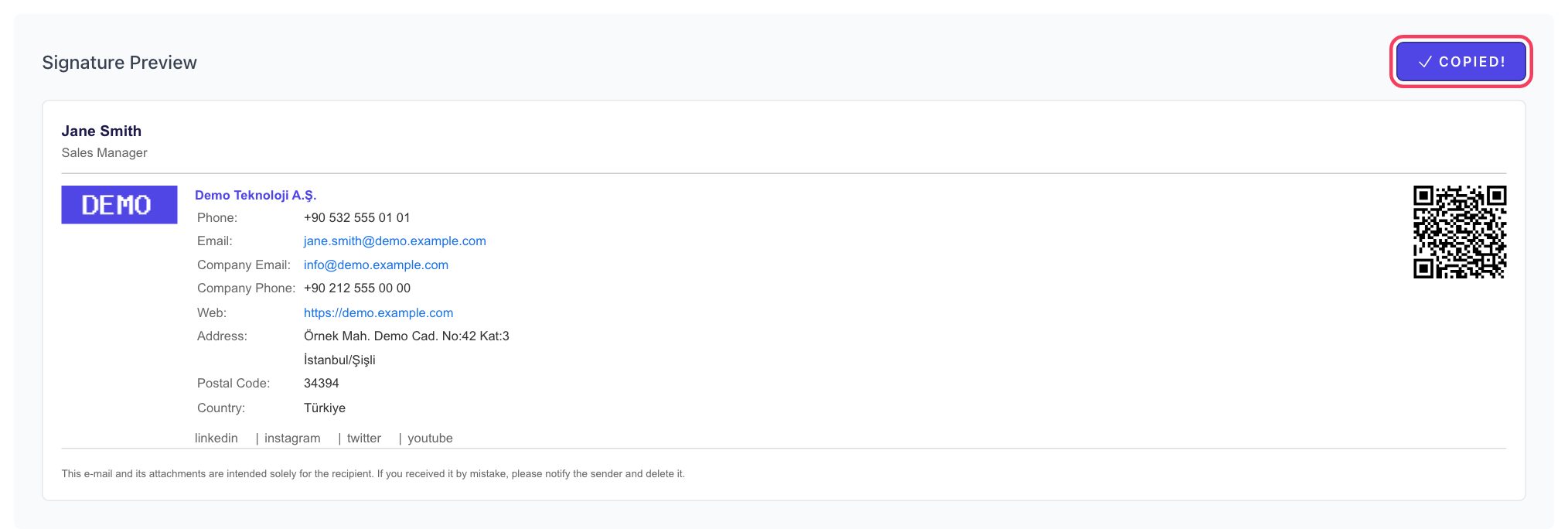
The QR code in the signature lets the recipient open your digital business card by scanning it with their phone. The signature can be prepared in Turkish, English, Azerbaijani, Russian and German; if the administrator has enabled the legal disclaimer, it is added in the selected language too. If you correspond in several languages, you can create a separate signature for each language and switch between them in Apple Mail when writing a message. For colleagues using Outlook and Gmail, our guides on adding a signature in Outlook and adding a signature in Gmail are also ready.
If you want your whole team to use consistent signatures with your logo and a QR code, fill in the quote request form and we will set it up together.
Frequently Asked Questions
Where are the signature settings in Apple Mail?
On a Mac, in the Mail app go to Mail → Settings (Preferences in earlier versions) → Signatures in the menu bar. On iPhone and iPad, go to Apps → Mail → Signature in the Settings app (Settings → Mail → Signature before iOS 18). Names may vary slightly by version and language.
Why does my signature look broken on my Mac?
The most common cause is that Always match my default message font is ticked. Untick it and paste the signature again. Also make sure you copied the signature with the signature tool's copy button rather than selecting it with the mouse.
Can I use a signature with a logo on iPhone?
Simple formatting is sometimes kept, but images such as a logo and QR code don't work reliably in the iPhone and iPad signature field, and the behaviour may change with the iOS version. We recommend a short text signature on your phone and the full corporate signature on your computer.
Can I use a different signature for each email account?
Yes. On a Mac, select each account in the left-hand column and assign it its own signature and default signature. On iPhone and iPad, the Per Account option lets you write a separate signature for each account.
What should I do when the details in my signature change?
The signature stays exactly as it was when you pasted it into your email client. When your details change, you need to copy the updated signature again and paste it in place of the old one. The QR code in the signature, however, opens your digital business card, so it always shows the up-to-date details on your card.