Digital Business Cards
Digital Business Cards for Sales Teams: A Practical Guide
How sales reps can use digital business cards in the field, in meetings and in correspondence, how managers can standardise the team and what you can measure.
For a sales rep, the business card is the first tangible trace left with a customer. But paper cards often get lost in a drawer, and when a job title or phone number changes, the wrong details keep circulating. A digital business card makes that trace lasting, up to date and measurable. This guide explains, step by step, how sales teams can use digital business cards in the field, in meetings and in correspondence, and how managers can standardise the team.
Why are sales teams switching to digital business cards?
Selling moves forward through many short touchpoints: a five-minute chat at a trade show stand, a presentation at the customer's office, an introductory phone call. After every touchpoint, the customer needs to be able to find you easily. Digital business cards offer three key advantages here:
- Easy to save: The customer scans the QR code and adds your details to their contacts with a single tap. No more typing details in by hand.
- Always up-to-date information: When a rep's phone number, job title or territory changes, the card changes too; old cards still in circulation stop being a problem.
- Measurable: Seeing how often cards are opened gives you an idea of field activity.
If you haven't yet looked at the basics of digital business cards, start with our guide what is a digital business card.
Business cards at every stage of the sales process
Field visits and face-to-face meetings
At the end of a meeting, instead of handing over a card, show the QR code on your phone screen. The customer scans it, the card opens and they save your details with Add to Contacts. If there are several people at the table, they can all scan the same code in turn. If someone struggles to scan the code, send the card link straight away via WhatsApp. If you are meeting an international customer, choose the card language (e.g. English) before you show the code; the card opens in the language you selected when sharing.
Phone and video calls
In remote meetings, the moment of handing over a business card never happens. Sending your card link in a short message when the call ends makes it easy for the customer to add you to their contacts. Putting your business card QR code on the final slide of a video meeting is another habit that works.
Email correspondence
Much of the sales process runs over email. A business card QR code and contact details added to your email signature present your card again in every message. For tips on signature design, see our corporate email signature guide.
Trade shows and events
Digital business cards make the biggest difference where you meet lots of people in a short time. For stand planning, name badges and post-event follow-up, use the checklist in our guide to digital business cards at trade shows and events.
Proposals and presentation documents
Adding the rep's business card QR code to the last page of printed proposals, presentations and brochures lets the decision maker reviewing the document reach you directly.
For managers: standardising the team
When everyone in the sales team designs their own business card, brand consistency quickly breaks down. With digital business cards, standards are set as follows:
| Field | Who decides? | Why it matters |
|---|---|---|
| Card design and colours | Company administrator | The whole team carries the same brand look |
| Company details, addresses, social media | Company administrator | Entered once, reflected on every card |
| Name, job title, phone, email | Individual | Correct contact details for each rep |
| Catalogue and document links | Company administrator | The current catalogue is the same on every card |
| Which company details the short QR code shares | Company administrator | A clean code for signatures and small prints |
| Active / inactive status of the card | Company administrator | A departing employee's card is switched off in one step |
This structure matters especially in teams with frequent turnover. When a departing employee's card is deactivated, the code in customers' hands no longer shows that person's details; scanning it opens a "not found" page. Because each card is tied to one person, an old card is not handed over to a new rep: the new rep goes out into the field with their own card. For printed materials that need to stay independent of any individual rep (catalogues, stand panels), it's safer to use a code that leads to the company's general contact page rather than a personal card.
What can you measure?
A digital business card doesn't measure the entire sales funnel, but it does give useful signals:
- Total and period scans: How many times were the team's cards opened in the last 7 or 30 days?
- Most scanned cards: Which reps' cards attract the most interest?
- Timing: On which days of the week and at which hours of the day do scans cluster?
- Device breakdown: Are cards opened more on phones or on computers?
- Event impact: How much did scans rise during a trade show week?
This data is a good starting point for discussing field activity in sales meetings. But don't turn the scan count into a performance target on its own: the number doesn't tell you who opened the card or whether it led to a sale, and if the same person opens the card several times, each opening counts as a separate scan. What matters is the quality of the contact with the customer.
Rollout plan: switching in four steps
- Collect the details: Update reps' names, job titles, phone numbers and email addresses in a single list. If you work with international customers, also prepare at least English versions of the job titles.
- Enter the company details: Complete the shared information such as logo, addresses, social media accounts and catalogue links.
- Create and test the cards: Run a pilot with a few reps; check how the card looks on different phones and how it saves to contacts.
- Give the team a short training session: Try showing the QR code, sending it via WhatsApp and adding it to the signature together in a meeting.
A good sales business card from the customer's point of view
When designing the card, think about what the customer opening it wants to see, not the rep. Customers are usually looking for answers to three questions: Who is this person, what do they do at which company, and what's the fastest way to reach them? A good sales business card answers these on the first screen:
- A clear job title: A description that helps the customer, such as "Corporate Sales Specialist – South West Region" rather than just "Specialist".
- Direct contact: The rep's direct phone number and email rather than the switchboard.
- Links that introduce the company: Website, product catalogue and corporate social media accounts.
- Address details: Office or branch addresses the customer can visit.
- Language options: For international customers, the card can open in their language (the job title and department must also be entered in that language).
Daily checklist for reps
The benefit of digital business cards shows once the team makes them a habit. A simple checklist for your reps:
- Show the QR code at the end of every face-to-face meeting.
- Send the card link by message after every phone and video call.
- Make sure your email signature is up to date and includes the QR code.
- Add the card code to the last page of proposals and presentations.
- If you spot incorrect information on the card, tell your manager straight away.
Common mistakes
- Treating the card as a single channel: The card should be used not only in meetings but also in signatures, presentations and messages.
- Mixing personal and corporate details: A rep's personal social media accounts don't belong on a corporate card.
- Forgetting old cards: Not deactivating departing employees' cards leads customers to the wrong person.
- Adding too much information: What matters to the customer is who you are and how to reach you; don't fill the card with unnecessary links.
- Not testing: Trying the code only on your own phone isn't enough; check it on different devices.
Digital business cards for your sales team with EcoQrCard
EcoQrCard lets you manage your sales team's business cards from a single panel. The company administrator creates a digital business card for each employee; the company logo, address, social media accounts and catalogue links are added to every card automatically, and the card page design is chosen company-wide from 10 ready-made templates, with colours adjusted to your corporate identity. If you have many reps, you can bulk import users via Excel and automatically create a QR business card for each user during the import. Job titles and departments can be entered in five languages; fill in one language and use Fill with AI to get suggested translations for the others.
A practical setup order looks like this:
- Add reps one by one or with the Excel template on the Definitions → Users page.
- Enter the company details, social media accounts and catalogue links once; they are reflected on every card.
- In QR Card Settings, choose the card design and the company details to share on the short QR code.
- Create the cards (they can be created automatically during Excel import) and test them on a few phones.
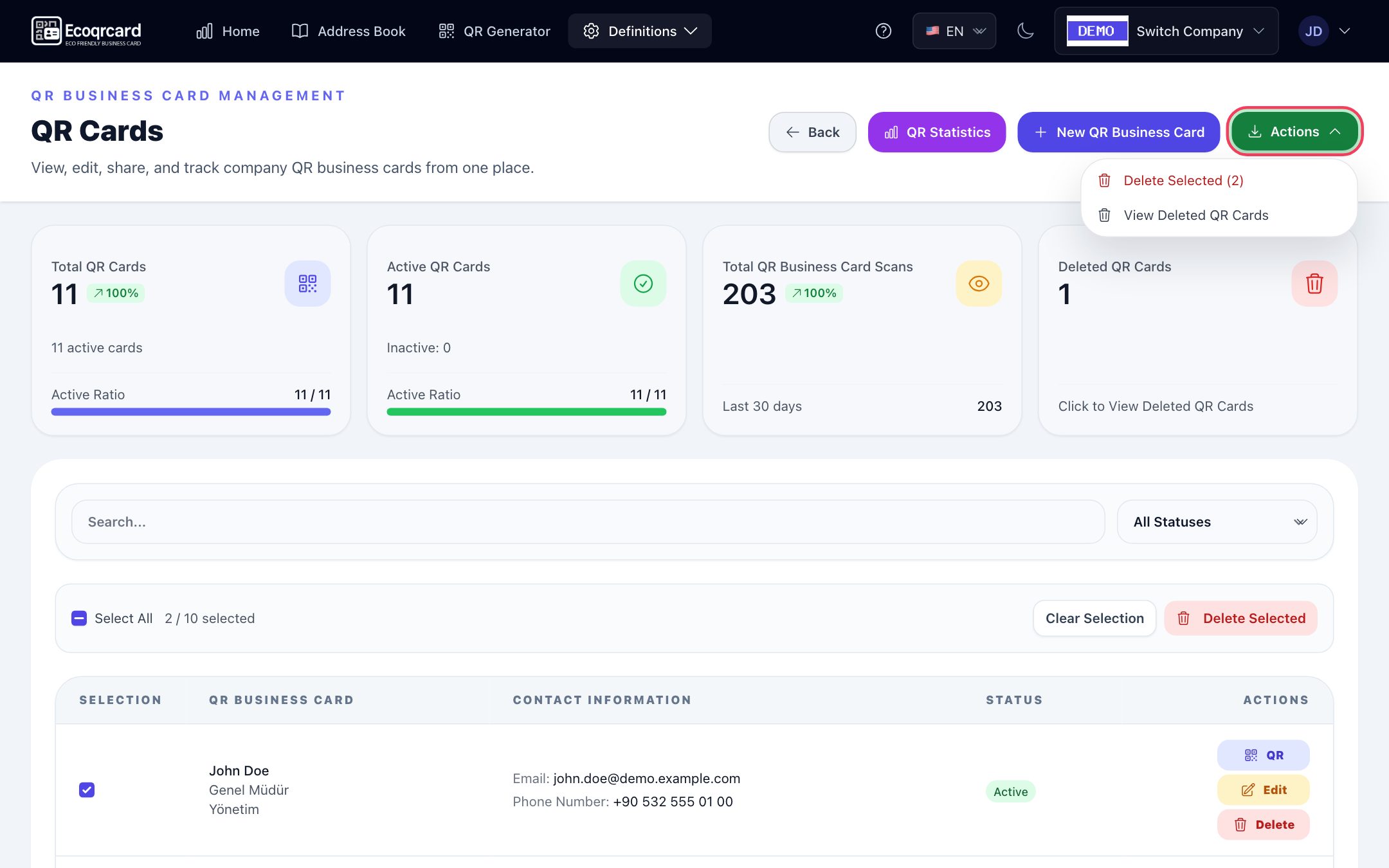
The rep opens their own card in the mobile app; they show the QR code, send the link via WhatsApp, or pass on the QR code image or the contact card file (VCF) via the phone's share menu. Every card has a Short and a Full QR code: both contain the person's and the company's basic contact details; the short code shares only the additional company details the administrator has selected, while the full code shares all of them. When showing or sharing the code, the rep can choose the card language from Turkish, English, Azerbaijani, Russian and German, so it works just as well with international customers. When a rep's details change, their card updates instantly; the QR code stays the same.
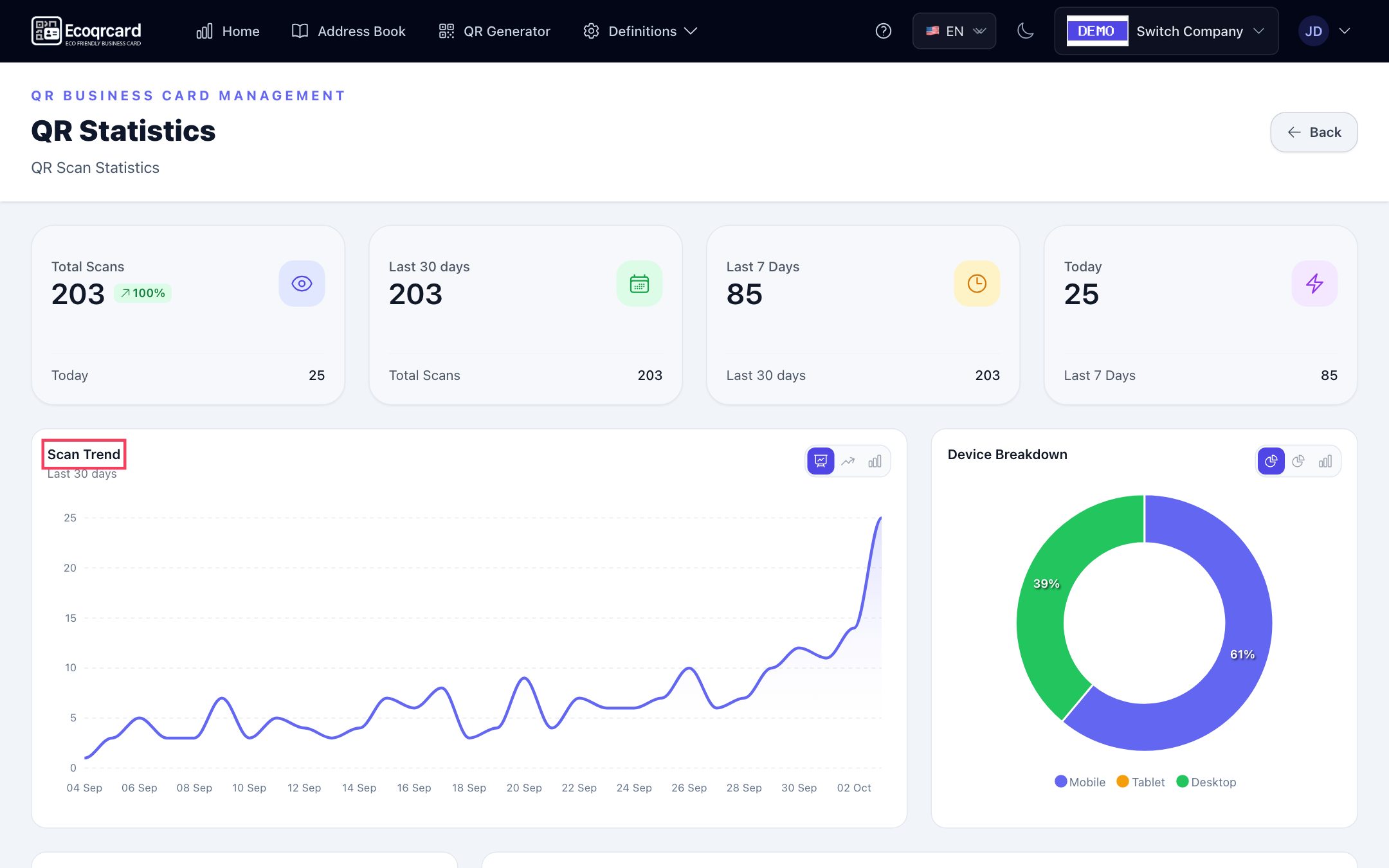
On the real-time analytics screen, the company administrator sees total, last 30 days, last 7 days and today's scans, the most scanned cards, the device breakdown, the weekly distribution and the hourly heatmap. Reps can also follow their own card's total and this month's scan count on their Home screen. The email signature carrying the business card QR code is managed from the same panel; each rep copies their signature with one click using the Copy to Clipboard button and pastes it into their email client. The Address Book lets team members quickly reach each other's cards; for example, sharing a technical colleague's card when referring a customer to them takes seconds.
To move your sales team to digital business cards, fill in the quote request form and we will plan a setup that fits the size of your team.
Frequently Asked Questions
Can sales reps edit their own cards?
In EcoQrCard, business card details are managed by the company administrator. This keeps job titles, phone numbers and company details under control and protects brand consistency. When a rep notices incorrect information, they tell their administrator; once it is corrected, the card updates instantly.
What happens when a rep leaves the company?
The administrator can deactivate or delete the card. The QR code of an inactive card no longer shows the person's details, so customers are not directed to a former employee. If needed, the card can be reactivated later.
What should I do if a customer doesn't want to scan a QR code?
You can send your card link directly with the WhatsApp button; the link opens the same card page, from where the customer can save your details to their contacts. Alternatively, use the SHARE menu to send the QR code image or your contact card file (VCF) by SMS, email or another app via your phone's share menu.
Can I see which rep's card is used most?
Yes. The company administrator's statistics screen lists the most scanned cards and recent scans. This data gives an idea of field activity, but it should not be used as the only measure when evaluating sales performance.
Should we stop printing paper business cards altogether?
Not necessarily. Many teams keep a small number of printed cards as a backup and add the digital business card's QR code to them. That way, even if details change, the printed card points to the up-to-date digital card. For a detailed comparison, see our guide on paper vs digital business cards.