QR Codes
How to Create a QR Code: A Step-by-Step Beginner's Guide
From choosing the right QR type to testing and printing, we explain step by step how to create a QR code that actually works.
Creating a QR code looks like a job of a few seconds: you paste a link, a square appears, you download it. But for a code that actually scans in the real world, opens the right content and keeps working months later, you need to make a few decisions correctly from the start. In this guide we explain what a QR code is, what each type is for and the steps to follow from creating a code to sending it to print.
What is a QR code and how does it work?
A QR (Quick Response) code is a type of barcode that turns information into a two-dimensional pattern of black and white squares. The phone camera reads this pattern and decodes the data inside: a web address, plain text, a phone number, Wi-Fi details or a contact card.
The three large squares in the corners of a QR code let the phone find the code's position and angle. The code also contains error correction data, so it can still be read even if it gets a little dirty, scratched or has a small logo placed in the middle. We explain how this margin is used when adding a logo in our guide on creating a QR code with a logo.
Before you start: three basic decisions
1. What is the code for?
Instead of saying "let's make a QR code", ask "What should the person who scans it do?" Go to a website, see the menu, save a contact, join the Wi-Fi? The answer determines which QR type you choose.
2. Static or dynamic?
| Static QR | Dynamic QR | |
|---|---|---|
| What is inside the code? | The content itself (address, text, Wi-Fi details) | A short redirect link |
| Can the content change after printing? | No, a new code is needed | Yes, the code stays the same |
| Are scans measured? | No | Yes |
| Look of the code | Gets denser as the content gets longer | Stays simple thanks to the short link |
| Best for | Information that will never change | Print materials, campaigns, menus |
For anything printed, a dynamic code is usually the safer choice: when the link changes, you do not have to reprint thousands of brochures. For a detailed comparison, see our guide to static vs. dynamic QR codes.
3. Where will the code be used?
A code shown on a screen and a poster code scanned from three meters away are not prepared the same way. Decisions about size, color and material depend on where the code will be used.
Common QR code types
| Type | What happens when it is scanned? | Example use |
|---|---|---|
| Website (URL) | A page opens | Campaign page, product page |
| Text | A short text is displayed | Serial number, instructions |
| vCard | A contact can be saved to the address book | Business card, name badge |
| Phone / SMS / Email | A call, message or email is started | Support line, reservations |
| A chat opens with a prefilled message | Customer service | |
| Wi-Fi | The phone offers to join the network | Guest network |
| Location | A map opens | Shop or branch address |
| PDF / Image / Video | A file is displayed | Catalog, user manual |
| Multi-link | Several links are listed | Social media accounts |
Creating a QR code step by step
- Choose the purpose and the type. Define the single action the person scanning should take, and choose the matching type.
- Decide between static and dynamic. If the content may change or you want to see scan counts, choose dynamic.
- Enter and check the content. Make sure the link starts with
https://, the phone number includes the country code and the Wi-Fi password is correct, including upper and lower case. - Give the code a recognizable name. A name like "Spring Campaign – Store Poster" instead of "QR 1" lets you know later which code is used where.
- Design it. Use a dark foreground and a light background. If you add a logo, keep it small in the middle of the code.
- Add a call to action. Write a short line next to the code, such as "Scan to see the menu". People who do not know what will happen do not scan.
- Test it. Scan it with at least one iPhone and one Android phone, at different distances and in different lighting.
- Download it in high resolution and print it. For print, the code must not become blurry; for choosing the size, see our QR code print size guide.
Common mistakes
- Inverted colors: A light code on a dark background will not scan on some phones. Stick to the classic dark-on-light layout.
- Low contrast: Combinations such as light blue on light gray look stylish but do not scan.
- Cutting off the margin: The white space around the code (the quiet zone) is part of the design and must not be cropped.
- Putting long content in a static code: A long address or text makes the code dense, with tiny squares. Use a dynamic code or a short link.
- Printing without testing: This is the most expensive mistake. A single wrong character sends the whole print run to the bin.
- "Forgetting" the code: If the link goes to a broken page after the campaign ends, trust in the brand suffers. For dynamic codes, update the content or deliberately deactivate the code.
Where does a QR code not work?
A QR code is not the right solution everywhere. In the following situations, consider another approach or position the code differently:
- Places without internet: In subway tunnels, basements or rural areas, the page opened by a dynamic code may not load. Here a static code that carries the content directly is a better fit.
- Moving surfaces: Nobody can scan a code on a vehicle driving past.
- Very distant or very high spots: A small code on a sign that people cannot get close to is useless.
- When no single action is needed: If the page the code would open is a well-known address that is easy to type, adding a code may add no extra value.
Checklist
- A single, clear purpose has been defined
- The right type and static/dynamic choice have been made
- The content and link have been checked
- Color contrast is sufficient and the quiet zone is preserved
- There is a short call to action next to the code
- Tested with iPhone and Android
- The print size suits the scanning distance
Creating QR codes with EcoQrCard
The EcoQrCard QR Generator is designed for companies to create and manage their QR codes in one dashboard. More than 25 types, such as website, text, vCard, Wi-Fi, PDF, restaurant menu, payment, feedback and event, are offered in five groups: Core, Media & Files, Marketing & Growth, EcoQrCard Workflows and Industry Templates.
The steps above map to the dashboard like this:
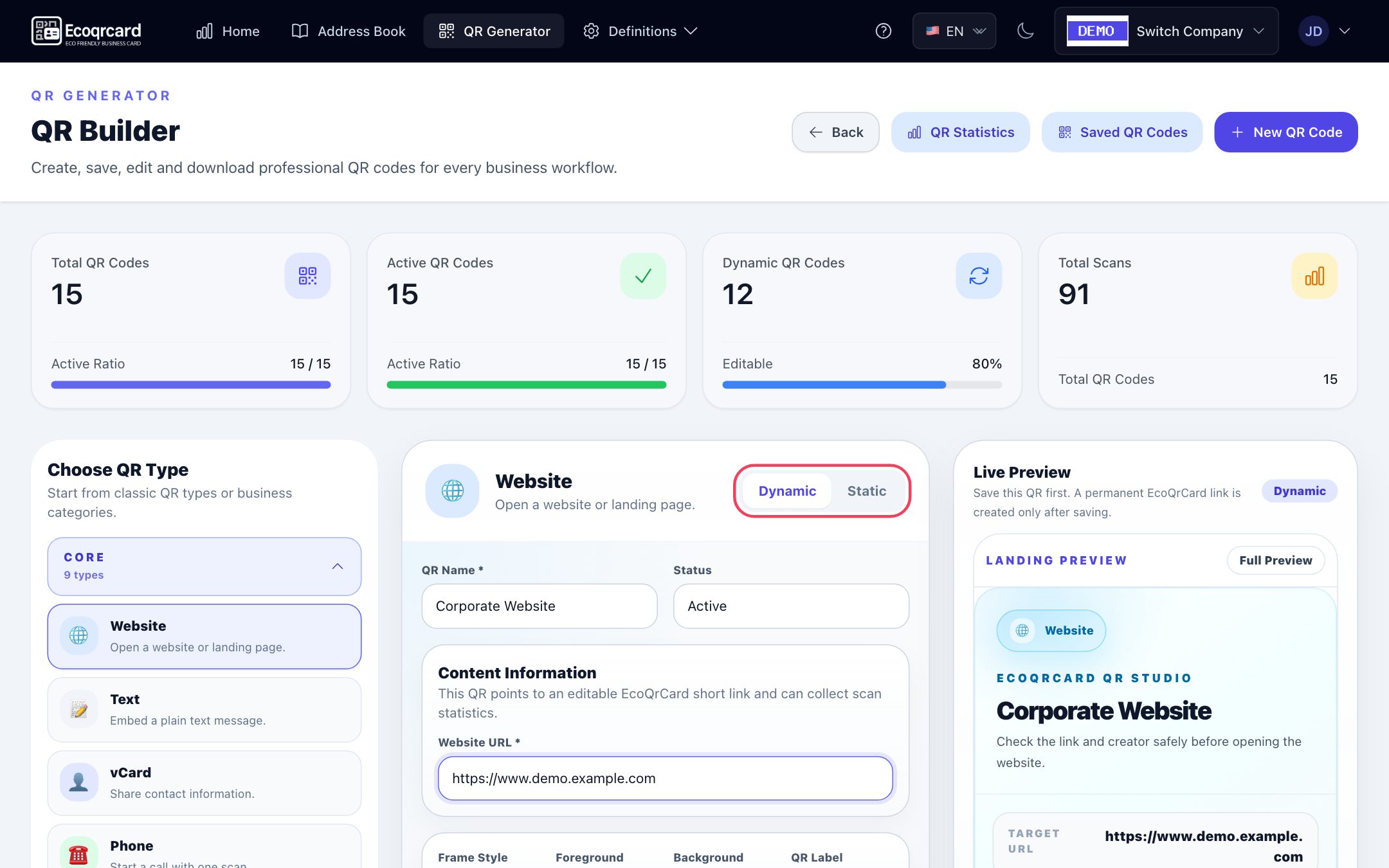
- Click New QR Code and choose the type in the Choose QR Type section.
- Choose Dynamic or Static. The PDF, Image, Video, Multi-Link and Document Hub types work in dynamic mode only.
- Enter a name you will recognize in the list in the QR Name field and fill in the content fields.
- In the design, set the Foreground / Background colors, the Frame Style, the QR Label below the code and, if you like, the QR Center Logo. The Live Preview on the right shows every change instantly.
- Click Save QR. The permanent link of a dynamic code is created once you save.
- Download the image with logo, frame and label using the PNG button below the live preview. The Show & Share QR window in the saved codes list is for copying the link, sending it via WhatsApp or email and downloading a plain QR image without the design (Download QR).
For the PDF, image and video types, you can upload files of up to 50 MB. When a dynamic code is scanned, a landing page with your company name opens first; from there, the visitor reaches the website, file or form with one tap. You can update the content at any time; the printed code does not change. You can keep a code you are still preparing in Draft status: a dynamic code in draft does not open when scanned, while a static code keeps working because it carries its content inside itself.
Saved codes are shared within the company by default: other employees can see and download a catalog code prepared by a colleague, but only the person who created it and the company administrator can edit or delete it. For codes you do not want other employees to see, tick the Private (only me) option. You track how many times dynamic codes are scanned on the QR Statistics screen; we explain what can be measured in our guide to QR code scan analytics.
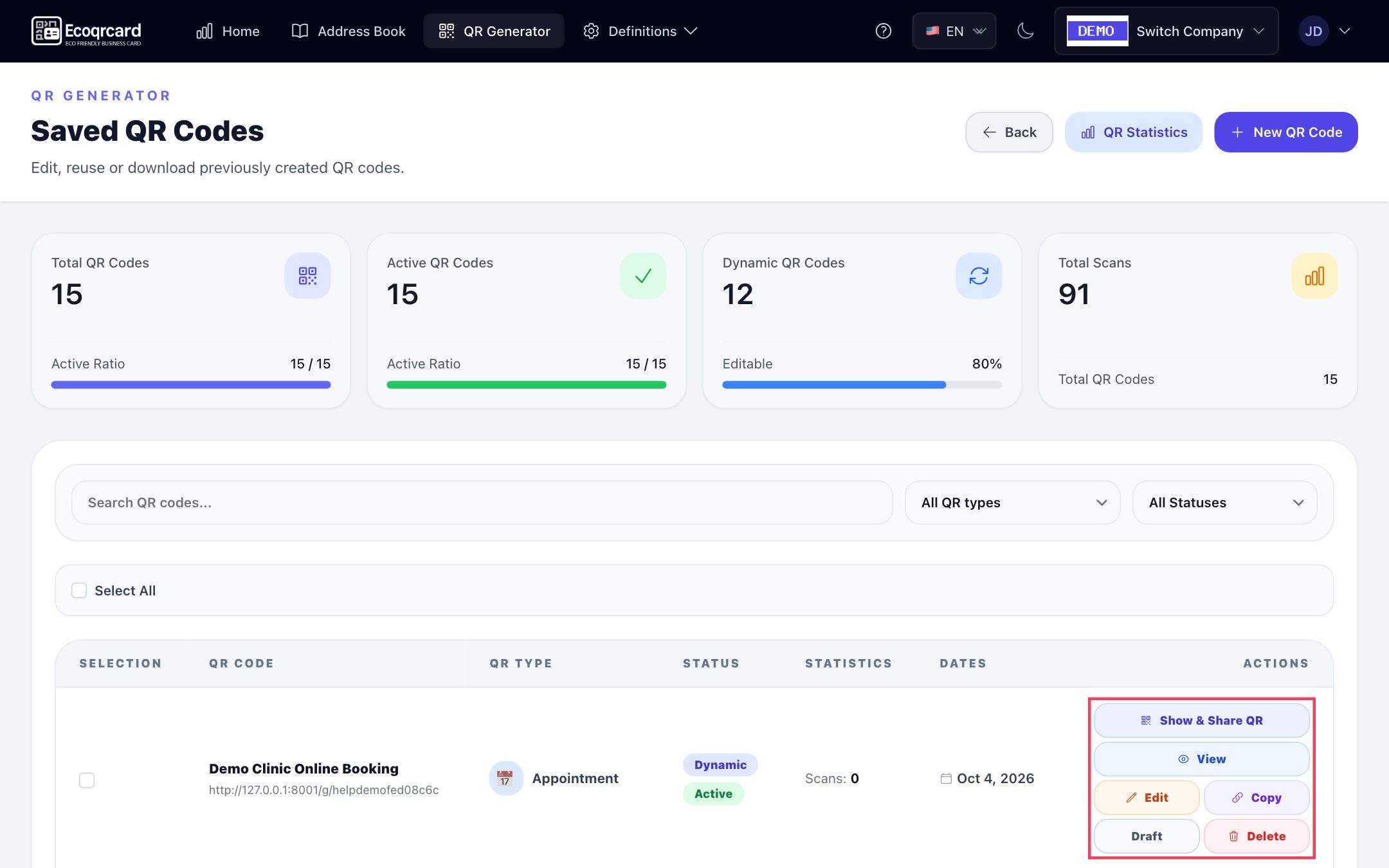
The benefit for the company is that codes do not stay scattered across free tools and personal accounts: which code belongs to whom, where it points and how many times it has been scanned are visible in a single list, and when an employee leaves, the codes stay with the company.
Person-specific codes are managed elsewhere: for your employees' business cards with QR codes, see our digital business card solution.
If you would like to manage your company's QR codes from one dashboard, with your logo and measurable results, rather than in scattered tools, request a quote and we will plan the right setup for your needs together.
Frequently Asked Questions
Do I need technical knowledge to create a QR code?
No. With a good QR code generator, you only need to choose the type and enter the content. The things that really need attention are not technical but practical: the right type, enough contrast, a suitable size and testing before printing.
Do QR codes have an expiry date?
A static QR code itself works indefinitely, because the content is inside the code. Dynamic codes depend on a redirect service; they work as long as the service is active and the code has not been deactivated.
Can I change the content of a QR code later?
Only with dynamic codes. In a static code, the content is written into the pattern itself, so a change means a new code. That is why dynamic codes are preferred for printed materials.
What format should I download a QR code in?
PNG is sufficient for screens and digital use. For print, make sure the image has a resolution that will not blur at the target size; for very large formats (posters, roll-up banners), check with a proof print that the edges stay sharp. Vector formats such as SVG can be scaled without loss; the EcoQrCard QR Generator downloads codes as PNG.
Why does my QR code not scan?
The most common reasons are low contrast, inverted colors, a cropped margin, printing too small and reflections on a glossy surface. Try again with a larger code in dark-on-light colors on a matte surface.