QR Codes
QR Code Print Size Guide: Distance, Materials and Testing
How to work out how large to print a QR code based on scanning distance, what to watch for on different materials and how to test before you go to print.
A QR code that looks perfect on screen can become unreadable once it is printed too small or on the wrong surface. There is no single answer to "how big should a QR code be?": the right size depends on where it will be scanned from, how much data it carries and what material it is printed on. This guide shows how to set the size with a practical rule of thumb, what to look out for when choosing materials and how to test before printing.
Three factors that determine size
- Scanning distance: The further away people scan the code from, the larger it needs to be.
- Code density: The more data the code holds, the more modules (squares) it has and the smaller each one becomes. A static code carrying a long URL has to be printed larger than a dynamic code with a short link.
- Environment: Lighting, angle, surface gloss and how close people can actually get all affect the result.
Rule of thumb: distance-to-size ratio
A widely used starting point in the industry is that the scanning distance should be about 10 times the width of the code. In other words, the code should be roughly one tenth of the scanning distance wide.
- About 3 cm (1.2 in) for a code scanned from 30 cm (1 ft)
- About 10 cm (4 in) for a code scanned from 1 metre (3 ft)
- About 30 cm (12 in) for a code scanned from 3 metres (10 ft)
This is a starting point, not a guarantee. Increase the size if the code is dense, the lighting is poor or people will scan at an angle. A simple code with a short link may still work when printed slightly smaller. The final decision should always come from a test under real conditions.
Recommended sizes by use case
The table below gives general recommendations based on the 10:1 rule and common practice:
| Use | Typical scanning distance | Recommended code width |
|---|---|---|
| Business card | 15–25 cm | 2–2.5 cm (at least 2 cm) |
| Name badge, label | 20–30 cm | 2.5–3 cm |
| Brochure, flyer | 25–40 cm | 3–4 cm |
| Table tent, menu stand | 30–50 cm | 4–5 cm |
| Product packaging | 20–30 cm | 2.5–3 cm |
| A4 poster, notice board | 50 cm–1 m | 6–10 cm |
| Shop window, roll-up banner | 1–2 m | 10–20 cm |
| Trade show stand, large board | 2–4 m | 20–40 cm |
| Billboard, building facade | 5 m or more | 50 cm or more, dedicated testing essential |
The sizes refer to the side length of the code itself, excluding the quiet zone. Remember to leave a margin of at least four modules (the quiet zone) around the code; scanners need this space to read it.
Reducing code density
If you need to fit a code into a small space, simplify the code instead of enlarging it:
- Use a dynamic code. It only contains a short link, so it has fewer modules. Avoid putting long URLs directly into a static code. See our guide to static vs dynamic QR codes for the difference.
- Shorten the content. Remove unnecessary fields from static text and vCard codes.
- Keep the logo small. A logo uses up part of the error correction capacity; for small prints, a code with no logo or a very small one is safer. Details are in our QR code with logo guide.
Choosing materials and surfaces
| Material / surface | What to watch for |
|---|---|
| Matt coated paper | One of the safest options; no glare |
| Gloss coated or laminated surfaces | Can reflect light; choose matt lamination |
| Vinyl, foil, stickers | Make sure die-cutting does not eat into the quiet zone |
| Fabric and textiles (T-shirts, bags) | The weave can distort the modules; print large and always run a test print |
| Wood, metal, engraving | Contrast can be low; reinforce with a dark fill or print |
| Curved surfaces (bottles, cups) | The curve distorts the code; rather than shrinking it, place it where the curve is gentlest |
| Glass, shop windows | Put a white background behind it so the scene behind the glass does not interfere |
| Digital screens | Brightness and glare; make sure the code stays on screen long enough |
Codes used outdoors are exposed to sun, rain and scratches. UV-resistant inks, lamination and a protective frame will extend their life.
QR codes shown on screens
QR codes are not only printed; they also appear on screens all the time: TV ads, in-store digital signage, presentation slides, websites and business cards shown on a phone. Things to watch for on screens:
- Duration: In videos or rotating displays, the code must stay on screen long enough for people to take out their phones and scan it.
- Brightness and glare: On very bright screens the edges of the modules can "bloom" and blur together; on outdoor screens, sun glare makes scanning harder.
- Presentation rooms: Think about the distance of people in the back rows; show the code large instead of squeezing it into a corner of the slide.
- Showing a code on your phone: Turning up the screen brightness and opening the code full screen helps the other person scan it faster.
Pre-print checklist
A code printed without testing is the most expensive QR mistake. Before sending anything to print:
- Print the code at actual size and scan it from the distance at which it will be used.
- Try at least one iPhone and one Android phone, and an older model if possible.
- Scan under different lighting conditions (dim, sunny, fluorescent).
- Try scanning at an angle; people do not always scan straight on.
- Check that the page the code opens looks right on mobile.
- On the printer's proof, make sure the colours and margins have not changed.
- Check that there is a call to action next to the code ("Scan to view the catalogue").
If testing reveals a problem, try the cheapest fix first: increase the contrast, shrink the logo, shorten the content or switch to a dynamic code. Enlarging the code should be the last resort, because space in a design is usually limited.
Common mistakes
- Shrinking the code on a business card below 1.5 cm
- Testing a poster only on a computer screen
- Cropping the quiet zone during design or placing the code over an image
- Putting small codes where people cannot stop, such as on stairs, high shelves or moving vehicles
- Putting a long web address into a static code and making it unnecessarily dense
Print-ready QR codes with EcoQrCard
In the EcoQrCard QR Generator, dynamic codes carry only a short link, so the module count stays low and they scan easily even in small prints. Even when the content changes, the printed code stays the same, so you avoid reprinting costs. A practical pre-print workflow looks like this:
- Create the code as Dynamic and give each printed item its own QR Name (e.g. "Spring Catalogue – Roll-up").
- Choose high-contrast Foreground / Background colours and write your call to action in the QR Label field.
- Save, then download the branded, framed image with the PNG button under the live preview. The image has a narrow white border around the code; when placing it in your design, leave extra space around it and do not crop the border.
- Place it in your design, then print a proof at actual size and scan it. The PNG is a pixel image: it works well at the sizes of business cards, brochures or table tents; for large formats such as posters and roll-up banners, check on the proof that the edges stay sharp when the image is enlarged.
- Once the material is out, monitor scans on the QR Statistics screen; if a code is never scanned, change its size or position in the next print run.
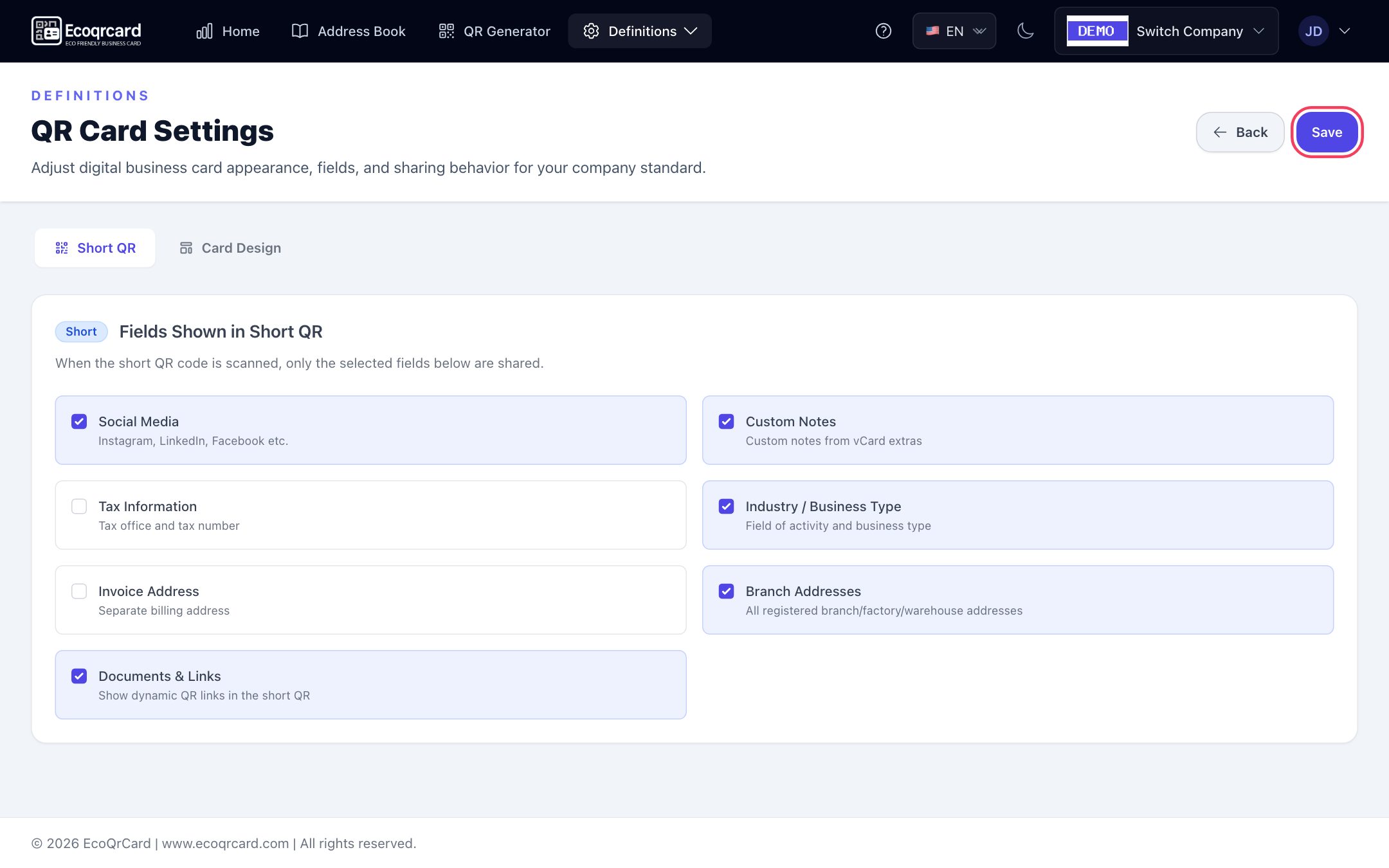
On employees' QR business cards, too, the QR code contains only a short link to the card page; personal details are not written into the code. This keeps the code simple even in small spaces such as the back of a business card or a name badge, and it does not need reprinting when the employee's details change. Each card has two codes, Short and Full; both have the same density, and the difference lies in what information is shown on the card page. Which company details appear on the short code is set once, company-wide, on the QR Card Settings screen.
If you will be using codes of different sizes together, such as on a trade show stand, name badges and brochures, our guide to digital business cards at events offers practical examples. For employee business cards, take a look at our digital business card page.
If you want to manage and measure the QR codes on your printed materials from a single panel, request a quote.
Frequently Asked Questions
What is the minimum size for a QR code?
For close-range uses such as business cards, at least 2 cm (about 0.8 in) is generally recommended. This is not a hard minimum but a common safe size; decide by testing, taking the code's density and the print quality into account.
Does the 10:1 rule always apply?
No, it is a starting rule. With dense codes, poor lighting, angled scanning or low-contrast materials you may need to print the code larger. The final decision should come from a test under real conditions.
Does making a code bigger always make it easier to scan?
At long distances, yes. But a very large code can also be hard to scan from very close up, because it does not fit in the camera frame. Choose the size based on the distance at which people will actually stand.
Can a QR code be printed on fabric or wood?
Yes, but texture and low contrast reduce readability. Print the code larger, choose high-contrast colours and always test on a sample before mass production.
What should I do if I need to change the link after printing?
If you used a dynamic code, you only need to update the content; the printed code stays the same. With static codes the content is inside the code itself, so you need to create a new code and reprint.