QR Codes
What Is a vCard QR Code? Share Contact Details With a Single Scan
What the vCard format is, which fields you can put in a QR code, how the "save to contacts" flow works and the difference between a classic vCard code and a linked digital business card.
Typing the number of someone you met in a meeting into your phone by hand, misspelling their name or forgetting to save their email address happens all the time. A vCard QR code solves this problem: the other person scans the code, and your name, phone number and email are saved to their contacts with a single tap. In this guide we explain what the vCard format is, which details can go into a QR code and how to choose between two different vCard approaches.
What is a vCard?
vCard is a standard file format for sharing contact details. The file extension is usually .vcf. Phone contact apps, Outlook, Gmail, Apple Contacts and almost all other communication software recognize this format. When you open a "contact card" file attached to an email and your phone offers to "save contact", that is thanks to this standard.
A vCard consists of lines of plain text. A simplified example:
BEGIN:VCARD
VERSION:3.0
N:Smith;Jane;;;
FN:Jane Smith
ORG:Example Technology Ltd.
TITLE:Sales Manager
TEL;TYPE=CELL:+44 7700 000000
EMAIL;TYPE=WORK:[email protected]
URL:https://www.example.com
END:VCARD
Each line defines a field; the phone's contacts app places these fields in the corresponding boxes.
Which fields can a vCard contain?
| Field | Description | Recommended? |
|---|---|---|
| First and last name | The name shown in the contacts list | Required |
| Company | The organization the person works for | Yes |
| Job title | Position | Yes |
| Phone | Can be several, with types such as mobile, work, home | Yes |
| Work and personal addresses | Yes | |
| Website | Company or personal page | Yes |
| Address | Office or branch address | Depends |
| Note | Short description, office hours and so on | Optional |
| Photo / logo | The image shown in the contacts list | Not recommended in a classic QR code (takes up too much space) |
Two approaches: classic vCard QR and linked business card
There are two ways to share vCard details with a QR code, and the difference between them determines how long your business card will "live".
1. Classic (static) vCard QR
The entire text above is written directly into the QR code. When a phone reads the code, it offers to save the contact without needing an internet connection.
- Pros: It does not depend on a server and works offline.
- Cons: The details are inside the code; if the number or job title changes, you have to print a new code. The more fields you add, the denser the code gets and the harder it is to read when printed small. Scans cannot be measured.
2. Linked (dynamic) digital business card
The QR code contains only a short link. When it is scanned, the person's digital business card page opens; the page shows contact details, company information and social media links, and an Add to Contacts button downloads the vCard file to the phone.
- Pros: The code stays the same even when the details change. The code is simple and easy to read even at small sizes. More information (social media, documents, branch addresses) can be offered. Scans can be measured.
- Cons: An internet connection is needed for the page to open.
| Classic vCard QR | Linked digital business card | |
|---|---|---|
| When details change | A new code is needed | The code stays the same |
| Code density | Gets denser as fields are added | Simple |
| Extra content (social media, documents) | Limited | Possible |
| Scan statistics | No | Yes |
| Internet required | No | Yes |
For business use, especially when many employees' business cards are involved, the linked approach is usually more sustainable. For a broader look at the topic, see our guide what is a digital business card.
How does the "save to contacts" flow work?
- The other person points their phone camera at the QR code.
- They tap the notification or link that appears on screen.
- With a classic vCard, a "create new contact" screen opens directly; with a linked business card, the card page opens first and the person taps Add to Contacts.
- The phone shows a contact card with the fields filled in; the user taps Save.
This flow differs slightly between iPhone and Android; some phones first show the downloaded .vcf file as a notification. Always test the flow on both platforms.
Where are vCard QR codes used?
| Place | Why it works |
|---|---|
| Back of a paper business card | Details go into the contacts list without being typed in |
| Email signature | The person you are writing to saves you with a single scan |
| Trade show and event name badge | Quick introductions and contact in a crowd |
| Final slide of a presentation | The audience gets your contact details before the talk ends |
| Reception and delivery point | Couriers or visitors reach the right person |
| Product packaging, service label | Direct access to technical support or a sales representative |
Whichever channel you use, adding a short line next to the code, such as "Save me to your contacts", increases the scan rate.
Tips for a good vCard
- Write phone numbers in international format (with the country code, e.g. +44). That way the number works when someone abroad saves it.
- Enter first and last name in separate fields. Sorting and searching in the contacts list then work properly.
- Keep the job title short. "Deputy Regional Manager, Corporate Sales and Business Development" gets cut off in the contacts list.
- Separate personal and work details. On a company business card, put the work phone and work email first.
- If you have international customers, consider offering the job title in their language too.
Common mistakes
- Putting a photo or a long note in a static vCard code and making it unreadable
- Continuing to use the old code after the number has changed
- Printing the code on the business card too small (for sizing, see our QR code print size guide)
- Leaving the name fields empty and entering only the company name, so the contact cannot be found in the contacts list
vCards and digital business cards in EcoQrCard
EcoQrCard offers both approaches; which one you choose depends on who the code belongs to.
The vCard type in the QR Generator (for a general contact). In the QR Generator, you choose the vCard type and fill in the First Name, Last Name, Company, Title, Phone Number, Email and Website fields (only the first name is required; one phone number and one email address are entered). You can create the code in two ways:
- Static: The details are written directly into the code. The phone that scans it offers to save the contact without needing the internet; however, a new code is needed if the details change, and scans are not counted.
- Dynamic: The code carries a short link; when scanned, a page showing the contact details opens and the visitor saves them with Save Contact. You can edit the details later and track scans on the statistics screen.
This type is practical for a general contact such as "Customer Service", "Purchasing" or a branch reception desk, or for a one-off need.
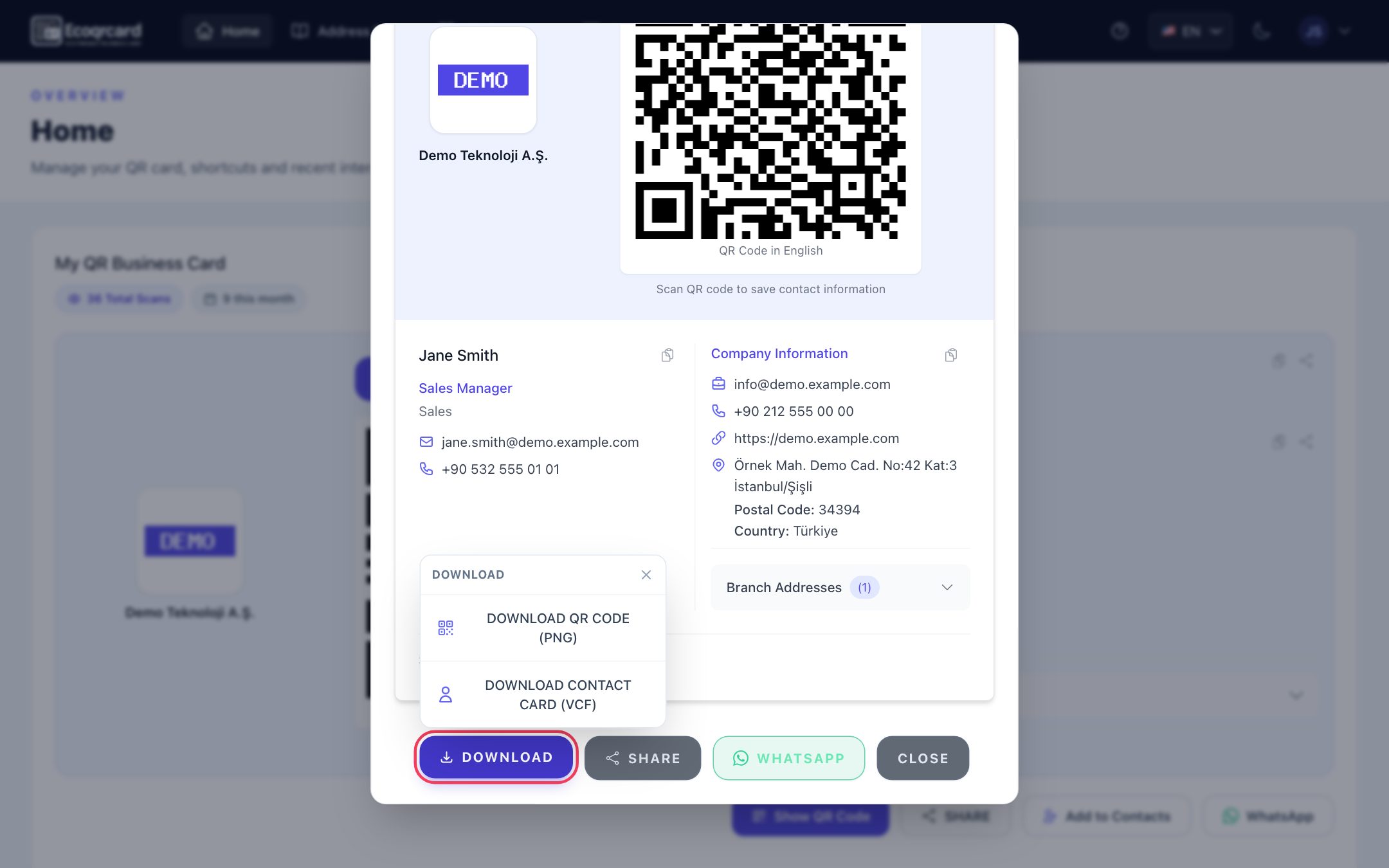
QR business cards for employees (for personal cards). For a company's employees, we recommend the digital business card module. When the administrator selects an employee, first name, last name, phone, email, job title and department are filled in automatically from the user record; several phone numbers and email addresses can be added. The company name, logo, address and website are added to every card automatically. When the card is scanned, a business card page opens in your company's design and the visitor saves the contact with Add to Contacts. When an employee's job title or phone number changes, the card is updated instantly; the printed code does not change.
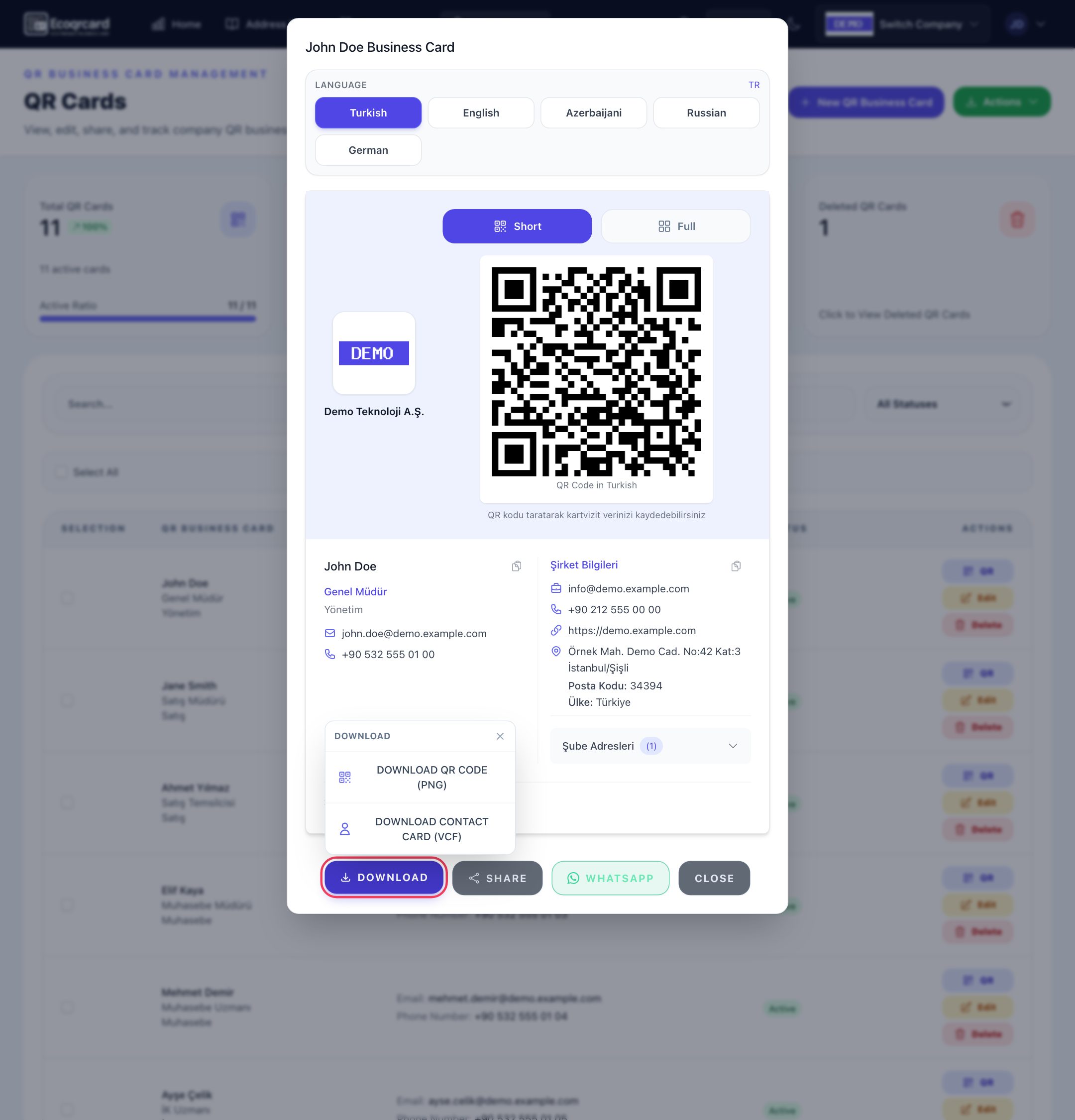
Every card has two codes: the Full code shows all company details on the card page, while the Short code shows only the additional details (for example social media or branch addresses) that the administrator has selected in QR Card Settings. The card can open in five languages (Turkish, English, Azerbaijani, Russian, German); job title and department can be entered separately for each language, and empty languages can be translated with AI assistance. It is also possible to download the contact card directly as a VCF file or send the card link via WhatsApp. Employees see their own card on their Home page, share it and track its total scan count.
| QR Generator vCard | Employee QR business card | |
|---|---|---|
| Who is it for? | A general contact, a one-off need | Every employee |
| Where do the details come from? | Entered by hand (7 fields) | User record + company details |
| Company details, social media, branch addresses | No (only the company name and website fields) | Added automatically |
| Language support | One language | 5 languages |
| When details change | Edited if dynamic, new code if static | The card is updated instantly |
| Scan statistics | Dynamic only | Yes |
If you are curious how this compares with paper business cards, read our guide paper vs. digital business cards.
If you would like to move your whole team to QR business cards that stay up to date and are saved to contacts with a single tap, request a quote and we will plan the right setup for your company together.
Frequently Asked Questions
Are vCard and VCF the same thing?
Yes, they refer to the same standard. vCard is the name of the format, and VCF is the file extension for files in this format.
Do you need an app to scan a vCard QR code?
Most current iPhone and Android phones read vCard codes with the camera app and offer to save the contact. Very old devices may need a separate QR reader.
Can I change the details in a static vCard code later?
No. Because the details are written into the code, a change means a new code. When details may change, a linked digital business card is more practical.
How much information can I put in a vCard QR code?
Technically quite a lot, but every extra field makes the code denser and harder to read. In a classic vCard code, limiting it to name, company, job title, phone, email and website is a good balance.
What happens if my details change after the contact has been saved?
A contact card saved to the address book keeps the details from the moment it was saved and does not update by itself. With a linked digital business card, however, the current details are shown every time the code is scanned; the other person can save it again to refresh your details.