QR Codes
Using QR Codes for Complaints, Suggestions and Feedback
How to design the form, where to place the code and how to handle incoming reports when you collect complaints, suggestions and service requests from customers, visitors and employees via QR code.
Most dissatisfied customers never voice their complaint; they simply leave. That silence grows wherever giving feedback is a hassle, where you have to find a member of staff, ask for a form or wait on a call centre line. A QR code placed on a table, a counter, in a room or on a machine makes it possible to give feedback right there and then, in a few seconds. This guide explains how to set up a QR code system for complaints, suggestions and service requests, how to design the form and how to handle the reports that come in.
Why collect feedback with QR codes?
The classic suggestion box and paper forms have well-known problems: the paper runs out, the pen goes missing, forms sit in the box for weeks, handwriting is illegible and it is hard to track who wrote what and when. What QR-based feedback does differently:
- Immediate: Reports are made while the experience is fresh, at the place where it happened.
- Low barrier: Users don't need to download an app or create an account; the phone camera is enough.
- Location is easy to capture: If you use a separate form link for each branch, room or area, or put a short "Which branch?" question at the start of the form, you always know where a report came from.
- Digital record: Reports don't get lost; they can be counted, filtered and reported on.
Three different needs: feedback, complaints and service requests
These three are often confused, but each has a different purpose and process:
| General feedback | Complaint / suggestion | Service request | |
|---|---|---|---|
| Purpose | Rating the experience | Reporting a problem or an idea | Reporting a fault or a need |
| Typical question | "Rate your experience today" | "What happened, and what do you suggest?" | "Which device, and what's the problem?" |
| Response expected | Usually not | Often | Definitely |
| Where it's used | Restaurant, shop, event exit | Public areas, branches, service points | Office, factory, hotel room, shared areas |
Using separate codes and forms for each purpose, instead of loading all three jobs onto one code, is clearer for users and easier for you to manage.
What makes a good complaints and suggestions form?
- Keep it short. For a form filled in on a phone, 3–5 questions are enough. Long forms get abandoned.
- Start with a category question. Offering ready-made options for "What is it about?" (such as cleanliness, service, product, price, other) makes reports easier to classify.
- Leave an open-ended field. The real information usually comes in the "Please describe" box.
- Allow photo uploads. Especially for faults and service requests, a photo says more than a long description.
- Make contact details optional. People who want a reply will leave their details; those who don't can stay anonymous.
- Consider an anonymous option. For employee suggestions or sensitive topics, anonymous forms bring more candid responses.
- Thank people and manage expectations. A clear message at the end of the form, such as "We've received your report and will get back to you within two working days", builds trust.
Where should you place the code?
| Setting | Recommended placement |
|---|---|
| Restaurant, café | Table tent, receipt, exit door |
| Shop, branch | Checkout, fitting room, entrance and exit |
| Hotel | Room information card, lift, lobby |
| Office building | Meeting rooms, kitchen, toilets, lifts |
| Factory, warehouse | Next to machines, shift board, break area |
| Public and service points | Waiting room, service counter |
| Vehicles | Shuttle buses, company cars |
The call to action next to the code makes all the difference. Instead of "Contact us", use something concrete and short, such as "Something wrong? Scan to report it in 30 seconds". For code size and scanning distance, see our QR code print size guide.
Don't forget maintenance either. Codes on tables, in toilets and outdoors wear out, fade or get covered with stickers over time. A short monthly check makes sure the codes are still readable and point to the right form.
Handling incoming reports
A QR code system is only as good as the process behind it. A form nobody reads is worse than no form at all, because customers feel they reported something and were ignored.
- Assign an owner. Make it clear who follows up reports for each code or category.
- Set response times. Define target times, especially for service requests.
- Review regularly. A weekly review makes recurring problems visible.
- Close the loop. Get back to people who left contact details; if you have acted on recurring suggestions, say so ("Following your suggestions…").
- Watch the numbers. Comparing the number of scans with the number of reports hints at where people abandon the form. You can find more on measurement in our QR code scan analytics guide.
QR codes for employee suggestions
Feedback doesn't only come from customers. Employees on the production line, in the shop or in the field are the closest witnesses of improvement ideas and safety risks; but since they don't work at a desk, it is hard for them to make suggestions by email or on the intranet.
- A suggestion code placed in the break area, on the shift board or next to machines captures ideas on the spot.
- Using a separate code for health and safety reports stops them getting lost among the rest.
- An anonymous option lets employees write without hesitation; but if you want to reward the people behind suggestions, add an optional name field.
- Make results visible. Sharing implemented suggestions on the notice board or in an internal announcement does more than anything else to increase participation.
If you want to measure employee engagement more broadly, take a look at our employee engagement survey guide.
Common mistakes
- Using one code for all branches and losing track of where reports come from
- Designing the form for desktop so that it can't be filled in on a phone
- Piling on mandatory fields (first name, surname, phone, email, address…)
- Leaving a damaged or faded code on the wall for months
- Not responding to reports
Feedback and complaint QR codes with EcoQrCard
EcoQrCard brings both parts together on one platform: the survey system, where you build the form, and the QR Generator, where you create the code. A typical setup takes just a few steps:
1. Build the form. In the survey editor you can drag and drop question types such as single choice, multiple choice, short and long text, rating, yes/no, date, file upload and matrix. By allowing image files in a file upload question, you can collect photos of faults. Leaving the Anonymous Survey option switched on for complaint forms lowers the barrier; in an identified survey, participants must enter their email address before they start. For people who want a reply, add contact details as a separate, optional question; with skip logic you can show that question only to those who answer "I'd like a reply". If you prefer, you can start from one of more than 650 ready-made templates.
2. Decide how to capture location. If you want to know which branch a report came from, there are two ways: add a "Which branch?" question to the survey, or use Duplicate to copy the survey for each branch and create a separate code for each. Different QR codes linked to the same survey show their scan counts separately, but the responses are collected in the same survey and do not show which code they came from.
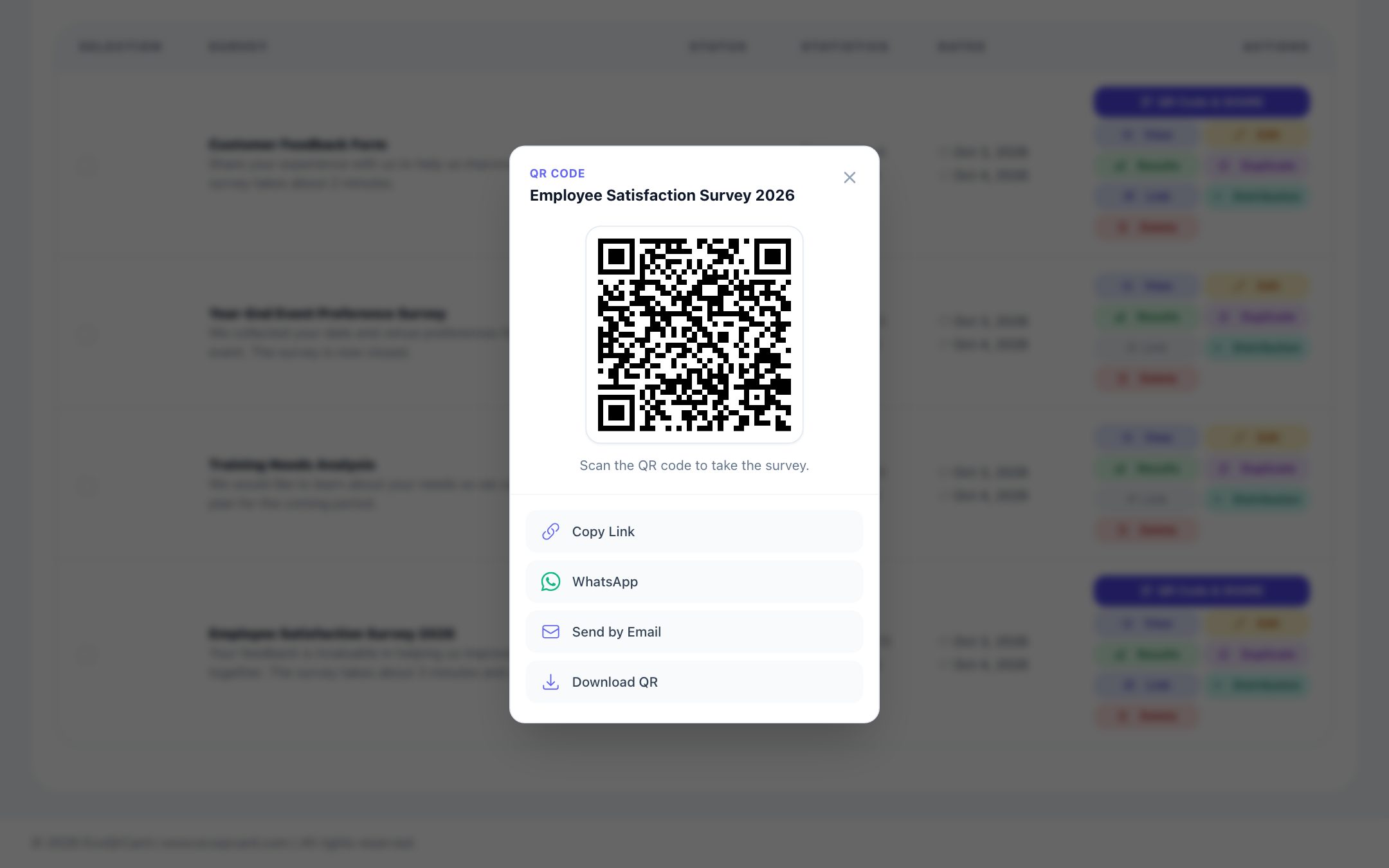
3. Create the code. Every survey has its own link and QR code; you can download it directly with Download QR in the QR Code & Share window and print it.
If you want a code with your logo, colours and a label, choose one of the Feedback, Complaint / Suggestion, Service Request or Survey types in the QR Generator, enter your form link and download the image with the PNG button under the live preview. These types also work with a link to another form tool, not just EcoQrCard surveys. When the dynamic code is scanned, a short landing page bearing your company name opens first, and the visitor goes on to the form with the Open Form, Create Request, Give Feedback or Open Survey button. Even if the form link changes, the printed code stays the same, and you can track each code's scan count. A static code opens the form directly, but its scans are not counted.
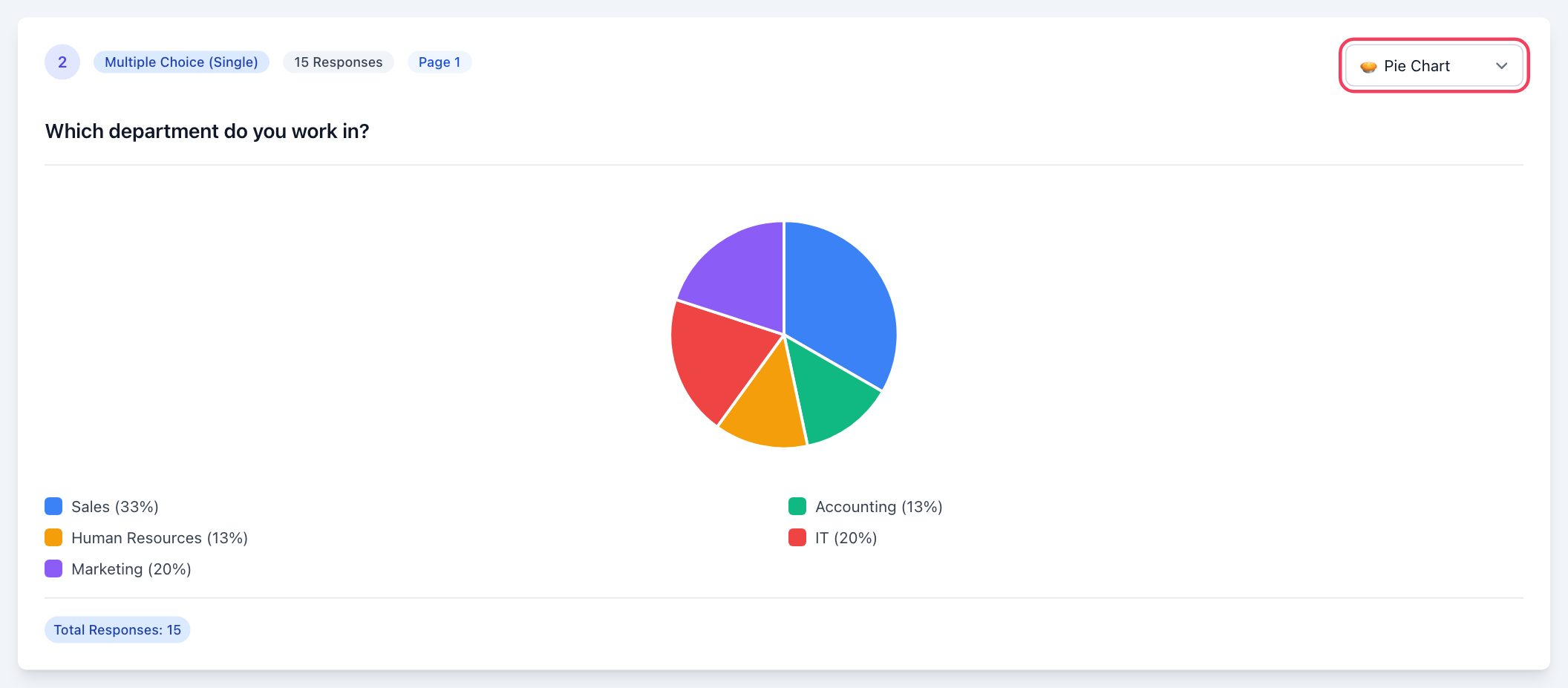
4. Review the results. Responses are summarised question by question with charts on the Survey Results page; you can change the chart type per question, open individual responses and uploaded files one by one, and produce a printable report to save as a PDF.
It's worth knowing one thing from the start: EcoQrCard collects and reports responses, but it is not a ticketing system; it does not send automatic notifications when a new response arrives, assign requests to people or track their status. That is why setting up the owner and weekly review rhythm described above is essential for the system to deliver value. By putting scan counts and response counts side by side, you can also see where people abandon the form.
If you want to measure satisfaction more systematically, take a look at our guides on creating a customer satisfaction survey and what NPS is.
If you want to move complaints, suggestions and service requests out of paper boxes and into a measurable digital process, request a quote.
Frequently Asked Questions
Do customers need to download an app to use a complaint QR code?
No. The vast majority of current phones read QR codes with the camera app, and the form opens in the browser. There is no need to create an account or install an app.
How do I know which branch or room a report came from?
There are two ways: use a separate form (with its own code) for each location, or add a choice question such as "Which branch?" at the start of the form. Separate forms save users from answering one more question; a single form with a choice question keeps all results in one place. Linking different codes to the same form is not enough on its own: the scan counts are separated, but the responses are not.
Is it a good idea to accept anonymous complaints?
For sensitive topics and employee suggestions, anonymity brings more candid responses. Offering contact details as an optional field is a good balance for cases where you need to get back to someone.
How long should the form be?
Because it is filled in on a phone, it should be short; in most cases 3–5 questions are enough. A category, a description, an optional photo and optional contact details are usually sufficient for a basic complaint form.
What does the gap between scans and reports tell me?
It shows the people who scanned the code but didn't submit the form. If the gap is large, the form may be too long, too complicated or awkward on mobile. Simplifying the form and measuring again is a good place to start.